Slack notifications
How to turn off Slack notifications on Android
To turn off Slack notifications on Android, open your phone’s Settings → Notifications → App notifications → Slack and turn it off. To keep the ones aimed at you, open Slack, tap your profile picture → Notifications, and under What to notify you about choose Mentions and direct messages. To quiet one channel, open it, tap the channel name → Mute channel. Menu names vary a little by Slack version and phone.

Slack on your phone means work can reach you anywhere: on the bus, at dinner, at 11 p.m. when someone in another time zone posts in a busy channel. By default, Slack sends notifications to both your computer and your phone. The fix is rarely to delete the app. Slack lets you choose what counts as worth a ping, mute single channels, and set hours when it stays quiet, and Android adds a master switch on top.
How do you turn off Slack notifications in Android settings?
This is the hard stop. It works the same for any app, per Google’s Android notification help:
- Open your phone’s Settings and tap Notifications.
- Tap App notifications, then Slack. On some phones it is Settings → Apps → Slack → Notifications.
- Turn off notifications for Slack to stop every push and banner from Slack on this phone, for every workspace.
The same screen may list the categories Slack uses, so you can leave the master switch on and turn off only some. Those names change between app versions, which is why Slack’s own settings below are usually the better place to choose. For the general version for any app, see how to turn off notifications for specific apps.
How do you get only mentions and direct messages?
This is the setting most people want. Slack’s notification help lists the same steps for the Android app:
- Tap your profile picture at the top of the screen, then tap Notifications.
- Under What to notify you about, choose Mentions and direct messages instead of Everything.
- Or turn off Mobile notifications to stop Slack banners on this phone while keeping them on your computer.
On the same screen, Also notify you about has extra switches: replies to threads you follow, huddles that start in your channels, and (on paid plans) VIP messages that get through when notifications are paused. Turn off any you do not need. Sound on this screen changes or silences the notification sound; on some Android versions you find it under System settings → Sound.
One catch: Slack keeps these settings per workspace. If you are signed in to more than one, switch to each workspace and repeat the steps.

How do you mute one Slack channel or DM?
Per Slack’s help on muting, muting is per conversation, so you can silence the busy ones and leave the rest alone:
- Open the channel you want to mute.
- Tap the channel name at the top.
- Tap Mute channel.
To mute a direct message, open it, tap the name or names at the top, tap Settings & Details, and turn on Mute. Muting a DM does not mute the same people in other conversations. DMs from apps and bots can be muted the same way, but Slack says you cannot mute Slackbot.
Not ready to mute? Per Slack’s channel notification help, tap the channel name, tap Settings & Details, tap Notifications, and choose Just mentions instead of All new posts. To review every channel you have changed, open Notifications from your profile picture and look under Exceptions to the defaults.
Muting is not quite silence. Slack’s help says a muted conversation still shows a numbered badge if you are mentioned, and Threads turns bold if someone replies to your message in it. You just do not get the push.
How do you pause Slack notifications or set work hours?
Both live in Slack, per its help on pausing notifications:
- Pause notifications. Tap your profile picture, tap Pause notifications, and pick a time frame, or Custom. You can also type /dnd for 1 hour or /dnd until 5pm in a message box, and /dnd off to resume.
- Notification schedule. Tap your profile picture, tap Notifications, and under Notification schedule tap Allow notifications. Choose Every day, Weekdays, or Custom, then set a start and end time. Outside those hours, notifications are paused.
While you are paused, others see a snooze icon next to your name. Slack lets them override it once a day to notify you about an urgent DM, so expect the odd exception.
How do you stop the phone repeating your computer?
Per Slack’s notification help, by default mobile notifications wait until you have been away from your computer for a while: one minute after you lock the screen, or ten minutes after Slack stops seeing the cursor move. If your phone buzzes for messages you are already reading at your desk, tap your profile picture, tap Notifications, tap Notify Me on Mobile, and make sure it is not set to notify you immediately, even when you are active. A longer delay also gives you time to answer from the computer first.
What about Do Not Disturb and Focus mode?
- Do Not Disturb. Quiet hours across every app, per Google’s Do Not Disturb help. Leave Slack off the list of apps allowed to break through. See how to turn on Do Not Disturb.
- Snooze one notification. Touch and hold it and snooze it if your phone offers that. See how to snooze notifications on Android.
- Focus mode / Digital Wellbeing. Pause Slack outside work, or pause the other apps during work. Per Google’s Focus mode help and Digital Wellbeing help, add an app to Focus mode or set an app timer. More detail: Focus mode and app timers.
Which option should you pick?
| Option | What it stops | Use it for |
|---|---|---|
| Android: Slack notifications off | Every Slack push and banner, all workspaces. | A hard stop, like on holiday. |
| Mentions and direct messages | General channel chatter. | Almost everyone, every day. |
| Mute channel | One channel or DM. | The busy channel you still read. |
| Just mentions (per channel) | One channel, except @mentions. | Channels where you are tagged now and then. |
| Notification schedule | Everything outside your hours. | Evenings and weekends. |
| Pause notifications | Everything, for a set time. | Meetings and deep-work blocks. |
A good default: set each workspace to Mentions and direct messages, mute the social and announcement channels, and set a notification schedule that ends when your workday does. Then Slack mostly buzzes when a person needs you, during hours you chose.

What if Slack notifications keep coming?
I muted a channel, but it still shows up
- A mention in a muted channel adds a badge in the sidebar, and replies to your messages show in Threads. That is by design. To drop the channel for good, leave it.
I changed my settings, but Slack still buzzes
- Check which workspace you changed. Settings are per workspace, so another workspace may still be set to Everything.
- Check Exceptions to the defaults. A channel set to All new posts overrides your workspace setting.
- Thread replies and huddles have their own switches under Also notify you about.
I paused notifications, but one got through
- That is likely an urgent DM someone chose to push through, or a VIP message on a paid plan. Turn off the VIP option, or turn Slack off in Android settings for set hours.
I want them back, and nothing shows
- Slack’s troubleshooting help suggests checking that notifications are not paused, restarting your phone, and running the test under your profile picture → Notifications → Troubleshoot Notifications. Battery-saving modes can also hold Slack back. Also check Do Not Disturb and Android’s Slack switch.
Where ReClaim fits
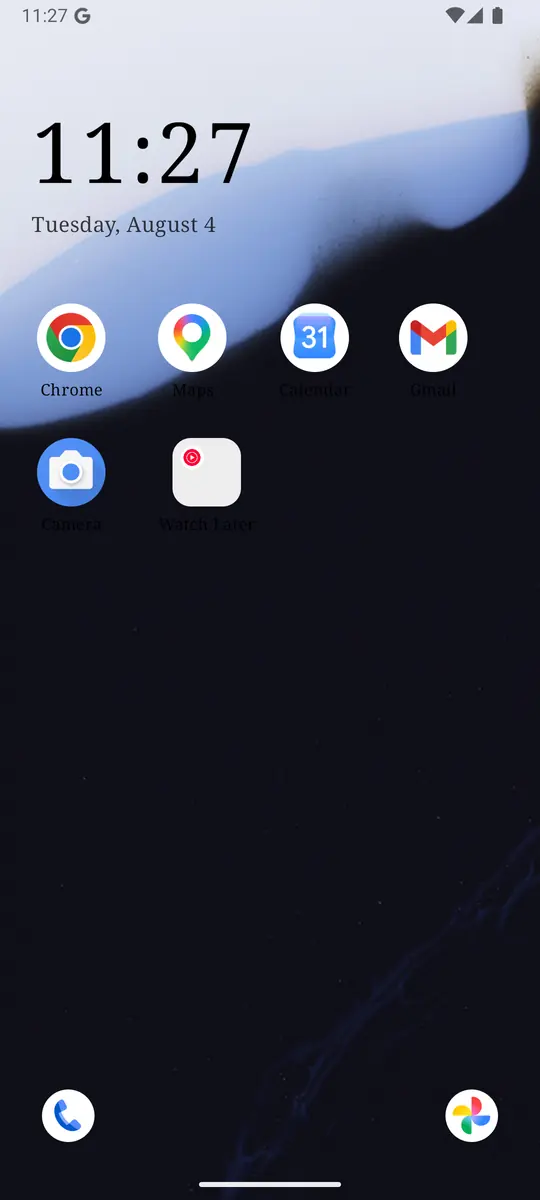
ReClaim is the Android launcher we build. It does not read or change your notifications, and it does not touch Slack’s settings, so everything above keeps working as described. What ReClaim changes is what you see when you unlock: a home screen with a clock and the few apps you choose, and a plain alphabetical list of names for everything else. On top of that:
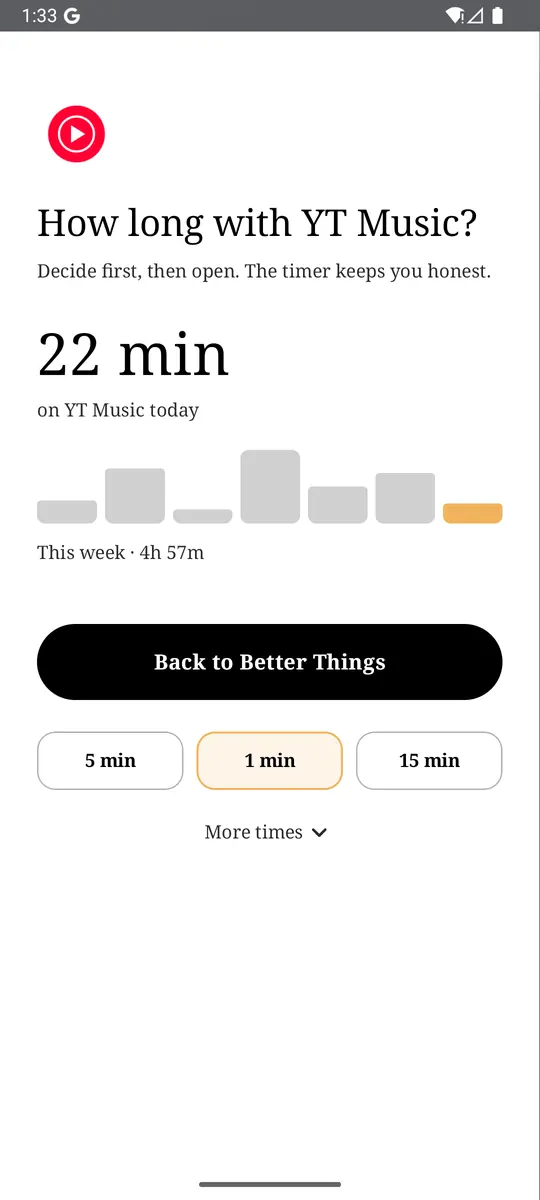
- App reminders. Before an app opens, ReClaim asks how long you intend to use it, then nudges you when that time is up.
- Daily and weekly limits. Give an app a budget. When it is up, ReClaim can close it.
- Blocking and scheduled blocking. Block an app for a set time, or set recurring windows, like evenings or weekends, when selected apps are not available.
- Hidden apps with friction. Hide an app with four levels of hiding, and put one of 10+ unlock challenges in front of it.
Turning off notifications removes Slack’s reasons to call you back. The other half is the habit of opening it yourself “just to check” at night. You could keep Slack off your home screen, block it on a schedule outside work hours, and set an app reminder so you pick a time before it opens. If you want to try it, see how to change the default launcher on Android; switching back is the same setting. For the scrolling that follows a quick check, see how to stop doomscrolling on Android.
Switch each workspace to Mentions and direct messages, mute your three busiest channels, and set a notification schedule that ends with your workday. If you also want a pause before the apps you open on autopilot, try ReClaim. It is free, works on Android 8.0 and newer, and you can switch back to your old home app any time from Settings → Apps → Default apps. Get it free on Google Play.
Questions
How do I turn off Slack notifications on Android?
For a hard stop, open your phone’s Settings, then Notifications, then App notifications, tap Slack, and turn it off. To keep the important ones, open Slack instead: tap your profile picture, tap Notifications, and under What to notify you about choose Mentions and direct messages, or turn off Mobile notifications.
How do I mute a Slack channel on Android?
Open the channel, tap the channel name at the top, and tap Mute channel. To keep some alerts instead, tap the channel name, tap Settings & Details, tap Notifications, and choose Just mentions.
How do I stop Slack notifications after work?
Set a notification schedule. Tap your profile picture, tap Notifications, and under Notification schedule tap Allow notifications. Choose Every day, Weekdays, or Custom, then set a start and end time. Outside those hours, Slack pauses your notifications.
Why do I still get Slack notifications when they are paused?
Slack lets people override a pause to send you one urgent direct message a day, and on paid plans people on your VIP list can still reach you. Turn off the VIP option under Also notify you about, or turn Slack off in Android settings for a full stop.
Does muting a Slack channel tell anyone?
No. Muting only changes notifications on your own account. Others are not told, and the channel’s messages still arrive. If someone mentions you in a muted channel, you still see a badge next to it in the sidebar.
Do I have to change Slack notifications for each workspace?
Yes. Slack keeps notification settings per workspace, so if you are signed in to more than one, switch to each workspace in the app and set its notifications.