Focus
How to set up Focus mode on Android
To set up Focus mode on Android, open Settings, tap Digital Wellbeing and parental controls, then Focus mode. Select the apps you want to pause, then tap Turn on now or Set a schedule. While Focus mode is on, those apps stay unavailable and their notifications stay quiet. On Samsung Galaxy phones, the same job lives under Settings, Modes and Routines: pick or create a mode, turn on Restrict app usage, and choose the apps you still want available.

What does Focus mode do on Android?
Focus mode is Android’s pause button for a list of apps you choose. Google documents it inside Digital Wellbeing: you pick distracting apps, turn Focus mode on, and those apps cannot be opened and will not notify you until you turn the mode off, wait out a schedule, or take a short break. If you are still choosing which apps belong on the pause list, check screen time on Android in Digital Wellbeing first.
In practice, a full setup usually does three things:
- Pauses the apps you named. Icons dim or show as unavailable. Tapping one does not open the feed.
- Silences their notifications. The apps stay installed. Their alerts stop while the mode is active.
- Runs on demand or on a rule. Turn on now for a single session, or Set a schedule so weekday mornings do not require a fresh debate.
It does not grayscale the whole phone, uninstall anything, or silence every contact the way Do Not Disturb can. That is the point. Focus mode is for the hours you still need Maps, Messages, or a work chat, but you do not need Instagram, YouTube, or the game that eats the middle of your afternoon.

How to set up Focus mode on a Pixel or stock Android phone
Google’s Digital Wellbeing help for Android and Pixel describes the same core path. Menu labels can shift by Android version, so if Settings search finds “Focus mode,” use that result.
- Open Settings, then Digital Wellbeing & parental controls, then Focus mode.
- Select the apps you want to pause. Start with the ones that show up highest on your Digital Wellbeing dashboard for screen time or notifications. Tap Show all apps if the list is short.
- Tap Turn on now to start a session immediately, or Set a schedule to choose days, start time, and end time.
- Optional: add Focus mode to Quick Settings so you can flip it from the notification shade without opening Settings.
While Focus mode is on, paused apps stay closed and quiet. Google also documents Take a break, which temporarily unpauses those apps for a short window you choose, then returns to Focus mode. That is useful for a boarding pass or a two-minute reply. It is also the exit ramp people overuse when the real problem is that the list of paused apps is incomplete.
On newer Pixel phones, Google has been consolidating interruption tools under Modes (Do Not Disturb, Bedtime, Driving, and custom modes). Focus mode itself still appears under Digital Wellbeing in Google’s current Digital Wellbeing documentation. If your Pixel shows both a Modes menu and Focus mode, treat Focus mode as the app-pause tool and Modes as the broader notification profiles. Configure one clear schedule so you are not maintaining two conflicting rules for the same hours.
How to set up a focus mode on a Samsung Galaxy
Samsung’s equivalent lives in Modes and Routines, not under the Digital Wellbeing Focus mode label many Pixel guides describe. The mental model is flipped: instead of picking apps to pause, you often pick apps to allow, then restrict everything else.
- Open Settings, then Modes and Routines.
- Tap a preset such as Work or Study, or tap Add mode and give it a name and icon.
- Turn on Restrict app usage (wording can vary slightly by One UI version).
- Select the apps that should stay available during the mode. Everything else is treated as blocked for that session.
- Tap Turn on now, or set Turn on automatically with a time, place, or other condition your phone supports.
- Optional: attach Do Not Disturb, wallpaper changes, or other actions to the same mode so the whole profile starts together.
Exact labels move with One UI. If you cannot find Restrict app usage, search Settings for “Modes and Routines” or “Focus.” Samsung’s approach is especially useful when the allow-list is short: Messages, Phone, Calendar, Maps, and one work app. A short allow-list is often easier to maintain than a long pause-list that forgets the new short-video app you installed last week.
Where to find it, by phone
| Phone | Menu path | How apps are chosen |
|---|---|---|
| Pixel / stock-leaning Android | Settings → Digital Wellbeing & parental controls → Focus mode | Select apps to pause |
| Samsung Galaxy | Settings → Modes and Routines → Work / Study / custom mode | Restrict app usage, then select apps to allow |
| Other brands | Search Settings for “Focus” or “Digital Wellbeing” | Many still ship Google’s pause-list version |

Should you use a schedule or Turn on now?
Google offers both. Pick the trigger that matches the habit you already have.
| Trigger | Best when | Watch-out |
|---|---|---|
| Turn on now | Deep work blocks, travel days, or sessions that start at odd times | You have to remember to start it; tired evenings skip it |
| Set a schedule | Weekday mornings, class blocks, or recurring meeting hours | A schedule that is too long invites Take a break abuse |
| Quick Settings tile | You want one swipe to start without opening Digital Wellbeing | Still manual; pair it with a weekday schedule for the default |
A practical default for most people: a weekday schedule for the hours you already mean to protect, plus the Quick Settings tile for everything else. Keep the paused list short and honest. Three apps you actually open on autopilot beat fifteen apps you never touch.
How should you use Take a break?
Google’s Digital Wellbeing help says you can temporarily unpause apps with Take a break and choose a time limit. On many phones the common options are 5, 10, or 30 minutes. That is the designed escape hatch for legitimate needs.
Use it like a timer, not like a toggle:
- Have a reason before you tap. “I need the boarding pass” is a reason. “I’m bored for twelve seconds” is the habit Focus mode was meant to interrupt.
- Prefer the shortest window that works. Five minutes covers most real checks. Thirty minutes is often a second session in disguise.
- If you take three breaks in one morning, fix the list. Either an app should not be paused (Maps, authenticator, work chat), or the distraction needs a harder tool than Focus mode.

How is Focus mode different from Bedtime mode, app timers, and blocks?
These tools solve different failure modes. Mixing them up is why people set Focus mode once, take breaks all day, and decide “it doesn’t work.”
| Tool | What it changes | Best for |
|---|---|---|
| Focus mode | Pauses a set of apps for a session or schedule | Work and study blocks when you still need the phone |
| Bedtime mode | Do Not Disturb plus calmer screen options at night | Sleep hours; see our Bedtime mode guide |
| App timer | Daily usage cap that resets at midnight | Apps that are fine in small doses but run long; see how to set app timers |
| Hard block / duration block | App stays unavailable until a time you set | One app that still wins after Focus mode; see blocking without uninstalling |
| Grayscale | Whole screen goes black and white | Reducing pull without pausing apps; see grayscale mode |
If you are choosing among a daily cap, a pause, a reminder, and a hard block, the decision tree in app limits vs blocking vs reminders is the fuller map. Focus mode sits in the “pause for a block of hours” slot.
Quick Settings, and which apps belong on the list
Google recommends adding Focus mode to Quick Settings on devices that support the tile. Swipe down twice, tap Edit (or the pencil), and drag Focus mode into the active tiles.
Build the pause list from evidence, not guilt. Open Digital Wellbeing’s dashboard and look at the last few days:
- Highest screen time among apps you do not need during work.
- Highest notification counts from apps that pull you back after you closed them.
- Highest unlock destinations if your phone shows times opened by app.
Leave alone the apps that are the job: calendar, maps, authenticator, the one messenger your team actually uses. Pause the apps that are the detour. If the home screen still invites a mindless open the moment Focus mode ends, fix that layer with a minimal Android home screen and, if the open is automatic, the friction steps in how to stop opening apps on autopilot.

When Focus mode is not enough by itself
Focus mode is excellent at removing a known list of apps for a known window. Three gaps show up quickly:
- Take a break is easy. If your willpower fails at the same prompt every afternoon, you need a tool that does not offer a friendly five-minute exit.
- New apps are not on the list. Install a fresh short-video app on Tuesday and Focus mode will not know about it until you add it. Samsung’s allow-list model fails more safely here.
- The unlock habit can outlive the pause. Pausing Instagram does not stop the hand from unlocking the phone. If checking is automatic, pair Focus mode with home-screen friction, not only with more Digital Wellbeing toggles.

If one app is the whole problem, pair Focus mode with a daily app timer from Digital Wellbeing, or with a duration block that lasts until a time you can name. Our guide to blocking apps on Android without uninstalling them compares those options. For nights, keep using Bedtime mode rather than stretching Focus mode into a sleep schedule it was not designed to be.
A simple focus stack that holds
Use Focus mode as the daytime pause layer, then add only what your week still needs.
- Focus mode on a weekday schedule for the two or three apps that steal deep work.
- Quick Settings tile for irregular sessions.
- A short home screen so the first unlock after a break is not a wall of icons.
- One harder limit on the app that still wins after Take a break becomes a habit.
That fourth step is where a launcher built for friction helps. ReClaim is a minimalist Android launcher: a clock and the handful of apps you choose on the home screen, and a plain alphabetical list, black text and no icons, one swipe away. On top of that sit blocks from 5 minutes to a year, daily and weekly limits, reminders that ask how long you intend to stay, schedules, and hidden apps with four levels of friction. There are no ads and no account. The feature overview has the full list, and the requirements page lists which permission each feature needs.
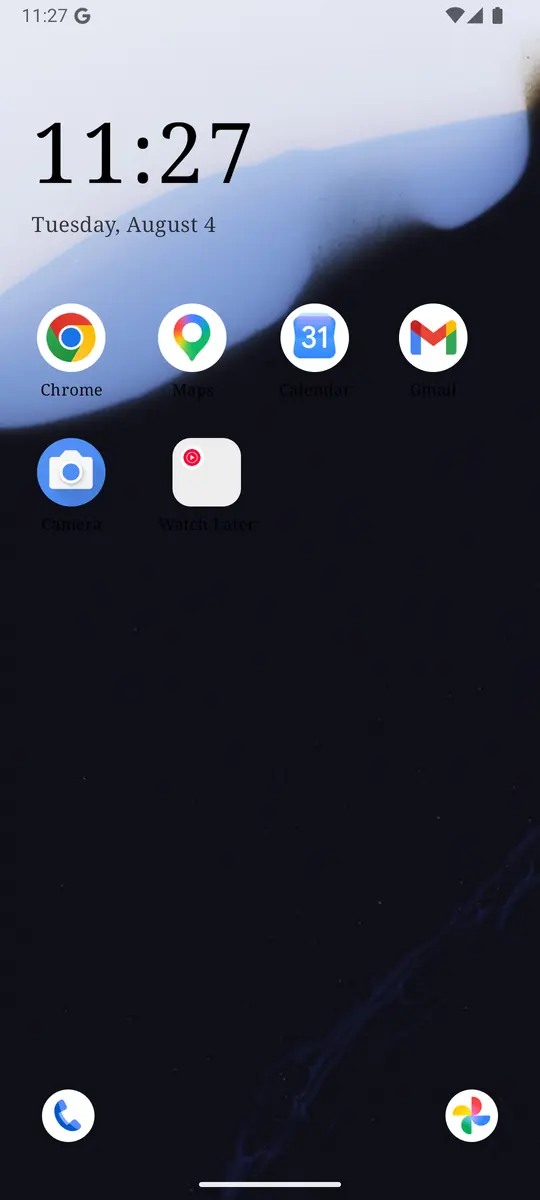
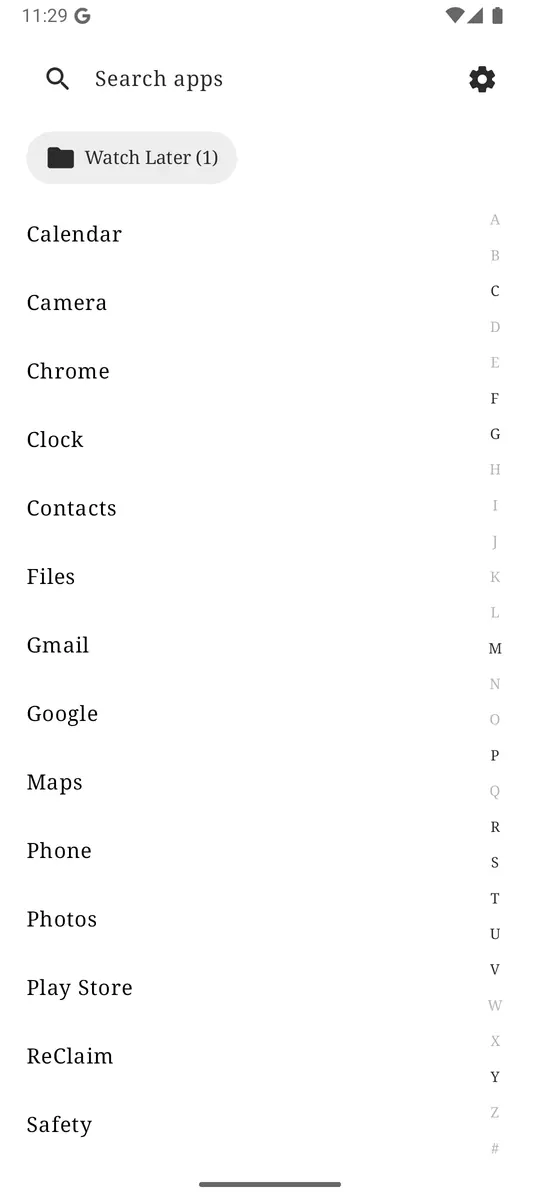
Focus mode for the daytime pause, a quiet home screen for the unlock, and a limit or block on the one app that still steals the afternoon. ReClaim is free, works on Android 8.0 and newer, and you can switch back to your old home app any time from Settings, Apps, Default apps. Get it free on Google Play.

.jpg)
Questions
Where is Focus mode on Android?
On most phones, open Settings, Digital Wellbeing and parental controls, Focus mode. On Samsung Galaxy phones, use Settings, Modes and Routines, then a Work, Study, or custom mode with Restrict app usage. You can also search Settings for Focus.
What does Focus mode do on Android?
Focus mode pauses apps you choose so you cannot open them and will not get notifications from them while the mode is on. Google documents Turn on now, Set a schedule, and Take a break inside Digital Wellbeing.
How is Focus mode different from Bedtime mode?
Bedtime mode is for sleep hours: it leans on Do Not Disturb and calmer screen options such as grayscale. Focus mode pauses a list of apps for work or study blocks during the day. Details for nights are in the Bedtime mode guide.
How is Focus mode different from an app timer?
An app timer is a daily usage cap that resets at midnight. Focus mode pauses selected apps for a block of time, on demand or on a schedule, whether or not you have used your daily minutes. For choosing among caps, pauses, reminders, and hard blocks, see app limits vs blocking vs reminders.
Can I temporarily turn off Focus mode?
Yes. Google documents Take a break, which unpauses apps for a short window you choose. On many phones the options include 5, 10, or 30 minutes. You can also turn Focus mode off entirely from Digital Wellbeing or Quick Settings.