Gmail notifications
How to turn off Gmail notifications on Android
To turn off Gmail notifications on Android, open the Gmail app, tap Menu → Settings, tap your account, then Email notifications, and choose None. To keep only the emails that matter, choose High priority only instead. To stop everything Gmail sends on this phone, go to Menu → Settings → General settings → Manage notifications and turn off All Gmail notifications. If you have more than one account in the app, change the setting for each one. Menu names vary a little by Gmail version and phone.

Email rarely needs to interrupt you the second it arrives. Receipts, newsletters, shipping updates, and the odd reply-all thread can all wait until you choose to open your inbox. Gmail gives you a few ways to cut the buzzing down, from “only the important ones” to fully silent, and Android adds a hard off switch on top.
How do you turn off or reduce Gmail notifications for an account?
This is the main control. Per Google’s Change Gmail notifications help for Android:
- Open the Gmail app and tap Menu at the top left.
- Tap Settings, then tap your account.
- Tap Email notifications under Notifications.
- Choose how much you want: High priority only to hear only about emails Gmail marks as important, or None to turn email notifications off for that account.
By default, Google says notifications are on for messages in your Primary inbox. High priority only is a good middle ground if you are worried about missing something. Google also notes that high priority emails override the notification settings you set for individual labels.
Have a personal and a work account in the app? Google says to change this setting for each account. Quieting one does not quiet the other.

How do you turn notifications on or off for Gmail labels?
Labels let you keep alerts for one kind of mail and drop the rest. Per Google’s help:
- Open Gmail and tap Menu → Settings, then your account.
- Tap Manage labels, then tap a label, like Important or a label you made.
- Check Sync messages is set to Last 30 days or All. Google says you can’t turn on notifications for a label that doesn’t sync.
- Choose your notification settings for that label, and repeat for any other labels.
A simple setup: set Email notifications to None or High priority only, then turn label notifications on only for the one label that really needs you fast, such as a label for messages from your child’s school or a key client.
How do you make Gmail notifications silent?
If you still want to see new mail in the notification shade but stop the sound:
- Open Gmail and tap Menu → Settings, then your account.
- Tap Notification sounds under Notifications.
- Under Email, tap Notification sound and choose None.
The same screen has a separate sound for Chat and spaces, if you use Google Chat inside Gmail. Turn that one to None as well if you want Gmail fully quiet.
How do you turn off Gmail notifications in Android settings?
For a hard stop on this phone, use Android’s own controls. Gmail links straight to them:
- Open Gmail and tap Menu → Settings → General settings.
- Tap Manage notifications. This opens Android’s notification settings for Gmail.
- Turn off All Gmail notifications, or turn off only the types you do not want.
You can get to the same screen from your phone’s Settings → Apps → Gmail → Notifications, per Google’s Android notification help. Google notes that Gmail notifications need device notifications turned on, so if Gmail is off here, nothing you change inside Gmail brings alerts back. Inside a type you can usually also make it silent or hide it on the lock screen. Shortcut: touch and hold a Gmail notification in the shade to jump to its settings. For the general version for any app, see how to turn off notifications for specific apps, and to keep email previews private, see how to hide notifications on the lock screen.
What about Do Not Disturb and Focus mode?
- Do Not Disturb. Quiet hours across every app, per Google’s Do Not Disturb help. Leave Gmail off the list of apps allowed to break through. See how to turn on Do Not Disturb.
- Snooze one notification. Touch and hold it and snooze it if your phone offers that. See how to snooze notifications on Android.
- Focus mode / Digital Wellbeing. Pause Gmail during deep work or evenings. Per Google’s Focus mode help and Digital Wellbeing help, add Gmail to Focus mode or set an app timer. More detail: Focus mode and Digital Wellbeing.
Which option should you pick?
| Option | What it stops | Use it for |
|---|---|---|
| Email notifications → High priority only | Alerts for everything except high priority mail. | Most people. Start here. |
| Email notifications → None | Email alerts for that account. | Accounts you check on your own schedule. |
| Label notifications | Alerts per label, on or off. | Keeping one label loud. |
| Notification sound → None | The sound, not the notification. | Seeing mail without the ping. |
| Android app settings | Everything Gmail sends, or chosen types. | A hard stop on this phone. |
| DND / Focus / app timer | Alerts (or the app) for a set stretch. | Work blocks, nights, weekends. |
A good default: High priority only on your main account, None on accounts that are mostly newsletters and receipts, and Do Not Disturb at night. Then check email at a few set times instead of on every buzz.

What if Gmail notifications keep coming?
I set None, but I still get alerts
- The setting is per account. Check every account in the Gmail app, not just the one on screen.
- Check Manage labels for a label that still has notifications on.
- Check Notification sounds for Chat and spaces if the pings are from Google Chat.
I only want one sender to come through
- Gmail’s Android notification settings work by account and by label, not by sender. One way is to have a filter on Gmail on the web put that sender’s mail under a label, then turn notifications on for that label only.
I want them back, and nothing shows
- Per Google’s Gmail notification help, turn device notifications for Gmail back on in General settings → Manage notifications, set Email notifications back to All or High priority only, and make sure Sync Gmail is checked for the account. Also check Do Not Disturb and battery settings.
Where ReClaim fits
ReClaim is the Android launcher we build. It does not read or change your notifications, and it does not touch Gmail’s settings, so everything above keeps working as described. What ReClaim changes is what you see when you unlock: a home screen with a clock and the few apps you choose, and a plain alphabetical list of names for everything else. On top of that:
- App reminders. Before an app opens, ReClaim asks how long you intend to use it, then nudges you when that time is up.
- Daily and weekly limits. Give an app a budget. When it is up, ReClaim can close it.
- Blocking and scheduled blocking. Block an app for a set time, or set recurring windows, like evenings, when selected apps are not available.
- Hidden apps with friction. Hide an app with four levels of hiding, and put one of 10+ unlock challenges in front of it.
If checking email is the habit you want to break, you could keep Gmail off your home screen and set an evening block for it, so work mail waits until morning. If you want to try it, see how to change the default launcher on Android; switching back is the same setting. If the real problem is the feed you end up in after checking mail, see how to stop doomscrolling on Android.
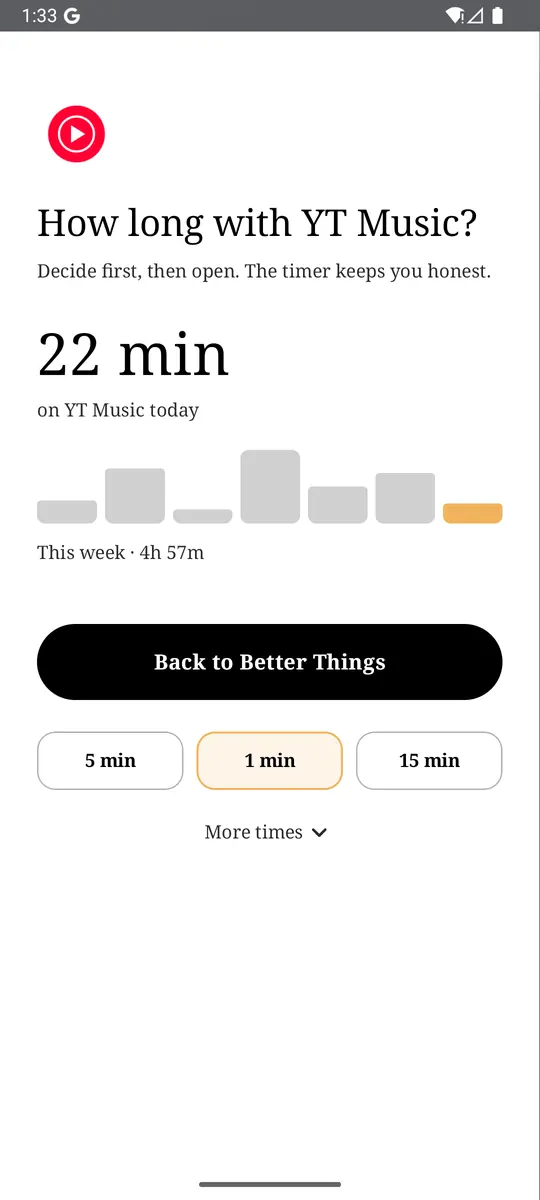
Gmail → Menu → Settings → your account → Email notifications → High priority only. Repeat for each account. If you also want a pause before the apps you open on autopilot, try ReClaim. It is free, works on Android 8.0 and newer, and you can switch back to your old home app any time from Settings → Apps → Default apps. Get it free on Google Play.
Questions
How do I turn off Gmail notifications on Android?
Open the Gmail app, tap Menu, then Settings, then your account. Tap Email notifications and choose None. To switch off everything Gmail sends on this phone, go to Menu, Settings, General settings, Manage notifications, and turn off All Gmail notifications.
How do I only get notified for important emails?
In Gmail, tap Menu, then Settings, then your account, then Email notifications, and choose High priority only. Google says high priority emails override the notification settings you set for individual labels.
I have two Gmail accounts. Do I have to change both?
Yes. Google says that if you have more than one account in the Gmail app, you need to change the notification setting for each account. Muting your personal account does not mute your work account.
How do I turn off notifications for one Gmail label?
Tap Menu, then Settings, then your account, then Manage labels. Tap the label and change its notification settings. Google notes a label has to sync messages (Last 30 days or All) before you can turn on notifications for it.
Can I keep Gmail notifications but make them silent?
Yes. In Gmail, tap Menu, then Settings, then your account, then Notification sounds. Under Email, tap Notification sound and choose None. You still see the notification, but it makes no sound.
Why do I still get Gmail notifications after turning them off?
Check each account in the Gmail app, since the setting is per account. Check label notifications under Manage labels, and whether a Chat and spaces sound is still on. If you want Gmail fully quiet on this phone, turn it off in Gmail’s Manage notifications screen, which opens Android’s settings for Gmail.