LinkedIn notifications
How to turn off LinkedIn notifications on Android
To turn off LinkedIn notifications on Android, open the app, tap your profile picture → Settings & Privacy → Notifications, open each category under Notifications you receive, and switch off Push notifications. To stop every LinkedIn alert at once, open your phone’s Settings → Notifications → App notifications → LinkedIn and turn it off. Menu names vary a little by LinkedIn version and phone.

LinkedIn is the app that turns a quiet afternoon into a trail of small alerts: someone you barely know changed jobs, a recruiter viewed your profile, a connection’s post got a reaction. The app does not have one switch for all of it. Notifications are organized into categories, and each category has its own settings for what you see in the app, what gets emailed, and what is pushed to your phone. Once you know that, it takes a couple of minutes to keep the messages that matter and drop the rest.
How do you turn off LinkedIn notifications in Android settings?
This is the hard stop. It works the same for any app, per Google’s Android notification help:
- Open your phone’s Settings and tap Notifications.
- Tap App notifications, then LinkedIn. On some phones it is Settings → Apps → LinkedIn → Notifications.
- Turn off notifications for LinkedIn to stop every push and banner from the app.
LinkedIn’s own help mentions a related option on Android: in the device notification settings, find LinkedIn and check or uncheck Updates to turn push notifications on or off. On newer phones this is the same screen as above, and you may see more than one switch there. For the general version for any app, see how to turn off notifications for specific apps.
How do you switch LinkedIn push notifications off by category?
This is the setting most people want, because it lets you keep the useful categories. Per LinkedIn’s push notification help, on mobile:
- Tap your profile picture.
- Tap Settings & Privacy, then the Notifications tab at the top of the screen.
- Tap a category under Notifications you receive.
- Switch the toggle next to Push notifications off for that category, or on to turn it back on.
Appcyclopedia’s guide to turning off LinkedIn notifications lists the categories LinkedIn uses: invitations and messages, jobs and opportunities, activity in your network, activity that involves you, news and articles, offers and tips from LinkedIn, and updates from events. A practical split:
- Keep: invitations and messages, if people reach you through LinkedIn.
- Usually drop: activity in your network (job changes, work anniversaries, birthdays) and news and articles, which are the biggest sources of noise.
- Decide by season: jobs and opportunities. Keep it while you are looking, and switch push off when you are not.
- Drop: offers and tips from LinkedIn.

How do you turn off just one kind of notification?
When an unwanted alert arrives, you do not have to hunt through categories. Per Appcyclopedia’s guide, open the Notifications tab, tap the More icon next to the notification, and choose to turn off that type, or tap Change notification preferences and switch off the type under Allow notifications about. This is the fastest way to stop reactions, job-change posts, or work anniversaries from the people you follow, without losing everything else in that category.
Why does LinkedIn still email me?
Because email is its own setting. Inside each category, each option has an email toggle and a frequency setting, and push is a separate Push notifications switch. A category can be silent on your phone and loud in your inbox, or the other way around. If you have turned off push for a category, open it again and check the email options too. LinkedIn’s help says the three channels are in the app, by email, and by push, so those are the three places to check.
How do you stop LinkedIn from telling people about you?
Turning off alerts you receive does nothing about alerts others receive. Per Appcyclopedia’s guide, those live under Visibility: turn off Share profile updates to stop LinkedIn announcing job changes, education updates, and work anniversaries to your network. Your birthday has its own visibility control on your profile. These settings do not affect your phone at all, but they are the ones that cause strangers to message you about your anniversary.
What about Do Not Disturb and Focus mode?
- Do Not Disturb. Quiet hours across every app, per Google’s Do Not Disturb help. Leave LinkedIn off the list of apps allowed to break through. See how to turn on Do Not Disturb.
- Snooze one notification. Touch and hold it and snooze it if your phone offers that. See how to snooze notifications on Android.
- Focus mode / Digital Wellbeing. Pause LinkedIn outside work hours, or set an app timer. Per Google’s Focus mode help and Digital Wellbeing help, add an app to Focus mode or set a timer. More detail: Focus mode and app timers.
Which option should you pick?
| Option | What it stops | Use it for |
|---|---|---|
| Android: LinkedIn notifications off | Every LinkedIn push and banner. | A hard stop, like a break from job hunting. |
| Push off per category | One category’s alerts on your phone. | Keeping messages, dropping network chatter. |
| Turn off one type | One kind of alert, like a job-change post. | Alerts that are repeats of the same thing. |
| Email toggle and frequency | Messages to your inbox, per option. | An inbox full of LinkedIn digests. |
| Share profile updates off | What your network is told about you. | Skipping anniversary and job-change congratulations. |
A good default: keep push on for invitations and messages, switch it off for everything else, and turn off Share profile updates if you do not want a flood of congratulations. Then LinkedIn buzzes when a person wrote to you.
What if LinkedIn notifications keep coming?
I turned off push, but my phone still buzzes
- Open each category again. Push is switched off per category, so a category you missed still pushes.
I turned off everything, but the Notifications tab still has a red number
- The in-app notifications are separate from push. Each category lets you choose whether it appears in the app. To remove the number from the app icon, see how to turn off notification dots.
I want them back, and nothing shows
- Check that push is on for the category, that LinkedIn is allowed in Android’s notification settings, and that Do Not Disturb or battery saver is not holding alerts back.
Where ReClaim fits
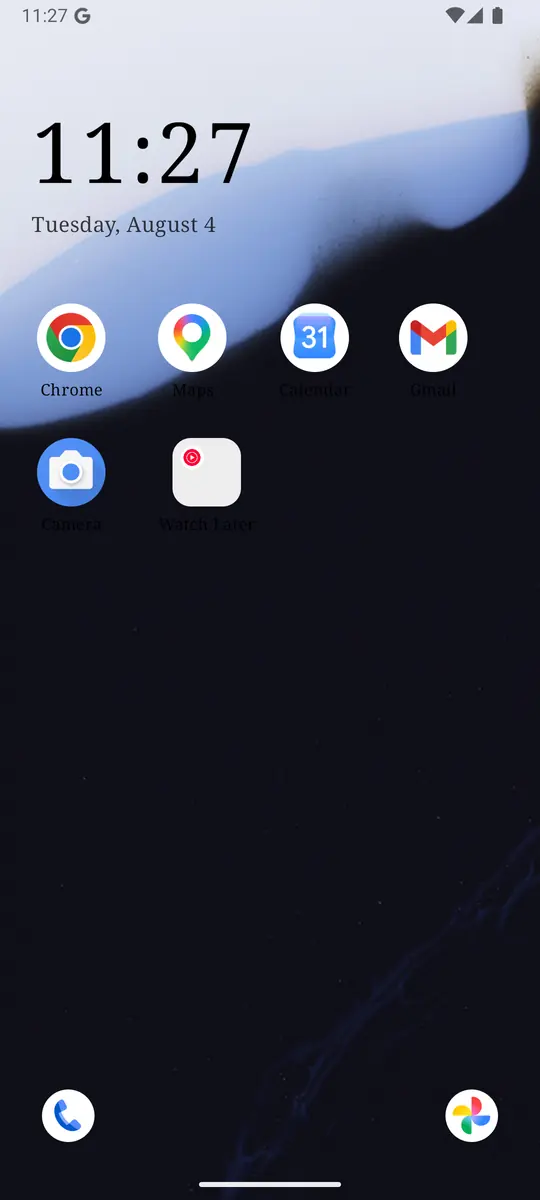
ReClaim is the Android launcher we build. It does not read or change your notifications, and it does not touch LinkedIn’s settings, so everything above keeps working as described. What ReClaim changes is what you see when you unlock: a home screen with a clock and the few apps you choose, and a plain alphabetical list of names for everything else. On top of that:
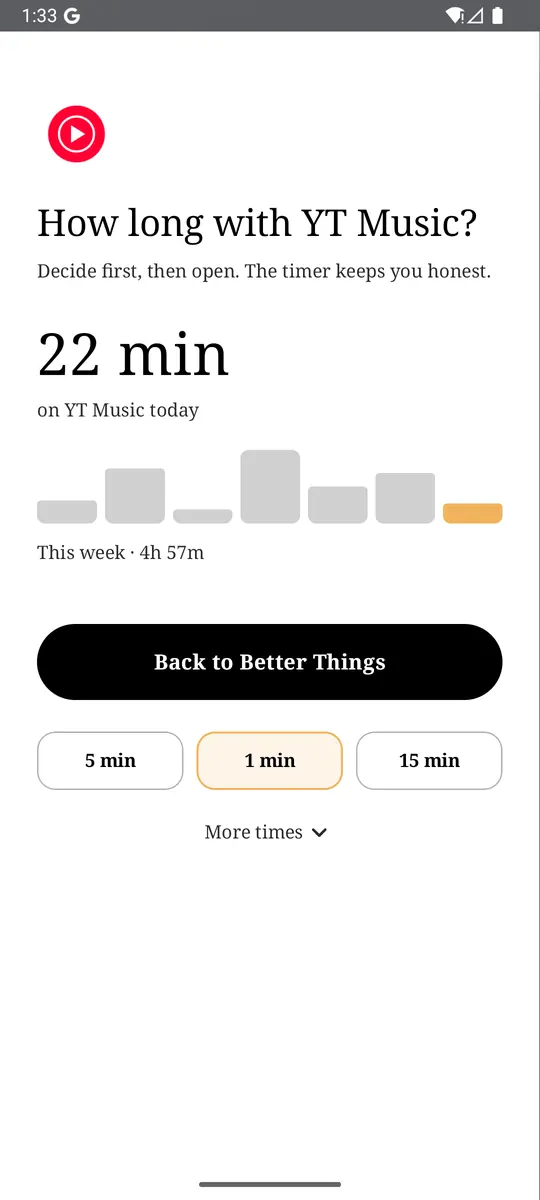
- App reminders. Before an app opens, ReClaim asks how long you intend to use it, then nudges you when that time is up.
- Daily and weekly limits. Give an app a budget. When it is up, ReClaim can close it.
- Blocking and scheduled blocking. Block an app for a set time, or set recurring windows, like evenings or weekends, when selected apps are not available.
- Hidden apps with friction. Hide an app with four levels of hiding, and put one of 10+ unlock challenges in front of it.
Turning off notifications removes LinkedIn’s reasons to call you back. The other half is the habit of opening it yourself “just to check” between tasks. You could keep LinkedIn off your home screen, set an app reminder so you pick a time before it opens, or block it on a schedule outside work hours. If you want to try it, see how to change the default launcher on Android; switching back is the same setting. For the scrolling that follows a quick check, see how to stop doomscrolling on Android.
Open Settings & Privacy → Notifications, keep push on for invitations and messages only, and switch off Share profile updates under Visibility. If you also want a pause before the apps you open on autopilot, try ReClaim. It is free, works on Android 8.0 and newer, and you can switch back to your old home app any time from Settings → Apps → Default apps. Get it free on Google Play.
Questions
How do I turn off LinkedIn notifications on Android?
For a hard stop, open your phone’s Settings, then Notifications, then App notifications, tap LinkedIn, and turn it off. To keep some, open LinkedIn, tap your profile picture, tap Settings & Privacy, tap Notifications, open a category, and switch off Push notifications.
How do I turn off one kind of LinkedIn notification?
Open the Notifications tab, tap More next to the notification, and choose to turn off that type, or tap Change notification preferences and switch off the type under Allow notifications about.
Why am I still getting LinkedIn emails after turning off push?
Push and email are separate. Each category has its own email settings and frequency, so open the category again and turn off the email options you do not want.
How do I stop LinkedIn announcing my work anniversary?
Open Settings & Privacy, tap Visibility, and turn off Share profile updates. That controls what LinkedIn tells your network about job changes, education, and anniversaries.
Will turning off LinkedIn notifications hide my messages?
No. Turning off push only stops the alert on your phone. Your messages and invitations are still in the app. Keep push on for invitations and messages if you want to hear about them quickly.
Do these settings apply on every device?
Category settings belong to your account, so they apply wherever you sign in. Android’s own switch for LinkedIn applies only to that phone.