Default launcher
How to change the default launcher on Android
To change the default launcher on Android, install the launcher you want, then open Settings → Apps → Default apps → Home app and pick it. On a Samsung Galaxy, it is Settings → Apps → Choose default apps → Home app. Press Home and the new launcher appears. Many launchers also ask to become your Home app the first time you open them. To switch back, return to the same screen and pick the launcher your phone came with, like Pixel Launcher or One UI Home. Nothing is deleted. Menu names vary a little by phone and Android version.

What is a launcher on Android?
The launcher is the app that draws your home screen and your app drawer. It is what you see when you press Home or swipe up to go home, and it decides how your apps are laid out, how you search for them, and what sits in front of you every time you unlock the phone. Android’s own name for it, in Settings, is the Home app.
Every Android phone ships with one. Pixel phones use Pixel Launcher, and Samsung Galaxy phones use One UI Home. Unlike an iPhone, Android lets you replace it with another launcher from Google Play. You need at least one other launcher installed before anything else shows up as a choice.

How do you change the default launcher on a Pixel?
On a Google Pixel and most phones close to stock Android:
- Install the launcher you want from Google Play.
- Open Settings and tap Apps.
- Tap Default apps.
- Tap Home app and pick the launcher you just installed.
- Press Home (or swipe up from the bottom) to see your new home screen.
The same Default apps screen is where you set your default browser, phone, and SMS apps. Some phones also show a gear icon next to Home app; it opens the settings of whichever launcher is current. The path follows The Verge’s launcher guide for Pixel and Samsung.
How do you change the default launcher on Samsung?
Samsung’s One UI uses a slightly different label:
- Install the launcher you want from Google Play.
- Open Settings and tap Apps.
- Tap Choose default apps.
- Tap Home app and pick the new launcher.
If you only see One UI Home in the list, no other launcher is installed yet. On other brands, the menu may be called Default apps or Default app and sit in a slightly different place. The fastest way to find it on any phone: open Settings, tap the search bar, and type Home app.
What if the launcher asks to be your Home app?
Many launchers ask the first time you open them. Android shows a prompt to set the app as your default Home app. Confirm it and you are done; it is the same setting as the Home app screen, just a shortcut to it. If you tap past the prompt, nothing changes, and you can set it later in Settings.
Opening a launcher from your app drawer like any other app does not make it the default. If pressing Home still takes you to the old home screen, the Home app setting has not changed yet.
How do you switch back to your old launcher?
Two ways, both quick:
- Pick it again. Go back to Settings → Apps → Default apps → Home app (Choose default apps on Samsung) and select the launcher your phone came with: Pixel Launcher on a Pixel, One UI Home on a Galaxy.
- Uninstall the new launcher. The phone’s built-in home app takes over again. The built-in launcher is part of the system, so it is always there to fall back to.
Your old home screen keeps its layout while you are away, so trying a launcher for a week is low-risk.
What changes when you switch launchers?
| Thing | After you switch |
|---|---|
| Home screen layout, folders, and widgets | Set up fresh in the new launcher. The old layout stays with the old launcher. |
| App drawer and app search | Replaced by the new launcher’s version. |
| Home button and home gesture | Open the new launcher. |
| Your apps and their data | Unchanged. Nothing is uninstalled. |
| Photos, messages, accounts | Unchanged. |
That split is the useful part. A launcher changes what you see first and how easy each app is to reach, without touching the apps themselves. That is why it is a good place to change a phone habit.
What if the launcher will not change?
The new launcher is not in the list
- It has to be installed. Check Google Play, then look again under Home app.
- If it is installed, go to Settings → Apps, find it, and check it is not disabled. Update it from Google Play.
I cannot find Default apps
- On Samsung it is Choose default apps, inside Apps.
- On any phone, search Settings for Home app or default.
Home still opens the old launcher
- Opening a launcher is not the same as making it the default. Check what is selected under Home app.
- If the right launcher is selected and Home still misbehaves, restart the phone.
I want my old home screen back, now
- Home app → Pixel Launcher or One UI Home. Or uninstall the new launcher.

What should you look for in a launcher for less screen time?
Most launchers are sold on looks: icon packs, gestures, widgets. If you are switching because you use your phone more than you want to, look for different things:
- A short home screen. A few apps you actually need, not every app you own. See how to set up a minimal Android home screen.
- A calm app list. Plain names are easier to scan past than bright icons and badges.
- Friction for the apps that pull you in. Hidden apps, a pause before opening, or a limit, so the distracting app takes a decision rather than a reflex. Compare the options in app limits vs blocking vs reminders.
- An easy way out. You should be able to switch back in seconds. On Android, you always can.
Android’s own tools still work alongside any launcher. App timers, Focus mode, and Bedtime mode live in Digital Wellbeing, not in the launcher.
Where ReClaim fits
ReClaim is the Android launcher we build, so this is the setting that turns it on. Install it, open it, and Android will prompt you to set it as your default Home app. The home screen is a clock and the few apps you choose, then a plain alphabetical list without icon candy. On top of that:
- App reminders. Before a distracting app opens, ReClaim asks how long you intend to use it, then nudges you when that time is up.
- Daily and weekly limits. Give an app a budget. When it is up, ReClaim can close it.
- Blocking and scheduled blocking. Block an app for a set time, or set recurring windows, like bedtime, when selected apps are not available.
- Hidden apps with friction. Hide an app from the list, or put a quick challenge in front of it.
You can use ReClaim as your launcher with no extra permissions; those only matter once you turn on a feature that needs them. And switching away is the same Home app setting described above.
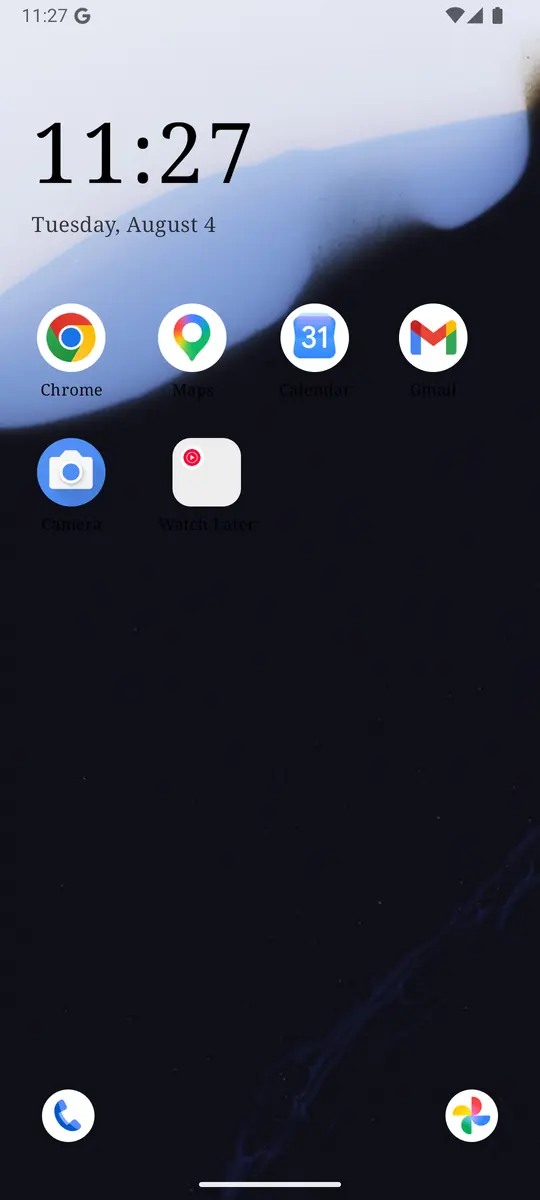
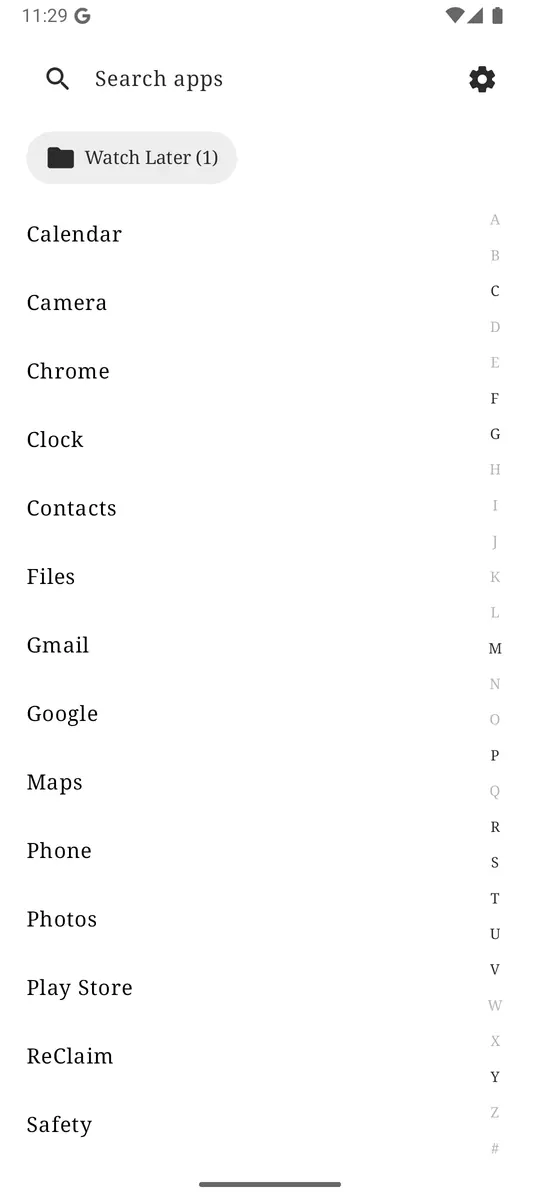
Install a launcher, set it under Settings → Apps → Default apps → Home app, and switch back from the same screen if it is not for you. If you want a home screen that makes distracting apps a choice instead of a reflex, try ReClaim. It is free, works on Android 8.0 and newer, and you can switch back to your old home app any time from Settings → Apps → Default apps. Get it free on Google Play.
Questions
How do I change the default launcher on Android?
Install the launcher you want. Then open Settings, tap Apps, tap Default apps, tap Home app, and pick it. On a Samsung Galaxy, the third step is Choose default apps. Many launchers also ask to become your Home app the first time you open them.
How do I go back to my old launcher?
Go to the same Home app screen and pick the launcher your phone came with: Pixel Launcher on a Pixel, or One UI Home on a Samsung Galaxy. You can also uninstall the new launcher, and the built-in home app takes over again.
Will changing my launcher delete my apps or data?
No. A launcher only changes the home screen and how you find apps. Your apps, their data, your photos, and your messages stay where they are. Each launcher keeps its own layout, so your old home screen is waiting if you switch back.
Why doesn’t my new launcher show up under Home app?
A launcher has to be installed to appear in the list. If it is installed and still missing, check in Settings, Apps that it is not disabled, update it from Google Play, and look again.
Is it safe to use a third-party launcher?
A launcher can see which apps you have installed, because it has to list them. Install one from Google Play, check the permissions it asks for, and remember you can switch back to the built-in home app in a few seconds.