Notifications
How to turn off notifications for specific apps on Android
To turn off notifications for a specific app on Android, open Settings, tap Notifications, then App notifications. Find the app (switch the list from Most recent to All apps if it is not there), tap it, and turn its notifications off. If you only want to silence part of an app, leave it on and turn off the individual notification categories instead. You can also touch and hold any notification in the shade and tap the Settings gear to jump straight to that app’s controls. On Samsung Galaxy phones the path is also Settings → Notifications → App notifications; recent One UI versions hide per-category controls until you turn on Manage notification categories for each app under Advanced settings.

What happens when you turn off notifications for an app?
Google’s Control notifications on Android help article describes three places to change an app’s notifications: the Settings app, the notification itself, and the app’s own settings menu. In Settings, you can turn off all notifications for a listed app or choose from specific categories.
Turning an app’s notifications off is narrow and predictable:
- The app stops posting cards in the notification shade, on the lock screen, and as pop-up banners.
- The app still works. It is not paused, closed, or uninstalled. You can open it whenever you like and see what you missed inside it.
- Other apps are untouched. Unlike Do Not Disturb, nothing changes for calls, alarms, or the apps you still want to hear from.
- It stays off until you change it. There is no schedule. If you want quiet only during certain hours, a Do Not Disturb schedule or Focus mode fits better.
Two pieces of Android plumbing explain why the controls look the way they do. Since Android 8.0, apps sort their notifications into notification channels, which Settings shows as categories you can switch off one by one. And on Android 13 and later, apps have to ask for the notification permission before they can post, so the “Allow notifications?” prompt after you install an app is the first place to say no.

How do you turn off notifications for one app on Pixel or stock Android?
Google’s documented path on recent versions:
- Open your device’s Settings app.
- Tap Notifications, then App notifications.
- Find the app. The list starts with apps that recently sent notifications (Most recent). Use the dropdown and choose All apps if the one you want is not listed.
- Tap the app.
- Turn off its notifications with the main switch, or leave it on and switch off only the categories you do not want (see below).
Google notes that if you do not see the recent list, you are on an older Android version: tap App notifications, then the app, and you will get switches for notifications, notification dots, and categories. Older versions may also label the top-level menu Apps & notifications.
There is usually a second route through the app’s info page: Settings → Apps → the app → Notifications. It opens the same screen, which is handy when you are already there to check permissions or storage. If any menu name on your phone differs, search Settings for “notifications” or for the app’s name.
| Where you start | Path | Best for |
|---|---|---|
| Settings → Notifications | App notifications → Most recent / All apps → the app | Finding the noisiest apps first |
| Settings → Apps | The app → Notifications | When you are already reviewing one app |
| The notification shade | Touch and hold a notification → Settings gear | Killing an alert the moment it annoys you |
| Inside the app | The app’s own Settings → Notifications | Finer choices the app offers (digests, email vs push) |
How do you turn off an app’s notifications from the notification itself?
The fastest method is to act on the notification that just interrupted you. Google documents it this way:
- Swipe down from the top of the screen to open your notifications.
- Touch and hold the notification, then tap Settings (the gear).
- Turn off All notifications for that app, or turn off only the type of notification you just received.
On many recent versions, the long-press menu also offers quick choices such as making that type of notification silent, and some show a Turn off notifications button directly. Wording varies by Android version and manufacturer, so if you do not see a direct option, the gear always leads to the full settings.
This is the method that sticks, because you decide in context. A notification that annoyed you enough to long-press is almost always one you will not miss.
How do you turn off only some notifications from an app?
Turning an app fully off is the right call for games, shopping, and most social apps. For apps where some alerts matter, such as a bank, a delivery app, or a messenger, switch off categories instead:
- Open Settings → Notifications → App notifications and tap the app.
- Leave the main notifications switch on.
- Read the list of categories the app has registered. Names come from the app’s developer, so they range from clear (“Promotions,” “Recommendations”) to vague (“General,” “Other”).
- Turn off the categories you do not want. Tap a category name for more options, such as sound or whether it pops on screen.
How well this works depends on the app. Some developers split notifications into many sensible channels; others put everything in one bucket, which leaves you with a single on/off choice. When categories are too coarse, check the app’s own notification settings: many apps let you turn off likes, reminders, or marketing pushes there.

How do you turn off notifications for specific apps on a Samsung Galaxy?
Samsung’s Control app notifications on your Galaxy phone or tablet article documents the same idea with One UI labels. Screens vary by model, carrier, and One UI version.
- Open Settings, then tap Notifications.
- Tap App notifications.
- Find the app. Use the dropdown to switch between views such as Most recent, and use search for long lists.
- Tap the app’s switch to block its notifications. To review what you have blocked, Samsung documents a Notifications turned off option in the same dropdown.
For categories on recent Galaxy phones, there is an extra step. Samsung documents a toggle called Manage notification categories for each app under Settings → Notifications → Advanced settings. Android Police reported that the One UI 6.1 update turned this toggle off by default. If you only see a single switch per app, turn that toggle on, then return to App notifications and tap the app to see its categories.
| Phone | Turn an app off | Per-category controls |
|---|---|---|
| Pixel / stock-leaning Android | Settings → Notifications → App notifications → the app | Listed on the app’s notification screen |
| Samsung Galaxy (recent One UI) | Settings → Notifications → App notifications → the app’s switch | Turn on Manage notification categories for each app under Advanced settings first |
| Other brands / older versions | Settings search for “notifications,” or Settings → Apps → the app → Notifications | Usually on the same screen as the app’s main switch |
Should you make an app silent instead of turning it off?
Sometimes you want the information without the interruption. Google’s help describes two behaviors on supported devices:
- Alerting: a sound, a message on the lock screen, and the app’s icon in the status bar.
- Silent: no sound or vibration, but the notification is still there when you swipe down.
To set it, open the app’s notification settings, tap a category, and choose Silent instead of Alerting (some versions label the alerting option Default). The same choice usually appears when you long-press a notification in the shade. Samsung expresses a similar idea with notification importance levels and sound settings per app.
| You want… | Use | Trade-off |
|---|---|---|
| Never hear from this app | Turn the app’s notifications off | You check the app yourself when you need it |
| Keep a few useful alerts | Turn off individual categories | Only as good as the app’s categories |
| See it later, no buzz now | Make the app or category Silent | The shade still fills up and invites a swipe |
| Quiet everything for a few hours | Do Not Disturb with a schedule | Affects all apps, so set exceptions |
| Stop opening the app during work | Focus mode or a block | Pauses the app, not only its alerts |
How do you hide an app from the lock screen or remove its notification dot?
If an app’s alerts are fine but you do not want them on the lock screen, you do not have to turn them off. Google’s help notes that even with lock screen notifications on, you can restrict certain apps to hide sensitive content or not show on the lock screen at all, from that app’s notification settings. Look for a lock screen option on the app’s or category’s notification screen; the exact label varies by version.
For phone-wide lock screen behavior, Google documents Settings → Notifications → Notifications on lock screen, with choices such as showing or hiding silent notifications and sensitive content.
Notification dots, the small badges on app icons, are a separate switch. Google documents Settings → Notifications → Notification dot on app icon for the whole phone, and older versions show a per-app dot toggle on the app’s notification screen. Samsung calls these app icon badges. A badge counting unread items on a home-screen icon is a quiet nudge to open the app, so it is worth turning off for anything you are trying to use less.

Which app notifications should you turn off first?
Going through every installed app is tedious, and most of them never notify you anyway. Start with the apps that actually do:
- Open Settings → Notifications → App notifications and look at the Most recent list. That is the real list of who interrupts you.
- Check Digital Wellbeing. Its dashboard shows notifications received per app; our guide to checking screen time on Android walks through the view.
- Sort each noisy app into one of three buckets: off, categories only, or keep.
- Re-check in a week. New apps and updates add notifications, and the long-press method handles stragglers as they appear.
| Kind of app | Usual call | Why |
|---|---|---|
| Social feeds and short video | Off, or keep only direct messages | Likes and “you might have missed” are invitations to scroll |
| Games | Off | Energy refills and rewards exist to bring you back |
| Shopping and food delivery | Categories: keep order updates, drop promotions | Tracking is useful; deals are marketing |
| News | Off, or one breaking-news category | You can read the news when you choose to |
| Messaging and calls | Keep; mute busy group chats | People who need you should reach you |
| Banking, calendar, two-factor | Keep | Security codes and fraud alerts are time-sensitive |
Be generous with off. You can always turn an app back on from the same screen if you miss something real.

What if an app’s notifications will not turn off or keep coming back?
The switch is greyed out
- Some system apps and certain system categories cannot be fully turned off. Look for individual categories you can still silence.
- On a work profile or a managed phone, your organization’s policy may lock some settings.
An ongoing notification will not go away
- Google’s help notes that some notifications can be cleared only when they are done, for example a music player after the music stops. Ending the task (stopping playback, finishing navigation) usually removes it.
- If the persistent card bothers you, look for its specific category and make it silent.
Notifications came back after an update or reinstall
- Reinstalling an app usually resets its notification settings, and on Android 13 and later it will ask for permission again. Decline the prompt if you do not want notifications.
- App updates can add new categories that start out on. Long-press the next unwanted alert and turn that category off.
- On Samsung, check that Manage notification categories for each app is still on after a major update or a reset.
I turned them off and now miss important alerts
- Turn the app back on and switch off only the noisy categories instead.
- Google documents Settings → Notifications → Notification history on many devices (some phones do not have it). It shows recently dismissed and snoozed notifications, plus a history of the day’s, which helps you see what you actually missed.

When is turning off notifications not enough?
Cutting notifications removes the outside trigger. It does nothing about the inside one. Three gaps show up quickly:
- You still open the app on your own. If Digital Wellbeing shows high times opened for an app that no longer notifies you, the habit runs on boredom, not alerts. Our guide to stopping opening apps on autopilot covers that.
- The icon is the notification. A bright icon on the first home screen, with or without a badge, works as a permanent reminder.
- Silent still fills the shade. Swiping down to check the time and finding twelve silent cards is how a quick glance becomes twenty minutes.
A practical stack after the notification cleanup:
- Off or categories-only for every app that does not need to reach you right away.
- Do Not Disturb or Focus mode for named deep-work hours, and Bedtime mode for night.
- An app timer on the one or two apps that still run long.
- A quieter home screen so unlock is not an invitation; see the minimal Android home screen guide.
- One harder limit on the app that still wins after everything else.
That last step is where a launcher built for friction helps. ReClaim is a minimalist Android launcher: a clock and the handful of apps you choose on the home screen, and a plain alphabetical list, black text and no icons, one swipe away. On top of that sit blocks from 5 minutes to a year, daily and weekly limits, reminders that ask how long you intend to stay, schedules, and hidden apps with four levels of friction. There are no ads and no account. The feature overview has the full list, and the requirements page lists which permission each feature needs.
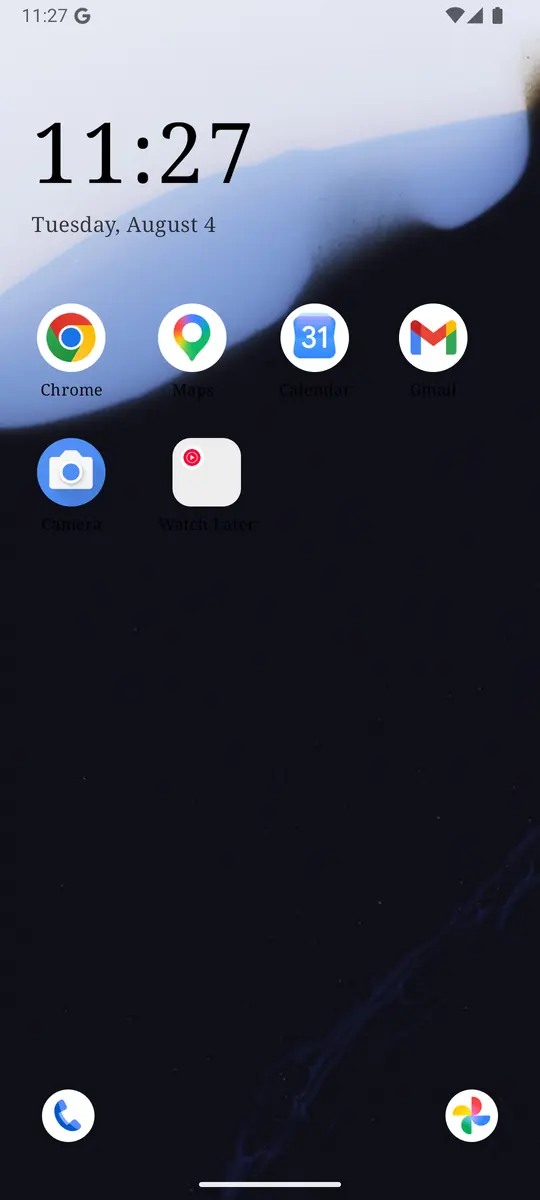
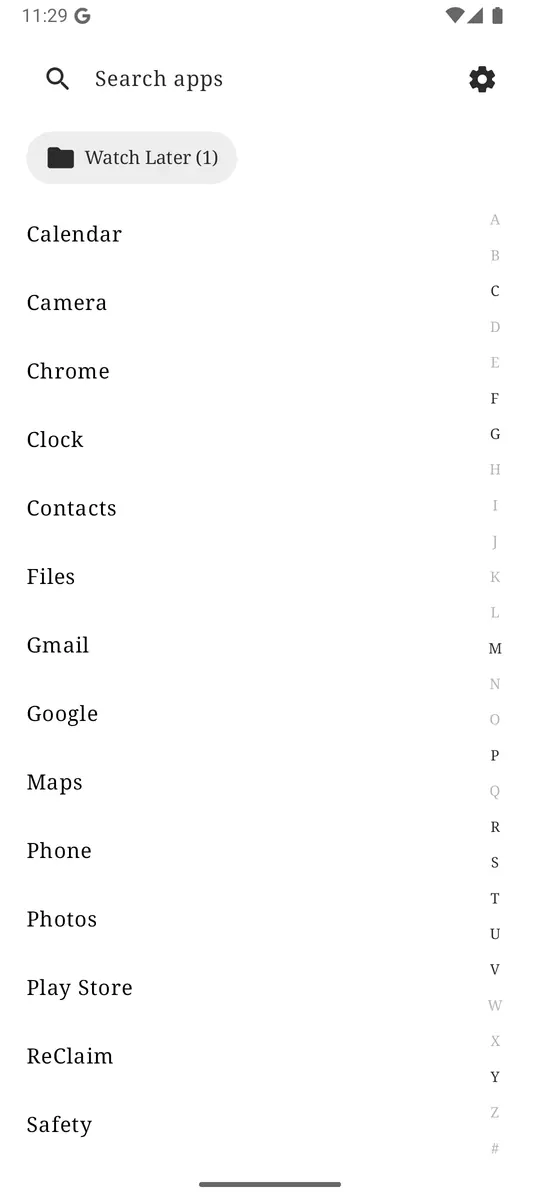
Turn off notifications for the apps that do not need you, keep the few that do, and make unlock boring. ReClaim is free, works on Android 8.0 and newer, and you can switch back to your old home app any time from Settings, Apps, Default apps. Get it free on Google Play.
Questions
How do I turn off notifications for one app on Android?
Open Settings → Notifications → App notifications, choose All apps if the app is not in the recent list, tap it, and turn its notifications off. Or touch and hold one of its notifications in the shade and tap the Settings gear. Google’s steps are in its notification help article.
Can I turn off only some notifications from an app?
Yes, if the app splits its notifications into categories. Leave the app’s main switch on and turn off the categories you do not want. Apps that put everything in one category only offer on or off in Settings, so check the app’s own notification settings too.
How do I turn off notifications for specific apps on a Samsung Galaxy?
Open Settings → Notifications → App notifications and tap the app’s switch. For per-category control, first turn on Manage notification categories for each app under Settings → Notifications → Advanced settings. Samsung’s steps are in its app notifications support article.
Why can’t I turn off notifications for some apps?
Some system apps and system categories cannot be fully turned off, managed work phones can lock settings, and ongoing notifications like a music player usually clear only when the task ends. Try silencing the specific category instead.
Does turning off notifications stop me from opening the app?
No. The app keeps working and you can open it any time. If the problem is opening it, not hearing from it, use an app timer, Focus mode, or a harder block.