Screen time
How to set app timers on Android
To set an app timer on Android, open Settings, tap Digital Wellbeing & parental controls, then App timers. Next to the app you want to limit, tap Set timer, choose a daily amount of time, and tap OK. When the allowance runs out, the app closes and its icon dims until midnight. On Samsung Galaxy phones, open Settings, Digital Wellbeing, App timers, then add a schedule for the apps you choose. Google also documents an App limits PIN if you need the timer harder to delete.

What does an app timer do on Android?
An app timer is Android’s daily usage cap for a single app. Google documents it inside Digital Wellbeing: you pick an app, set how much time you can spend in it each day, and when that time is gone the app closes and its icon dims. The timer resets at midnight. If you have not looked at the chart yet, start with how to check screen time on Android so the timer lands on the right app.
That is different from muting notifications or pausing apps for a work block. A timer assumes the app is allowed in small doses. YouTube for thirty minutes, Instagram for fifteen, a game for forty-five. The failure mode it targets is “I meant to check something and stayed for an hour,” not “this app should be unavailable from nine to five.”
In practice, a solid timer setup usually includes:
- A limit based on real usage, not a guilt number. Digital Wellbeing’s dashboard shows which apps already run long.
- One or two apps that matter, not a dozen half-hearted caps you will delete by Thursday.
- A plan for the override, because Google’s help also says you can delete the timer to use the app again before midnight unless you protect it with an App limits PIN.
Menu labels move with Android version and manufacturer skin. If Settings search finds “App timers” or “Digital Wellbeing,” use that result.

How to set an app timer on a Pixel or stock Android phone
Google’s Android and Pixel Digital Wellbeing help pages describe the same core path. Some work and school accounts might not work with app timers, according to Google’s documentation.
- Open Settings, then Digital Wellbeing & parental controls.
- Tap App timers. If you do not see that label yet, tap the usage chart or Dashboard first so today’s apps appear.
- Next to the app you want to limit, tap Set timer (often shown as an hourglass).
- Choose how much time you can spend in that app each day, then tap OK.
You can also set a timer from the dashboard list: open Digital Wellbeing, tap the chart for more detail, tap a listed app, then set the timer there. Google’s guidebook-style walkthrough for “Set timers for your apps” follows the same idea: open Digital Wellbeing, review the chart, then set an App timer on the app you care about.
When the day’s allowance is gone:
- The app closes.
- Its icon dims.
- The timer resets at midnight.
- To use the app again before midnight, Google’s help says you go back through the same steps and delete the app timer.
That last bullet is the soft spot. A timer that you can delete in ten seconds is still useful as a reminder. It is a weak lock if deleting the timer is part of the habit. The App limits PIN section covers Google’s built-in way to make that change harder.
Optional: put Digital Wellbeing where you will open it
Google documents two convenience options that help timers stay honest:
- Show icon in the app list. In Digital Wellbeing settings, turn on Show icon in the app list so you are not hunting through Settings every time.
- Screen time widget. On Android 9 and later, Google documents a screen time widget that shows your top apps for the day. Touch and hold the Home screen, tap Widgets, then place the Digital Wellbeing / screen time widget.

How to set app timers on a Samsung Galaxy
Samsung ships Digital Wellbeing too, but the App timers flow is schedule-oriented in current One UI documentation. Samsung’s support article for Galaxy Digital Wellbeing says you need Android 10 or later for these features, and that exact screens can vary by software version and carrier.
- Open Settings, then Digital Wellbeing.
- Tap App timers, then Apps and app categories (or All) and select the apps you want.
- Tap Add schedule and choose the days, hours, and minutes. Tap Save.
- To edit later, open the app on the App timers tracker, tap the schedule, adjust it, and save.
- To remove a timer, open that app’s timer entry, return to Apps and app categories, and use the remove control next to the app.
Samsung’s model is useful when weekends should differ from weekdays. A thirty-minute weekday YouTube budget and a longer Saturday budget is a schedule problem, not a single midnight reset problem. If your Galaxy also offers Modes and Routines for pausing apps during work hours, treat that as a separate tool: schedules that block access by time of day pair well with timers that budget total minutes. Our Focus mode guide covers the Modes and Routines path.
Where to find app timers, by phone
| Phone | Menu path | What you set |
|---|---|---|
| Pixel / stock-leaning Android | Settings → Digital Wellbeing & parental controls → App timers | Daily minutes per app; resets at midnight |
| Samsung Galaxy | Settings → Digital Wellbeing → App timers | App selection plus a schedule (days and duration) |
| Other brands | Search Settings for “App timers” or “Digital Wellbeing” | Many still ship Google’s daily timer; skins may rename menus |
How do you choose a useful app timer?
A timer that is unrealistically low gets deleted. A timer that matches last week’s average changes nothing. Use the dashboard first.
- Open Digital Wellbeing and look at the last few days of screen time, not only today.
- Pick the one or two apps that are clearly “fine, then suddenly not.” Social feeds, short video, and games are the usual candidates.
- Set the first limit slightly under your recent average, not at zero. Google’s help even notes you can set a limit to zero with an App limits PIN if the goal is to block another user’s access, but for your own phone a harsh zero often becomes an override ritual.
- Revisit after three days. If you hit the wall every evening and delete the timer, either raise the minutes a little or admit you need a harder tool than a daily cap.
| Limit style | Best when | Watch-out |
|---|---|---|
| Slightly under average | The app is useful and the problem is drift | Too soft if you always spend the whole budget first thing |
| Small evening-only budget | Days are fine but nights run long | On stock Android the timer is all-day minutes, so pair with Bedtime mode for night silence |
| Near-zero with a PIN | You want the app effectively unavailable today | You must keep the PIN out of easy reach; Google says not to share it |
If the real problem is opening the app on autopilot before any timer can help, fix the unlock path with a minimal Android home screen and the friction steps in how to stop opening apps on autopilot.

How do you lock app timers with an App limits PIN?
Google documents an App limits PIN for phones that support it. The point is simple: changing or removing a timer should require a PIN you do not type on autopilot.
- Open Settings, then Digital Wellbeing.
- Tap App limits, then App limits PIN.
- Turn on PIN for app time limits.
- Unlock the device with your usual PIN, password, or pattern.
- Enter a unique four-digit PIN for app time limits, confirm it, then tap Confirm.
Google’s help says once you set the PIN, do not share it with others, and that removing it means turning off PIN for app time limits. The same article notes a tip for blocking another user’s access: create an App limits PIN and set the app’s time limit to zero.
This is not parental-control Family Link. It is a self-lock for the timer settings. If you can still recite the PIN while half-asleep, ask someone you trust to set it, or accept that you need a different kind of friction than Digital Wellbeing alone.
Can you set timers for websites in Chrome?
Yes, on phones where Digital Wellbeing exposes Chrome site data. Google’s Digital Wellbeing help describes both viewing site time and setting a site timer:
- Open Settings, then Digital Wellbeing.
- Tap the chart, then Chrome (tap Show all apps if needed).
- Tap Show sites to see websites and time spent.
- Next to a site, tap Set site timer, choose a limit, then tap OK.
That matters when the distraction is not “the Chrome app” but one site inside it. A thirty-minute Chrome timer still lets a single site eat the whole budget. A site timer aims at the page that actually steals the afternoon.

How are app timers different from Focus mode, Bedtime mode, and blocks?
People often set a timer, still open the app all morning, burn the budget by noon, delete the timer, and conclude “Digital Wellbeing does not work.” Usually the wrong tool was asked to do the wrong job.
| Tool | What it changes | Best for |
|---|---|---|
| App timer | Daily usage cap; resets at midnight | Apps that are fine in small doses but run long |
| Focus mode | Pauses a set of apps for a session or schedule | Work and study blocks; see Focus mode setup |
| Bedtime mode | Do Not Disturb plus calmer screen options at night | Sleep hours; see Bedtime mode |
| Hard block / duration block | App stays unavailable until a time you set | One app that still wins after timers; see blocking without uninstalling |
| Grayscale | Whole screen goes black and white | Reducing pull without pausing apps; see grayscale mode |
If you are still choosing among a daily cap, a pause, a reminder, and a hard block, use the decision tree in app limits vs blocking vs reminders. App timers sit in the “daily allowance” column.
What if app timers are missing, ignored, or too easy to bypass?
I cannot find App timers
- Search Settings for “Digital Wellbeing” or “App timers.”
- Open Digital Wellbeing and tap the usage chart or Dashboard first; some phones hide App timers until usage data is shown.
- Confirm Digital Wellbeing is installed. Google’s help notes it is available on many recent Android phones; manufacturer skins may rename the menu.
- Google documents that some work and school accounts might not work with app timers.
The timer runs out and I just delete it
- Turn on the App limits PIN if your phone offers it.
- Raise the limit slightly if the number was never realistic.
- If you delete the timer every day at the same hour, switch that app to Focus mode for those hours or to a duration block that does not invite a friendly edit screen.
I hit the limit by lunch and still need the app later
- Split the problem: a modest daily timer plus Focus mode for deep-work hours often beats one huge budget.
- On Samsung, use different schedules for weekdays and weekends instead of one number that fails both.
Notifications still pull me back
- A timer limits time in the app; it does not redesign notification policy by itself. Mute noisy categories in Settings, Notifications, or use Focus mode / Do Not Disturb for the hours you need quiet. Google’s Digital Wellbeing page links out to notification and Do Not Disturb help for that layer.

When is an app timer not enough by itself?
App timers are excellent at budgeting minutes. Three gaps show up quickly:
- Deleting the timer is easy unless you use an App limits PIN or a tool that does not offer a one-tap edit.
- A daily cap does not protect a morning. You can spend the whole Instagram budget before the first meeting. Focus mode or a schedule covers that case better.
- The unlock habit can outlive the cap. Dimmed icons help after the limit hits. They do less for the reflex that opens the app at every red light.
A practical stack for most people:
- App timers on the one or two apps that drift long.
- Focus mode on a weekday schedule for deep-work hours.
- Bedtime mode for sleep, not a stretched daytime timer.
- A short home screen so the first unlock is not a wall of icons.
- One harder limit on the app that still wins after you delete the timer.
That fifth step is where a launcher built for friction helps. ReClaim is a minimalist Android launcher: a clock and the handful of apps you choose on the home screen, and a plain alphabetical list, black text and no icons, one swipe away. On top of that sit blocks from 5 minutes to a year, daily and weekly limits, reminders that ask how long you intend to stay, schedules, and hidden apps with four levels of friction. There are no ads and no account. The feature overview has the full list, and the requirements page lists which permission each feature needs.
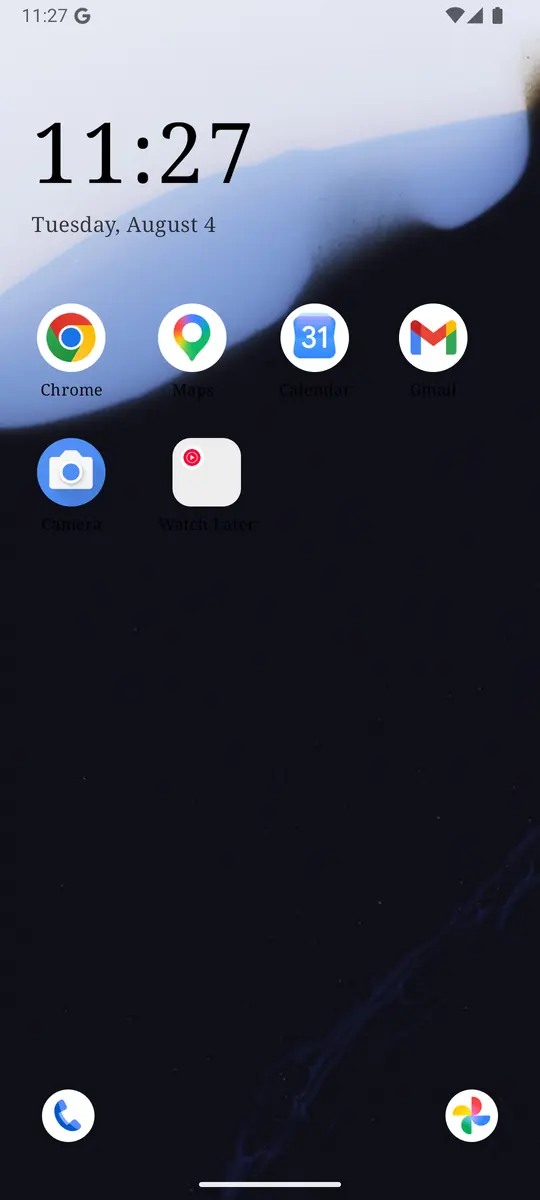
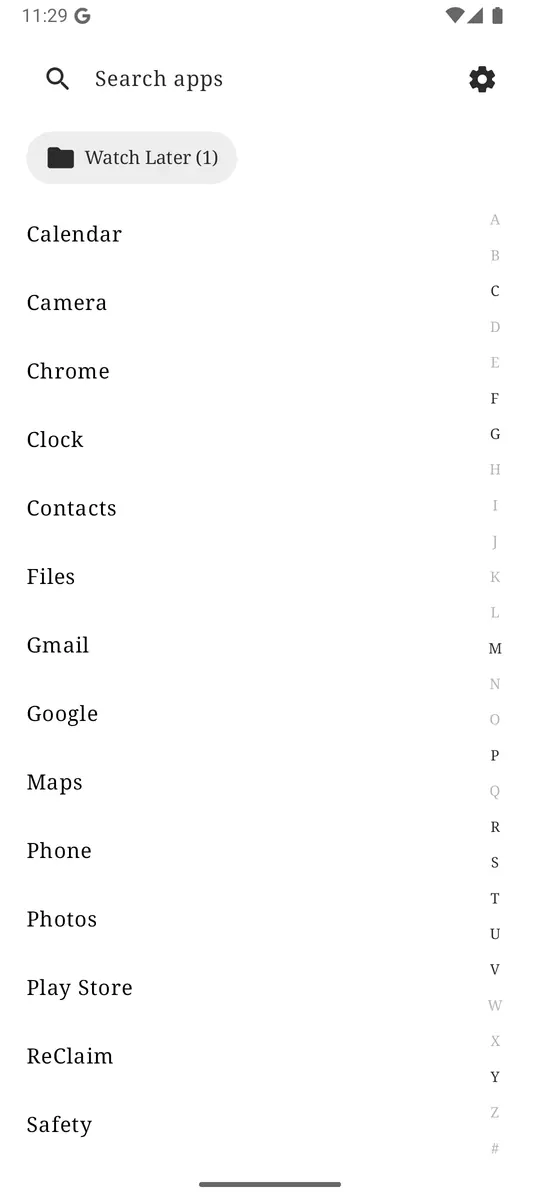
Digital Wellbeing timers for the daily budget, Focus mode for the work block, and a quiet home screen for the unlock. ReClaim is free, works on Android 8.0 and newer, and you can switch back to your old home app any time from Settings, Apps, Default apps. Get it free on Google Play.

.jpg)
Questions
Where are app timers on Android?
Open Settings, Digital Wellbeing and parental controls, then App timers. You can also open the Digital Wellbeing dashboard, tap an app, and set a timer from there. On Samsung Galaxy phones, use Settings, Digital Wellbeing, App timers. Google’s steps are in the Digital Wellbeing help article.
What happens when an Android app timer runs out?
Google documents that the app closes and its icon dims. Timers reset at midnight. To use the app again the same day, you change or delete the timer in Digital Wellbeing unless an App limits PIN blocks that change.
Do Android app timers reset every day?
Yes. Google’s Digital Wellbeing help says app timers reset at midnight. Samsung’s App timers use schedules you define for days and durations; check your Galaxy’s Digital Wellbeing screen for the exact reset behavior on your One UI version.
How is an app timer different from Focus mode?
An app timer is a daily usage cap. Focus mode pauses selected apps for a block of time, on demand or on a schedule, whether or not you have used your daily minutes. Setup steps are in the Focus mode guide.
Can I lock app timers so I cannot delete them?
On phones that support it, Digital Wellbeing includes an App limits PIN. Google’s help says you turn on PIN for app time limits, unlock the device, then enter and confirm a unique four-digit PIN. Do not share that PIN if the point is to stop yourself.