X notifications
How to turn off X (Twitter) notifications on Android
To turn off X notifications on Android, open the app, tap your profile picture → Settings and privacy → Notifications → Preferences → Push notifications, and switch off the categories you do not want, or the master toggle at the top. To stop every X alert at once, open your phone’s Settings → Notifications → App notifications → X and turn it off. Menu names vary a little by X version and phone.

X has no single “off” switch for notifications. It runs several separate systems: push alerts to your phone, the Notifications tab inside the app, email and SMS, and Android’s own permission for the app. Turning one off leaves the others running, which is why people often decide the setting is broken. This guide goes through each one in the order that matters on an Android phone, so you can keep replies and direct messages and drop the likes, reposts, and “you might like” alerts.
How do you turn off X notifications in Android settings?
This is the hard stop, and nothing inside X can override it. It works the same for any app, per Google’s Android notification help:
- Open your phone’s Settings and tap Notifications.
- Tap App notifications, then X. On some phones it is Settings → Apps → X → Notifications.
- Turn off notifications for X to stop every push and banner from the app.
The same screen may list categories X uses, so you can leave the master switch on and turn off only some. X’s own preferences, below, are usually the better place to choose, because they name each kind of alert. For the general version for any app, see how to turn off notifications for specific apps.
How do you choose which X push notifications you get?
This is the setting most people want. As X-Autopilot’s guide to X notifications describes it, the route is the same on every phone:
- Tap your profile picture, then Settings and privacy.
- Tap Notifications, then Preferences.
- Tap Push notifications. A master toggle at the top turns them all off.
- Or switch off the categories one by one. The list includes Likes, Reposts, New followers, Mentions and replies, and Direct messages, plus Recommendations, Topics, News, Live broadcasts, and Spaces.
A sensible set for most people: keep Direct messages and Mentions and replies, and turn off Likes, Reposts, Recommendations, Topics, and News. Likes and reposts arrive in bursts after a post does well, which is the worst moment to be pulled back into the app.
The Preferences screen also has a separate Email notifications page, and X-Autopilot’s guide says there is an SMS option too. Those do not affect your phone’s banners, but if X emails you about every follower, switch them off there.

How do you filter the Notifications tab?
Even with every push alert off, the Notifications tab inside X keeps filling. Filters decide what lands there. Open the Notifications tab, tap the gear icon, and tap Filters. SixRep’s guide to missing mentions lists what is there:
- Quality filter. Removes duplicate or automated content from your notifications. It does not filter people you follow or accounts you have recently interacted with.
- Advanced filters. Mute notifications from new accounts, from accounts you do not follow, from accounts that do not follow you, from accounts with a default profile photo, and from accounts without a confirmed email address or phone number.
These are the quiet fix when the problem is strangers replying to a post that took off. The trade-off is that real people matching one of those rules vanish too, so turn them on one at a time and check that you still see what you need.
How do you mute words and accounts so they stop pinging you?
Muted words are not just for your timeline. Per SixRep’s guide, a muted word, phrase, hashtag, or emoji also silences notifications that contain it, including replies and mentions, and you can scope a mute to the home timeline, to notifications, or both, for 24 hours, 7 days, 30 days, or forever. That is useful for a spoiler weekend or a pile-on around a word.
Muting an account works differently depending on whether you follow them. A muted account you follow can still appear in your Notifications tab; one you do not follow will not show up there at all. Those mute lists live under Settings and privacy → Privacy and safety → Mute and block.
How do you stop alerts from one account?
If you ever turned on the bell on a profile, that account can send its own mobile notifications whenever it posts, and a muted word will not silence them. To turn it off, open that profile and tap the bell next to the Follow button, then choose the option that turns alerts off. If you would rather keep following someone, this is the right fix, not unfollowing.
What about Do Not Disturb and Focus mode?
- Do Not Disturb. Quiet hours across every app, per Google’s Do Not Disturb help. Leave X off the list of apps allowed to break through. See how to turn on Do Not Disturb.
- Snooze one notification. Touch and hold it and snooze it if your phone offers that. See how to snooze notifications on Android.
- Focus mode / Digital Wellbeing. Pause X during work, or set an app timer. Per Google’s Focus mode help and Digital Wellbeing help, add an app to Focus mode or set a timer. More detail: Focus mode and app timers.
Which option should you pick?
| Option | What it stops | Use it for |
|---|---|---|
| Android: X notifications off | Every X push and banner. | A hard stop, like a news-free week. |
| Push notifications master toggle | All X push alerts, but not email or the tab. | When you only check X on purpose. |
| Per-category push toggles | Likes, reposts, recommendations, and so on. | Keeping replies and DMs, losing the noise. |
| Filters | Notifications from strangers and low-quality accounts. | A post that is getting a lot of replies. |
| Muted words | Notifications containing a word or phrase. | Spoilers, pile-ons, one noisy topic. |
| Bell off on a profile | Alerts for one account’s posts. | An account you want to follow but not hear from. |
A good default: keep Direct messages and Mentions and replies, switch off the other push categories, and turn on the Quality filter. Then X buzzes when a person talks to you, and the rest waits for you to look.
What if X notifications keep coming?
I turned off push, but X still emails me
- Email and push are separate pages. Open Settings and privacy → Notifications → Preferences → Email notifications and turn those off too.
I still get “recommended” alerts
- Switch off Recommendations under Push notifications. Per X-Autopilot’s guide, that stops the push, but X still places recommendations in the Notifications tab and the For you timeline, so expect fewer alerts rather than none.
The badge keeps showing a number
- The tab fills up whether or not push is on. Use Filters to shrink it, or on Android turn off the icon dot: see how to turn off notification dots.
I want them back, and nothing shows
- Check that the master toggle under Push notifications is on, that X is allowed in Android’s notification settings, and that Do Not Disturb or battery saver is not holding alerts back. Also check you have not muted a word that appears in the posts you expect.
Where ReClaim fits
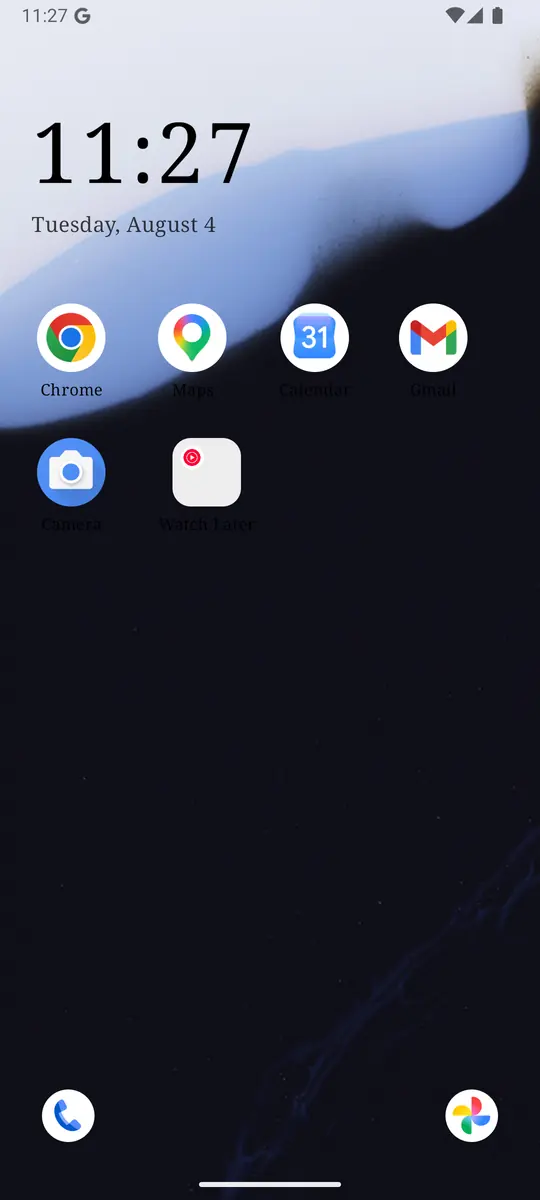
ReClaim is the Android launcher we build. It does not read or change your notifications, and it does not touch X’s settings, so everything above keeps working as described. What ReClaim changes is what you see when you unlock: a home screen with a clock and the few apps you choose, and a plain alphabetical list of names for everything else. On top of that:
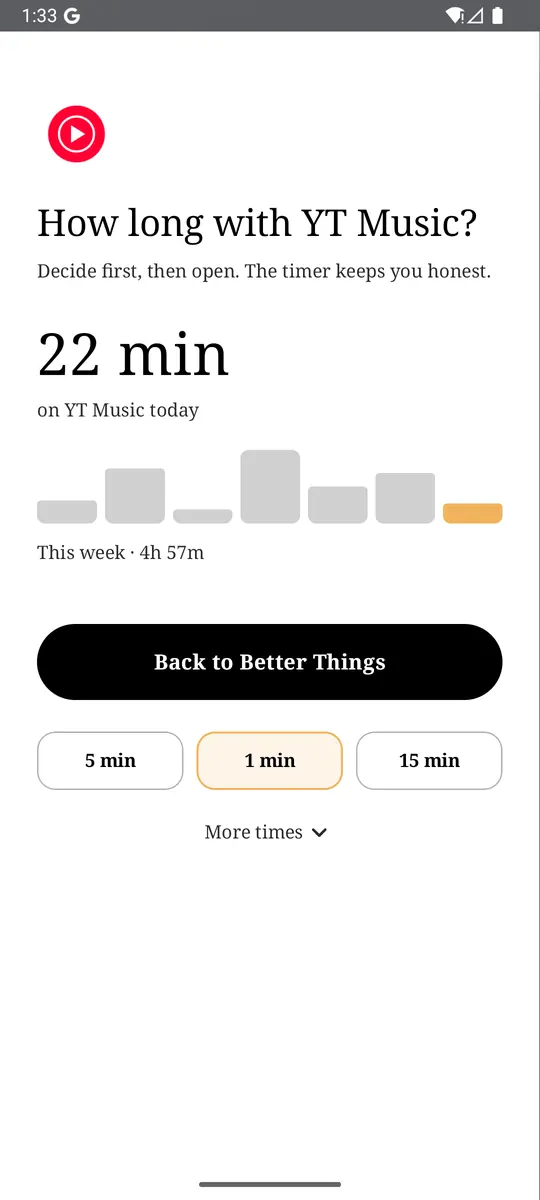
- App reminders. Before an app opens, ReClaim asks how long you intend to use it, then nudges you when that time is up.
- Daily and weekly limits. Give an app a budget. When it is up, ReClaim can close it.
- Blocking and scheduled blocking. Block an app for a set time, or set recurring windows, like evenings or weekends, when selected apps are not available.
- Hidden apps with friction. Hide an app with four levels of hiding, and put one of 10+ unlock challenges in front of it.
Turning off notifications removes X’s reasons to call you back. The other half is the habit of opening it yourself “just to check,” and X is built for that. You could keep X off your home screen, set an app reminder so you pick a time before it opens, or block it on a schedule on workdays. If you want to try it, see how to change the default launcher on Android; switching back is the same setting. For the scrolling that follows a quick check, see how to stop doomscrolling on Android.
Open Push notifications and switch off everything except Direct messages and Mentions and replies, turn on the Quality filter, and mute one or two words that bait you. If you also want a pause before the apps you open on autopilot, try ReClaim. It is free, works on Android 8.0 and newer, and you can switch back to your old home app any time from Settings → Apps → Default apps. Get it free on Google Play.
Questions
How do I turn off X notifications on Android?
For a hard stop, open your phone’s Settings, then Notifications, then App notifications, tap X, and turn it off. To keep some, open X, tap your profile picture, then Settings and privacy, then Notifications, then Preferences, then Push notifications, and switch off the categories you do not want or the master toggle.
How do I stop likes and reposts from sending me alerts?
Open Settings and privacy, then Notifications, then Preferences, then Push notifications, and turn off Likes and Reposts. Leave Mentions and replies and Direct messages on if you want to hear from people who talk to you.
Why am I still getting emails from X after turning off push?
Push and email are separate. Go to Settings and privacy, then Notifications, then Preferences, then Email notifications, and turn those off as well.
Does the Quality filter hide notifications from people I follow?
No. The Quality filter removes duplicate or automated content from your notifications, and it does not filter people you follow or accounts you have recently interacted with.
Can I get alerts for only one account?
Yes. Open their profile and tap the bell next to the Follow button, then choose what you want. To stop them, tap the bell again and turn it off. Muted words will not silence those account alerts.
Will turning off X notifications log me out or delete anything?
No. It only changes what X sends your phone. Your account, posts, and messages stay as they are, and you can turn notifications back on from the same screens.