Google Chat notifications
How to turn off Google Chat notifications on Android
To turn off Google Chat notifications on Android, open Chat, tap Menu → Settings, and under Notifications turn off Mobile notifications. To quiet one space or direct message, touch and hold it, tap Notification settings, and choose None. For a short break, set your status to Do not disturb. If you still get alerts, turn off Chat in your phone’s notification settings. Menu names vary a little by version and phone.

Google Chat is the chat app that comes with a work or school Google account, and it often arrives on your phone twice: once as its own app and once inside Gmail. That is why its notifications get noisy. Google’s help is unusually detailed about this, so this guide follows it closely: what is on by default, how to quiet one space, how to stop the doubled alerts, and how to pause everything for a while. Which options you see can depend on your organization’s settings. There are three layers, and it helps to know which one you are changing: Chat’s own settings (inside the Chat app), Gmail’s Chat settings (if you use Chat inside Gmail), and Android’s notification settings for the Chat app (the same switches every app has on a Pixel or Samsung phone). Turning off the Android layer silences the Chat app completely; the Chat-level settings let you keep the alerts that matter.
How do you turn off all Google Chat notifications?
Per Google’s help on Chat notifications, by default you get notifications when someone @mentions you, and when someone reacts or responds to your message. To turn them off in the Chat app:
- Open the Chat app and tap Menu at the top left, then Settings.
- Under Notifications, turn Mobile notifications off.
If you only want to quiet the reaction alerts, the same Notifications section has a Reaction notifications switch, which you can leave off while keeping the rest. Google’s help also says that if you still get notifications after turning Mobile notifications off, you can turn off Chat’s notifications in your phone settings, covered below.
Three details from the same help page explain most surprises. First, Chat notifications appear on the devices you used most recently; if you are not active in Chat, they appear on every device signed in to your Google Account. Second, if you have more than one Google Account, each account has its own notification settings, so switch Mobile notifications off in each account you want quiet. Third, if email notifications are on, Chat can also email you about messages you have not read for more than 12 hours. Those emails are separate from the phone notifications this guide covers; to stop email alerts on your phone as well, see how to turn off Gmail notifications.
How do you choose notifications for a space?
Spaces are the busy part of Chat. Per Google’s help, on Android:
- Open the Chat app and go to the Spaces tab at the bottom. In Gmail, tap Chat first.
- Touch and hold a space, then tap Notification settings.
- Choose a level:
- All for all new messages and replies to threads. Google notes this automatically follows all new threads in the space.
- Main conversations for all new main conversations, @mentions, and replies to threads you follow.
- For you for @mentions and replies to threads you follow.
- None for no notifications, just an indicator for @mentions.
Pick For you for most work spaces. You are told when someone needs you, and the rest waits. Choose None for a space you only check occasionally. Optionally tick Mute conversation to stop it from being bolded and moved to the top of your list. When you follow a thread, a blue dot shows activity in it, unless the space is muted.

How do you mute a direct message?
Direct messages are simpler. Per Google’s help:
- Touch and hold a direct message in the Chat app.
- Tap Notification settings.
- Select All or None.
- Optionally tick Mute conversation so it is not bolded or moved to the top.
Google’s help says that when you mute a conversation or space, the threads you follow still appear in Home. If someone mentions you directly in a thread, you follow that thread automatically, so a mention can still reach you.
Why do I get two alerts, and how do I stop them?
If you use Chat inside the Gmail app, as well as the standalone Chat app, you may get a notification from each. Google’s help describes the fix: to avoid duplicate mobile notifications, turn off the Google Chat app’s notifications in your device’s settings. Open Settings → Notifications → App settings → Chat, and turn All Chat notifications off. If you do not see Chat in the list, show all apps first. To control Chat alerts inside Gmail instead, open Gmail, tap Menu → Settings, select your account, and check or uncheck Chat notifications under Notifications.
Which one to keep is your call. If Chat is your main messaging app, keep the Chat app’s notifications and uncheck Chat notifications in Gmail. If you mostly live in Gmail, do the opposite. Either way you end up with one alert per message instead of two.
How do you turn off Google Chat notifications in Android settings?
Android’s own switch is the bluntest tool: it stops every notification the Chat app sends, whatever Chat’s internal settings say. Google’s Android notification help notes that the steps vary by device, so here are the two most common versions. For any other app, the same routine is covered in how to turn off notifications for specific apps.
On a Pixel or other phone with Google’s Android
- Open Settings and tap Notifications.
- Tap App notifications. Chat’s own help calls this App settings; the name depends on your Android version.
- Find Chat. If it is not under Most recent, open the drop-down menu at the top and choose All apps.
- Tap Chat and turn off All Chat notifications. To keep some alerts, leave it on and turn off only the categories you do not want.
On a Samsung Galaxy phone
Per Samsung’s help on controlling app notifications:
- Open Settings, tap Notifications, then App notifications.
- Find Chat and tap its switch to block its notifications. Tap the app name instead to open its settings and turn off Allow notifications.
- To turn off only some kinds of Chat alerts, go back to Notifications, tap Advanced settings, and turn on Manage notification categories for each app. Then open App notifications, tap Chat, and adjust its Notification categories.
- To check what you have blocked, open the drop-down menu on the App notifications screen and choose Notifications turned off.
Samsung also puts a Notification settings button at the bottom of the notification panel, which takes you to the same place.
On other phones, or straight from a notification
Other brands may name and place these menus differently, so the quickest route on any phone is the notification itself. Per Google’s Android help: swipe down from the top of the screen, touch and hold a Chat notification, and tap the settings icon. From there you can turn off all of Chat’s notifications or only the type you just received. On older Android versions the app list sits under Settings → Apps & notifications → Notifications instead.
| Phone | Path to Chat’s notifications | Per-category control |
|---|---|---|
| Pixel / Google’s Android | Settings → Notifications → App notifications → Chat | Shown on the Chat screen |
| Samsung Galaxy (One UI) | Settings → Notifications → App notifications → Chat | Turn on Advanced settings → Manage notification categories for each app first |
| Older Android | Settings → Apps & notifications → Notifications → Chat | Tap a category under the app |
| Any phone | Touch and hold a Chat notification → settings icon | Turn off the type you just received |
What changes between Android versions?
- Android 8.0 and newer: notification categories. Since Android 8.0, every notification an app sends belongs to a category (Android’s developer documentation calls them channels), and you can turn each one off separately. That is why Chat’s screen in Settings may list several switches instead of one. The names come from the app and can change between Chat versions.
- Android 13 and newer: notification permission. Apps need your permission to send notifications, and on a fresh install they stay off until you allow them. If you tapped Don’t allow when Chat asked, that alone explains the silence; turn Chat back on in App notifications.
- Older versions: different menu names. Google’s Android help says that if you do not see a list of recently sent apps, you are on an older Android version: tap App notifications (or Apps & notifications) and then the app. The switches behave the same way.
- Samsung One UI. Samsung’s help has you turn on Manage notification categories for each app before you adjust an app’s categories, as described above. Menus can also differ by carrier and model, which Samsung’s help notes.
How do you silence Chat without turning it off?
Sometimes the problem is the buzz, not the message. Per Google’s Chat help, you can change the sound from inside Chat:
- Open Chat, tap Menu → Settings.
- Under Notifications, tap Notification sound.
- Tap Sound and choose None to turn the sound off, or tap See more for switches to allow notifications, show them as pop-ups, vibrate, choose what shows on the lock screen, and turn app icon badges on or off.
If you use Chat in Gmail, the sound lives in Gmail: Menu → Settings → General settings → Manage notifications → Chat and spaces → Sound. On some phones you tap Save at the top right afterwards.
Android offers a middle ground too. On many phones you can mark an app’s notifications Silent rather than Alerting: silent notifications make no sound or vibration but still wait in the shade when you swipe down. And if the little dot on the Chat icon is what pulls you back in, see how to turn off notification dots on Android.
How do you pause Chat for a while?
Set your Chat status to Do not disturb. Per Google’s help on Chat status:
- Open the Chat app or Gmail and tap Menu at the top left.
- Tap the Down arrow next to your status at the top, then Do not disturb.
- Under “Mute notifications for,” pick a duration or tap Until a specific time, then tap Set.
Notifications come back on by themselves when the time runs out. To end it early, open the same menu and choose Automatic. Do not disturb mutes Chat on all your devices, not just your phone, and people you chat with can see that you paused notifications and for how long, so nobody expects an instant reply. It is the right tool for a meeting or a focus block, and it is easy to undo. Be aware that some Chat apps can send urgent messages that ignore Do not disturb: Google describes @notify messages, meant for critical or time-sensitive information, as ignoring your Do not disturb status and muted conversations, and @silent messages as low-priority updates.
What about Do Not Disturb and Focus mode?
- Android Do Not Disturb. Quiet hours across every app, set in your phone’s settings. This is separate from the Do not disturb status inside Chat: Android’s version silences the phone, Chat’s version mutes Chat alerts on all your devices and shows the people you chat with that you paused notifications. See how to turn on Do Not Disturb.
- Snooze one notification. If your phone has notification snoozing turned on (Settings → Notifications on Google’s Android), open the notification’s arrow and tap Snooze to bring it back later.
- Focus mode and app timers. Digital Wellbeing can pause Chat outside work hours with Focus mode, or cap how long you spend in it with an app timer, which is useful when the problem is checking Chat rather than Chat pinging you.
Which option should you pick?
| Option | What it stops | Use it for |
|---|---|---|
| Mobile notifications off | All Chat notifications on your phone. | A clean break from Chat on your phone. |
| Space: For you | Everything except @mentions and followed threads. | Busy work spaces. |
| Space or DM: None | All alerts there, apart from an @mention indicator in spaces. | A space you only check sometimes. |
| Status: Do not disturb | Notifications for a while. | Meetings and focus time. |
| Sound set to None | The sound, while alerts still arrive. | Keeping alerts without the noise. |
| Android: one category off | One kind of Chat alert. | Fine-tuning on Pixel or Samsung. |
| Android: Chat notifications off | Every Chat push, which also removes duplicates. | When you use Chat in Gmail. |
A good default: set every busy space to For you, mute the ones you rarely read, and use Do not disturb during focus time. Then Chat reaches you for mentions and replies and waits otherwise.
What if Google Chat notifications keep coming?
I turned off Mobile notifications, but I still get alerts
- You may be getting them from the Gmail app instead. Uncheck Chat notifications in Gmail’s settings, or turn off Chat in Android’s notification settings.
I get alerts on my phone while I am at my computer
- Google’s help says Chat notifies the devices you used most recently, and every signed-in device if you are not active in Chat. If you step away from the computer, the phone picks up. Set Do not disturb before a focus block, or set noisy spaces to For you.
One message got through despite Do not disturb
- Some Chat apps can send @notify messages, which Google describes as ignoring Do not disturb, muted conversations and notification settings. Ask whoever runs that app or bot if the alerts are not really urgent.
I muted a space, but I still see activity
- Per Google’s help, threads you follow still appear in Home when a space is muted, and a direct mention in a thread makes you follow it.
I want them back, and nothing shows
- Google suggests making sure Do not disturb is off and that notifications are on in your device settings. Also check Mobile notifications in Chat and the space’s own setting.
- On Android 13 and newer, check that Chat is allowed to send notifications at all (Settings → Notifications → App notifications → Chat). On Samsung, the drop-down on that screen has a Notifications turned off view.
- If you use several Google Accounts, check the account that is not notifying you; each has its own settings.
Where ReClaim fits
ReClaim is the Android launcher we build. It does not read or change your notifications, and it does not touch Google Chat’s settings, so everything above keeps working as described. What ReClaim changes is what you see when you unlock: a home screen with a clock and the few apps you choose, and a plain alphabetical list of names for everything else. On top of that:
- App reminders. Before an app opens, ReClaim asks how long you intend to use it, then nudges you when that time is up.
- Daily and weekly limits. Give an app a budget. When it is up, ReClaim can close it.
- Blocking and scheduled blocking. Block an app for a set time, or set recurring windows, like evenings or weekends, when selected apps are not available.
- Hidden apps with friction. Hide an app with four levels of hiding, and put one of 10+ unlock challenges in front of it.
Turning off notifications removes Chat’s reasons to call you back. The other half is the habit of opening it yourself “just to check” after hours. You could keep Chat off your home screen, set an app reminder so you pick a time before it opens, or block it on a schedule outside work. If you want to try it, see how to change the default launcher on Android; switching back is the same setting.
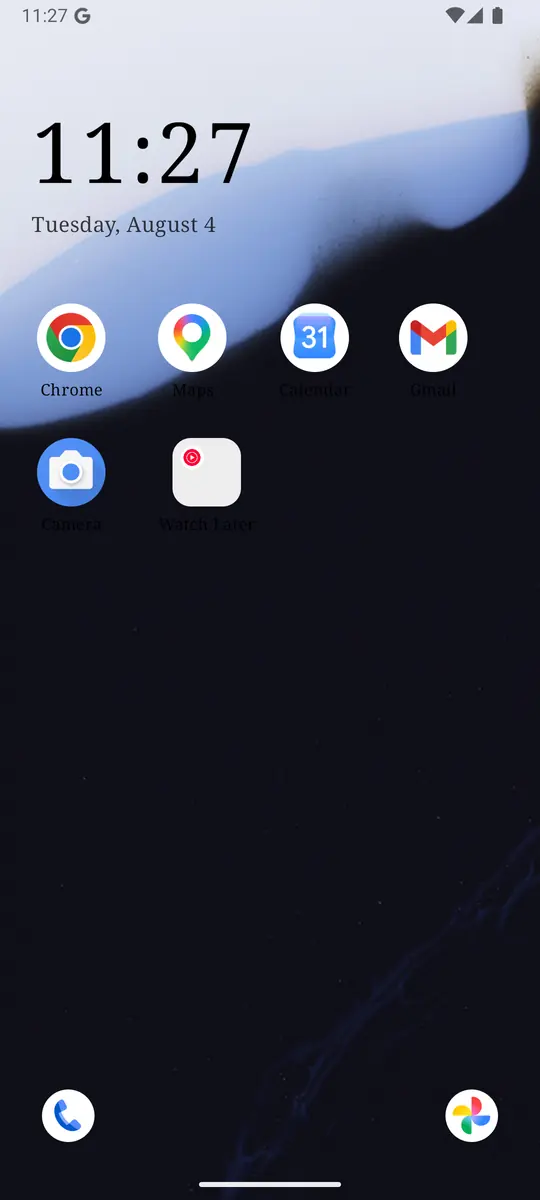
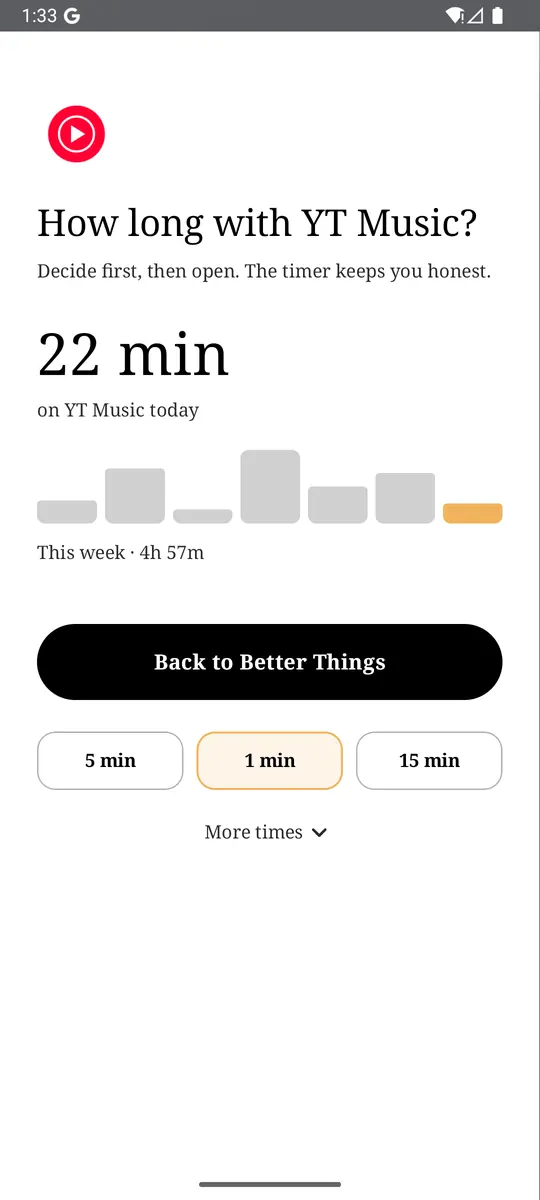
Set your busy spaces to For you, mute the ones you rarely read, and turn off the Chat app’s alerts in Android if you use Chat in Gmail. If you also want a pause before the apps you open on autopilot, try ReClaim. It is free, works on Android 8.0 and newer, and you can switch back to your old home app any time from Settings → Apps → Default apps. Get it free on Google Play.
Questions
How do I turn off Google Chat notifications on Android?
Open Chat, tap Menu, tap Settings, and under Notifications turn off Mobile notifications. If you still get alerts, turn off Chat’s notifications in your phone’s Settings, under Notifications and App settings.
How do I mute one space in Google Chat?
Touch and hold the space in the Spaces tab, tap Notification settings, and choose None. You can also tick Mute conversation so it does not move to the top of your list.
What is the difference between For you and Main conversations?
For you sends notifications for @mentions and replies to threads you follow. Main conversations adds all new main conversations in the space.
Why do I get two Google Chat notifications?
You may be getting one from the Chat app and one from Gmail. Turn off the Chat app’s notifications in your phone settings, or turn off Chat notifications in Gmail’s settings.
How do I pause Google Chat for an hour?
Tap Menu, tap the Down arrow next to your status, choose Do not disturb, pick 1 hour or another duration under Mute notifications for, and tap Set. Notifications come back on by themselves when the time ends, apart from urgent messages that ignore it.
How do I turn off Google Chat notifications on a Samsung phone?
Open Settings, tap Notifications, then App notifications, and turn off the switch next to Chat. To turn off only some kinds of Chat alerts, first turn on Manage notification categories for each app under Notifications and Advanced settings.
Does turning off notifications in the Chat app also stop them in Gmail?
They are separate settings. Gmail has its own Chat notifications checkbox under Menu, Settings, your account, Notifications. If you use both apps, turn Chat alerts off in both, or keep one and turn the other off to avoid duplicates.
How do I turn off the Google Chat notification sound but keep the alerts?
In Chat, tap Menu, Settings, then Notification sound under Notifications, tap Sound, and choose None. In Gmail, the sound is under General settings, Manage notifications, Chat and spaces.
Why do I get Google Chat notifications on my phone when I am on my computer?
Google says Chat notifies the devices you used most recently, and all your signed-in devices if you are not active in Chat. Setting Do not disturb mutes Chat on every device at once.
Can people see that I muted Google Chat?
If you set your status to Do not disturb, yes: people you share a space with can see it and how long you paused notifications. For Workspace accounts, the status is visible only inside your organization.
Can some messages ignore my mute?
Yes. Google’s help says some Chat apps can send @notify messages for critical or time-sensitive information, and these ignore Do not disturb and muted conversations.