Microsoft Teams notifications
How to turn off Microsoft Teams notifications on Android
To turn off Microsoft Teams notifications on Android, open the app, tap your profile picture → Notifications, and under Block notifications tap During quiet time to set daily quiet hours and quiet days. To stop every Teams alert at once, open your phone’s Settings → Notifications → App notifications → Teams and turn it off. Menu names vary a little by Teams version, your organization’s settings, and phone.

Teams is the one chat app that arrives with your job attached. It is also the one where turning everything off can go wrong: you miss the call from your manager or the meeting that starts now. The better tool is quiet time, a Teams feature that applies only to your phone, along with a setting that keeps your phone silent while you are already at your desktop. Your organization may control some of these options, so what you see can differ from this guide.
How do you set quiet hours and quiet days in Teams?
Quiet time is a mobile-only Teams feature that silences notifications on a schedule. Per the University of Colorado’s guide, messages and calls still arrive, but you do not get a notification unless you open the app. Per UW–Milwaukee’s guide to Teams on Android and Umeå University’s:
- Open Teams and tap your profile picture at the top left.
- Tap Notifications.
- Under Block notifications, tap During quiet time.
- Turn on Daily quiet hours and set the Start and End times.
- Turn on Quiet days and tap the days you want blocked. UW–Milwaukee notes that Saturday and Sunday are selected automatically.
Per the CWC guide, if you do not see Start and End or the days of the week, tap the slider next to Daily quiet hours or Quiet days to switch it on. A common setup: 6 p.m. to 8 a.m. on weekdays, with Saturday and Sunday as quiet days.
Quiet time can still let some things through. The CWC guide lists incoming calls, messages marked important by the sender, specific mentions, and badge counts, each with its own slider. Umeå University adds that on Android you can set exceptions so some content stays visible during quiet hours, for example a mention. Switch the exceptions off if you want true silence, and leave Important messages on if your workplace uses it for emergencies.

How do you stop the phone repeating your desktop?
If your phone buzzes for a message you are reading on your computer, there is a setting for that. Per UW–Milwaukee’s guide, open Notifications, go to the Block notifications section, tap When active on desktop, and switch it on. Then Teams stops sending phone alerts while you are active on your computer. It does not silence your phone when you step away, which is what quiet time is for, so the two work together.
How do you choose which activity can notify you?
The CWC guide says Teams also lets you choose what types of notifications reach your phone. From the same Notifications screen, tap General activity. It shows a set of sliders for calls, channels, chats, and other activity, so you can keep chats and drop channels, or the other way around. Channel-by-channel settings inside Teams are managed in the channel’s own notification options, and which ones appear depends on your organization and app version.
If you only want one change, make it this: keep chats and calls, and switch off the channel and general activity alerts. Chats and calls are people talking to you. Channel activity is mostly people talking near you.
How do you turn off Teams notifications in Android settings?
This is the hard stop. It works the same for any app, per Google’s Android notification help:
- Open your phone’s Settings and tap Notifications.
- Tap App notifications, then Teams. On some phones it is Settings → Apps → Teams → Notifications.
- Turn off notifications for Teams to stop every push and banner, including calls.
Use this carefully on a work phone. Switching it off also silences incoming calls and meeting alerts, so quiet time is usually the better choice. For the general version for any app, see how to turn off notifications for specific apps.
What about Do Not Disturb and Focus mode?
- Do Not Disturb. Quiet hours across every app, per Google’s Do Not Disturb help. You can allow calls from certain contacts to break through. See how to turn on Do Not Disturb.
- Snooze one notification. Touch and hold it and snooze it if your phone offers that. See how to snooze notifications on Android.
- Focus mode / Digital Wellbeing. Pause Teams outside work, or set an app timer. Per Google’s Focus mode help and Digital Wellbeing help, add an app to Focus mode or set a timer. More detail: Focus mode and app timers.
Which option should you pick?
| Option | What it stops | Use it for |
|---|---|---|
| Quiet time: daily hours | Teams alerts on your phone at set times. | Evenings and early mornings. |
| Quiet time: quiet days | Teams alerts on chosen days. | Weekends. |
| When active on desktop | Phone alerts while you are at your computer. | Stopping double alerts. |
| General activity sliders | Types of activity, like channels. | Keeping chats and calls only. |
| Android: Teams notifications off | Every Teams push and banner, calls included. | Leave, with calls covered another way. |
A good default: quiet time on weekdays from the end of your day to the start of the next, quiet days on weekends, When active on desktop on, and the exceptions limited to calls and mentions. Then Teams stops following you home without making you unreachable.
What if Teams notifications keep coming?
I set quiet time, but a notification still came through
- Check the exceptions. Incoming calls, important messages, and mentions can be allowed through during quiet time, and each has its own slider.
I do not see the options in this guide
- Your organization’s Teams settings can change what is available, and menu names vary between versions. Look under your profile picture, then Notifications, and use Android’s settings if the in-app option is missing.
I want them back, and nothing shows
- Check that quiet time is not on for the current hour or day, that When active on desktop is not blocking you, that Teams is allowed in Android’s notification settings, and that Do Not Disturb or battery saver is not holding alerts back.
Where ReClaim fits
ReClaim is the Android launcher we build. It does not read or change your notifications, and it does not touch Teams’ settings, so everything above keeps working as described. What ReClaim changes is what you see when you unlock: a home screen with a clock and the few apps you choose, and a plain alphabetical list of names for everything else. On top of that:
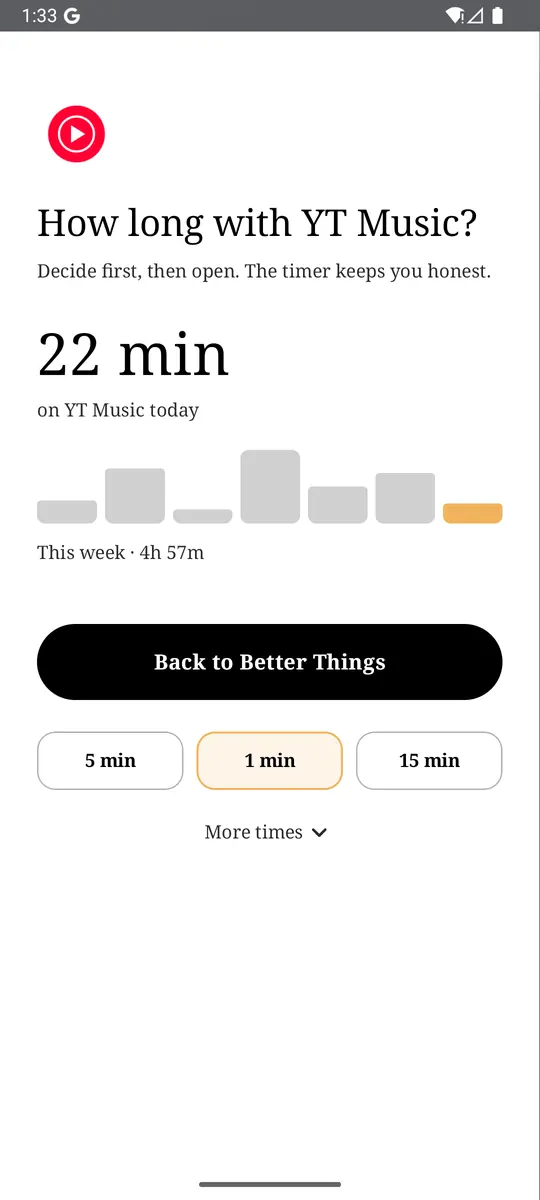
- App reminders. Before an app opens, ReClaim asks how long you intend to use it, then nudges you when that time is up.
- Daily and weekly limits. Give an app a budget. When it is up, ReClaim can close it.
- Blocking and scheduled blocking. Block an app for a set time, or set recurring windows, like evenings or weekends, when selected apps are not available.
- Hidden apps with friction. Hide an app with four levels of hiding, and put one of 10+ unlock challenges in front of it.
Turning off notifications removes Teams’ reasons to call you back. The other half is the habit of opening it yourself “just to check” after hours. You could keep Teams off your home screen, set an app reminder so you pick a time before it opens, or block it on a schedule outside work. If you want to try it, see how to change the default launcher on Android; switching back is the same setting. For the scrolling that follows a quick check, see how to stop doomscrolling on Android.
Open Notifications in Teams, turn on Daily quiet hours and Quiet days, and switch on When active on desktop. If you also want a pause before the apps you open on autopilot, try ReClaim. It is free, works on Android 8.0 and newer, and you can switch back to your old home app any time from Settings → Apps → Default apps. Get it free on Google Play.
Questions
How do I turn off Microsoft Teams notifications on Android?
For a hard stop, open your phone’s Settings, then Notifications, then App notifications, tap Teams, and turn it off. To keep control, open Teams, tap your profile picture, tap Notifications, and use During quiet time and When active on desktop under Block notifications.
What is quiet time in Teams?
Quiet time is a mobile-only Teams feature that silences notifications on your phone during chosen hours or days. Messages and calls still arrive, but you do not get a notification unless you open the app.
Can I get calls through during quiet time?
Yes. Quiet time has exceptions for incoming calls, messages marked important, and mentions, each with its own slider. Switch them on or off to match how reachable you need to be.
Why does my phone buzz when I am using Teams on my computer?
Turn on When active on desktop under Block notifications in the Notifications screen. Teams then stops sending phone alerts while you are active on desktop.
Do quiet time settings apply on my computer too?
No. Quiet time only applies to your mobile device.
Will turning off Teams notifications make me miss meetings?
It can. Switching Teams off in Android settings also silences meeting and call alerts, so use quiet time with exceptions for calls, or check your calendar, instead of turning everything off.