Google Calendar notifications
How to turn off Google Calendar notifications on Android
To turn off Google Calendar notifications on Android, open the app, tap Menu → Settings, select a calendar, tap each notification, and choose No notification. For one event, open it, tap Edit, and remove its notification. To silence only your phone, open Settings → Notifications → App notifications → Calendar and turn it off. Menu names vary a little by version and phone.

Calendar notifications are different from most apps in this series, because you set them yourself, event by event. That makes them easy to tune and easy to forget. An old default of “10 minutes before” on every calendar, plus a second reminder you added for one event, plus the same alert on your laptop, adds up to a phone that buzzes for things you no longer care about. Google’s help explains where each of those lives, and which ones apply to your phone, your browser, or your email.
How do you remove reminders for a whole calendar?
Calendar-level notifications decide what you get for every new event, unless you customize a specific event. Per Google’s help on Calendar notifications, on Android:
- Open Google Calendar and tap Menu at the top left.
- Tap Settings at the bottom.
- Select one of your calendars.
- Tap a notification, then No notification. Do the same for each notification listed.
Google’s help notes that your notification settings are personal and apply only to your account. Nobody you share a calendar with can change them, and your settings do not change what other people get. If you have more than one account or calendar, repeat the steps for each. Because changes also sync with your computer, removing a notification on the phone removes it on the web too.

How do you remove a reminder from one event?
If only one event is the problem, such as a recurring meeting you attend anyway, change it alone. Per Google’s help:
- Open the event in Google Calendar.
- Tap Edit.
- Tap Remove next to the notification you want to delete. To add one, tap Add notification, set how and when, and tap Done.
- Tap Save.
Google’s tip is worth repeating: changes you make to the notifications are only for you. Event guests get notifications based on their own settings.
How do you silence only your phone?
If you still want reminders on your computer and in email, but not on your phone, turn off notifications at the Android level. Per Google’s help, open Settings → Notifications → App notifications → Calendar and turn off notifications for Calendar. Google notes that if you turn off phone notifications, you still get them on your computer and through email. That makes this the cleanest split between “reminders for work at my desk” and “my phone stays out of it.”
How do you stop Calendar email notifications?
Email reminders are set the same way as the others. Per Google’s help, open Menu → Settings, select a calendar, and set the notification to No notification. Google’s help says you can get notifications on your device, by email, or both. If you are still getting emails, check each calendar and each account listed.
How do you change the sound or vibration instead?
If you want the reminders but not the noise, change how they sound. Per Google’s help: open Menu → Settings → General, and in the Notifications section tap Calendar notifications. Choose your notification, tone, and vibration settings, and tap Sound to change the tone. Many people keep reminders and swap a sharp default for something quieter, or turn off the sound and keep the banner.
What if the alerts come from a second calendar app?
If you get the same notifications from another calendar app, such as one your phone maker installed, the problem may not be Google Calendar at all. Google’s help says to open your phone’s Settings, find Apps or Application manager, select the calendar app you do not want notifications for, find its Notifications section, and change your settings. Doubled alerts for the same event are often two calendar apps reading the same account.
What about Do Not Disturb and Focus mode?
- Do Not Disturb. Quiet hours across every app, per Google’s Do Not Disturb help. See how to turn on Do Not Disturb.
- Snooze one notification. Touch and hold it and snooze it if your phone offers that. See how to snooze notifications on Android.
- Focus mode / Digital Wellbeing. Pause the apps that tempt you, or set an app timer. Per Google’s Focus mode help and Digital Wellbeing help, add an app to Focus mode or set a timer. More detail: Focus mode and app timers.
Which option should you pick?
| Option | What it stops | Use it for |
|---|---|---|
| No notification (calendar settings) | Reminders for new events on that calendar. | A calendar you only glance at. |
| Remove notification (one event) | Reminders for one event. | A recurring meeting you never miss. |
| Android: Calendar notifications off | Phone alerts only. Computer and email stay. | Keeping reminders off your phone. |
| Email: No notification | Email reminders. | An inbox full of event emails. |
| Calendar notifications sound | Nothing. It changes tone and vibration. | Keeping reminders, softening them. |
A good default: one reminder per calendar, a few minutes before, a gentle tone, and no email. Add a longer reminder to individual events that need one, such as a flight.
What if Calendar notifications keep coming?
I removed the reminder, but I still get alerts
- Check every calendar and account. Settings are per calendar, so a second calendar may still have a default reminder. Check the event itself for its own notification, too.
I get the same alert twice
- You may have two calendar apps showing the same account. Turn off notifications for the one you do not use, as described above.
I silenced my phone, but I still get emails
- Android’s switch only covers your phone. Set the notification to No notification in the calendar’s settings to remove email as well.
Where ReClaim fits
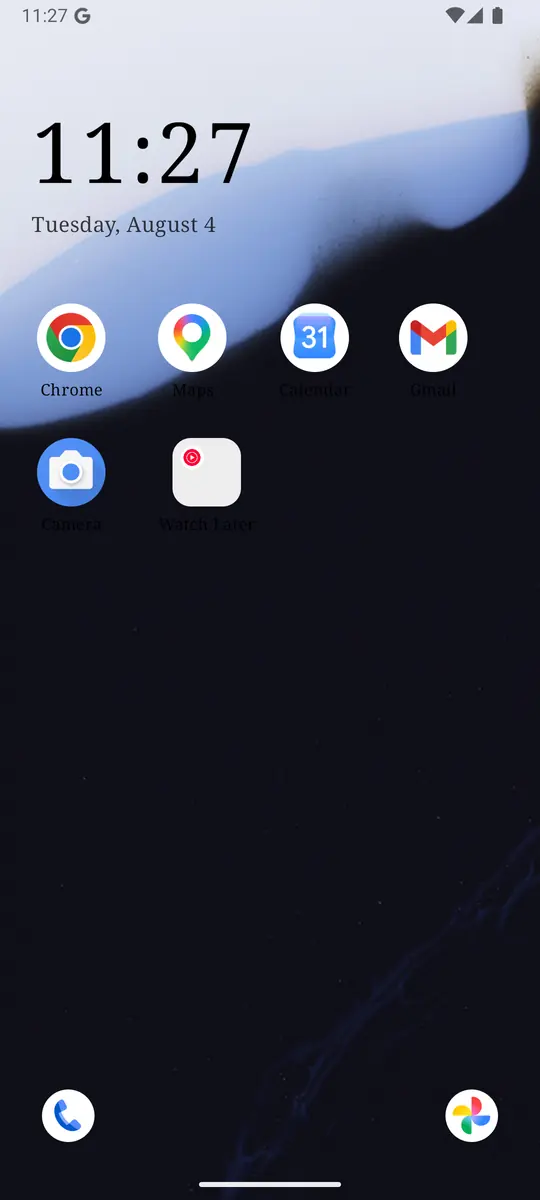
ReClaim is the Android launcher we build. It does not read or change your notifications, and it does not touch Google Calendar’s settings, so everything above keeps working as described. What ReClaim changes is what you see when you unlock: a home screen with a clock and the few apps you choose, and a plain alphabetical list of names for everything else. On top of that:
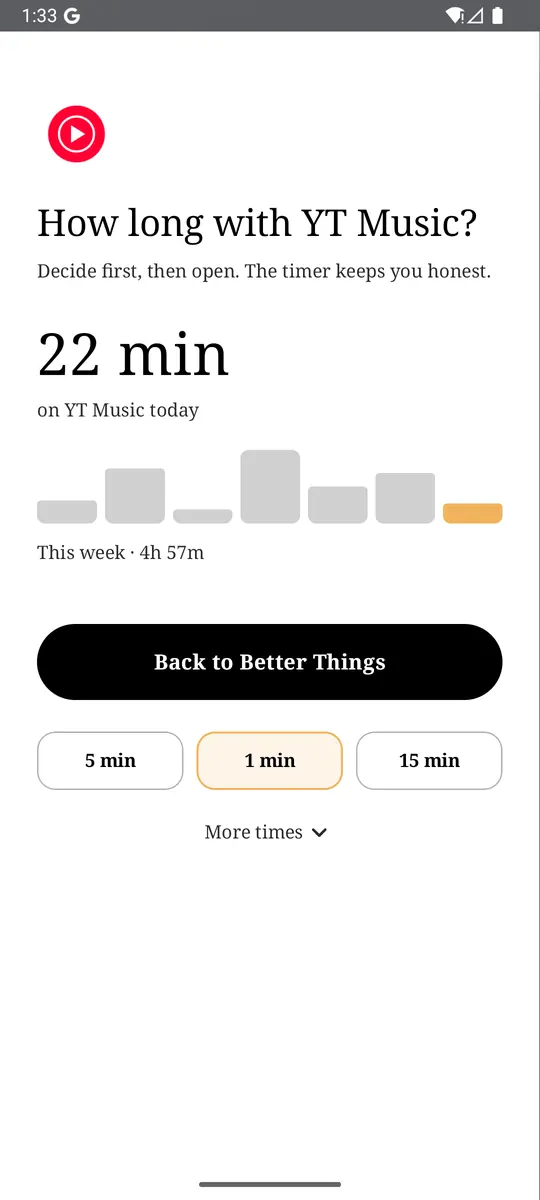
- App reminders. Before an app opens, ReClaim asks how long you intend to use it, then nudges you when that time is up.
- Daily and weekly limits. Give an app a budget. When it is up, ReClaim can close it.
- Blocking and scheduled blocking. Block an app for a set time, or set recurring windows, like evenings or weekends, when selected apps are not available.
- Hidden apps with friction. Hide an app with four levels of hiding, and put one of 10+ unlock challenges in front of it.
Turning off notifications removes Calendar’s reasons to call you back. Most people open Calendar on purpose, so the habit to watch is what happens next: a quick look at the schedule that turns into other apps. ReClaim’s app reminder asks how long you intend to use an app before it opens, which fits that pattern. If you want to try it, see how to change the default launcher on Android; switching back is the same setting. For the scrolling that follows a quick check, see how to stop doomscrolling on Android.
Open Menu → Settings, set each calendar to a single reminder, and remove the notifications you never act on. If you also want a pause before the apps you open on autopilot, try ReClaim. It is free, works on Android 8.0 and newer, and you can switch back to your old home app any time from Settings → Apps → Default apps. Get it free on Google Play.
Questions
How do I turn off Google Calendar notifications on Android?
Open Google Calendar, tap Menu, tap Settings, select a calendar, tap each notification, and choose No notification. To silence only your phone, open Android Settings, then Notifications, then App notifications, tap Calendar, and turn it off.
How do I turn off the reminder for one event?
Open the event, tap Edit, tap Remove next to the notification, and tap Save. The change is only for you. Event guests get notifications based on their own settings.
If I turn off phone notifications, will I still get emails?
Yes. Google’s help says that if you turn off phone notifications, you still get them on your computer and through email. To stop email, set the notification to No notification in the calendar’s settings.
Do my notification settings affect other people on a shared calendar?
No. Your settings are personal and apply only to your account, and your settings do not change the notifications of others.
How do I change the Calendar notification sound?
Open Menu, tap Settings, tap General, tap Calendar notifications in the Notifications section, and tap Sound to change the tone.
Do changes on my phone also change my computer?
Yes. Google’s help says changes you make to calendar notifications on your phone also sync with your computer notifications. Turning off the Calendar app’s Android notifications is the exception, because that only affects the phone.