Google Photos notifications
How to turn off Google Photos notifications on Android
To turn off Google Photos notifications on Android, open the app, tap your profile photo → Photos settings → Notifications and switch off what you do not want. For memory alerts, go to Photos settings → Preferences → Memories → Notifications. To stop every alert at once, open your phone’s Settings → Notifications → App notifications → Photos and turn it off. Menu names vary a little by version and phone.

Google Photos is a backup tool that also wants to be a social feed. Its notifications reflect that: a memory from this day three years ago, a collage you never asked for, a nudge to print a photo. None of them is urgent, and the app lets you turn each type off without touching your photos or your backup. Google’s help covers the memory alerts, and a recent Android Authority walkthrough covers the rest, so this guide uses both.
How do you turn off Google Photos memory notifications?
Per Google’s help on featured memories, you control what alerts you get when a new memory or creation is available:
- Open Google Photos on your Android phone.
- At the top, tap your profile photo or initial, then Photos settings.
- Tap Preferences, then Memories, then Notifications.
- Under Memories, switch off what you do not want: Time-based memories, Themed memories, and Creations.
Google’s help adds a useful tip: if you still want to look at your memories but do not want to be alerted when a new one arrives, turn off the memory notifications and leave the memories themselves alone. You can then open the memories carousel when you feel like it.
How do you turn off print and other alerts?
The memory switches are not the only alerts. Per Android Authority’s guide to making Google Photos less annoying, tap your profile icon, go to Photos settings → Notifications, and turn off the toggles for Time-based memories, Themed memories, Printing promotions, Print drafts, and Prints for you. The author describes the printing notifications as the more pointless ones, since they are Google nudging you to order prints.
That screen is separate from the one under Preferences, so check both. Some versions show more or fewer toggles, so switch off any type you do not want, and leave on any that tells you something that matters to you.

How do you stop creations and memories themselves?
If the alerts are only part of the annoyance, you can turn off the source. Per Google’s help:
- Featured memories. Go to Photos settings → Preferences → Memories → Memory types and turn off Time-based memories and Themed memories.
- Creations. In the same place, tap Creations and turn off all the types: Remix, Animations, Cinematic photos, Collages, Color Pops, and Stylized photos.
- Hide a person or a date. If one face or day is what upsets you, use Memories → Hide faces or Hide dates instead. Google’s help says Show less reduces memories about a person, while Blocked removes them entirely.
- Background music. Turn off Background music under Memories if the automatic soundtrack is what you dislike.
Turning these off does not delete your photos or stop your backup. It changes what Photos makes from them. You can still create a collage or a highlight video yourself from the Create button.
How do you turn off Google Photos notifications in Android settings?
Android has its own switch for every app, per Google’s Android notification help:
- Open your phone’s Settings and tap Notifications.
- Tap App notifications, then Photos. On some phones it is Settings → Apps → Photos → Notifications.
- Turn off notifications, or open the app’s categories and turn off only some.
This also silences any other alert the app sends, so the in-app switches above are usually the better choice. For the general version for any app, see how to turn off notifications for specific apps.
Turn off Google Maps notificationsTimeline, reviews and place alertsWhat about Do Not Disturb and Focus mode?
- Do Not Disturb. Quiet hours across every app, per Google’s Do Not Disturb help. See how to turn on Do Not Disturb.
- Snooze one notification. Touch and hold it and snooze it if your phone offers that. See how to snooze notifications on Android.
- Focus mode / Digital Wellbeing. Pause the apps that tempt you, or set an app timer. Per Google’s Focus mode help and Digital Wellbeing help, add an app to Focus mode or set a timer. More detail: Focus mode and app timers.
Which option should you pick?
| Option | What it stops | Use it for |
|---|---|---|
| Memories → Notifications | Alerts for memories and creations. | Keeping memories, losing the pings. |
| Photos settings → Notifications | Print promotions and similar alerts. | Stopping nudges to order prints. |
| Memory types / Creations off | The memories and creations themselves. | Not wanting them made at all. |
| Hide faces or dates | Memories showing one person or day. | A painful reminder. |
| Android: Photos notifications off | Every Photos push and banner. | A hard stop. |
A good default: switch off memory and creation alerts and the print alerts, and leave memories on if you enjoy browsing them. Then Photos is a place you visit on purpose.
What if Google Photos notifications keep coming?
I switched off memory alerts, but I still get others
- The memory switches and the main Notifications screen are separate. Check both Photos settings → Preferences → Memories → Notifications and Photos settings → Notifications.
I still see memories inside the app
- Alerts and memories are separate. To remove the carousel, turn off the memory types and creations, per Google’s help above.
I want them back, and nothing shows
- Check that the type is on in Photos settings, that Photos is allowed in Android’s notification settings, and that Do Not Disturb or battery saver is not holding alerts back.
Where ReClaim fits
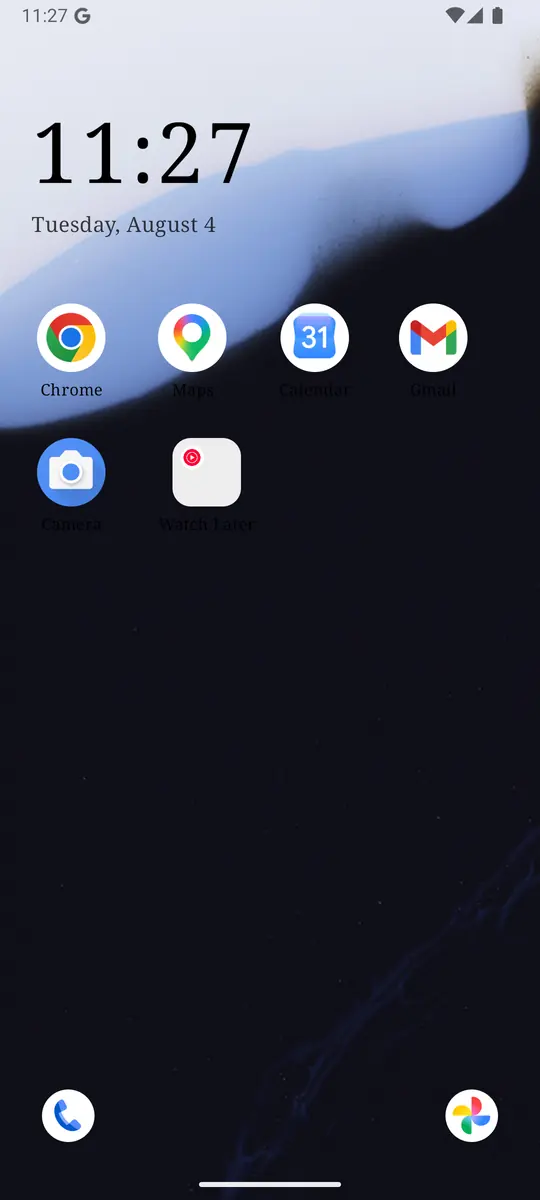
ReClaim is the Android launcher we build. It does not read or change your notifications, and it does not touch Google Photos’ settings, so everything above keeps working as described. What ReClaim changes is what you see when you unlock: a home screen with a clock and the few apps you choose, and a plain alphabetical list of names for everything else. On top of that:
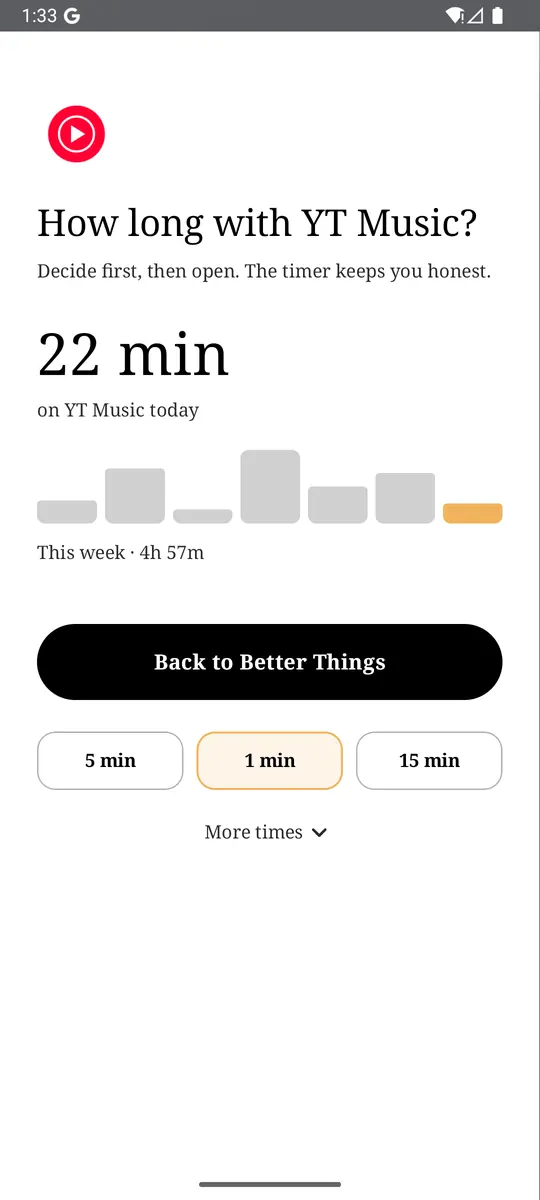
- App reminders. Before an app opens, ReClaim asks how long you intend to use it, then nudges you when that time is up.
- Daily and weekly limits. Give an app a budget. When it is up, ReClaim can close it.
- Blocking and scheduled blocking. Block an app for a set time, or set recurring windows, like evenings or weekends, when selected apps are not available.
- Hidden apps with friction. Hide an app with four levels of hiding, and put one of 10+ unlock challenges in front of it.
Turning off notifications removes Photos’ reasons to call you back. The other half is the habit of opening it yourself, which for a gallery usually means scrolling old photos longer than you meant to. You could keep Photos off your home screen, set an app reminder so you pick a time before it opens, or give it a daily limit. If you want to try it, see how to change the default launcher on Android; switching back is the same setting. For the scrolling that follows a quick check, see how to stop doomscrolling on Android.
Open Photos settings → Notifications and switch off memories and prints, then do the same under Preferences → Memories → Notifications. If you also want a pause before the apps you open on autopilot, try ReClaim. It is free, works on Android 8.0 and newer, and you can switch back to your old home app any time from Settings → Apps → Default apps. Get it free on Google Play.
Questions
How do I turn off Google Photos notifications on Android?
Open Google Photos, tap your profile photo, tap Photos settings, and open Notifications to switch off what you do not want. For memories, go to Photos settings, then Preferences, then Memories, then Notifications. To stop all of them, turn off Photos in your phone’s Settings, under Notifications and App notifications.
How do I stop Google Photos memory notifications?
Go to Photos settings, then Preferences, then Memories, then Notifications, and switch off Time-based memories, Themed memories, and Creations.
Can I keep memories but stop the alerts?
Yes. Google’s help says you can turn off memory notifications while still viewing featured memories whenever you open the app.
How do I stop the print notifications?
Tap your profile photo, go to Photos settings, then Notifications, and turn off Printing promotions, Print drafts, and Prints for you if your version shows them.
Will turning off notifications stop my photos from backing up?
No. Notifications only control alerts. Your photos and your backup settings are separate.
How do I hide a person from memories?
Go to Photos settings, then Preferences, then Memories, then Hide faces. Show less reduces memories about them, and Blocked keeps them out of memories entirely.