Google Maps notifications
How to turn off Google Maps notifications on Android
To turn off Google Maps notifications on Android, open Maps, tap your profile picture → Settings → Notifications, tap a category, and switch off the notifications you do not want. To stop traffic alerts when you are not navigating, touch and hold the Maps icon, tap App info → Notifications → Getting around, and turn off Traffic updates when not using Maps. Menu names vary a little by Maps version and phone.

Google Maps is one of the few apps where you want most of the notifications you might get. A traffic jam on your commute is useful. The less useful ones are the nudges: add a photo of the restaurant, review the place you left, a warning that your shared location updated. Google’s help for Maps lists what you might receive, which makes it clear which switches matter, so this guide follows that list rather than turning off the whole app.
How do you turn off Google Maps notifications by category?
Per Google’s help on Maps notifications, on an Android phone or tablet:
- Open the Google Maps app.
- Tap your profile picture or initial, then Settings, then Notifications.
- Tap a category.
- Turn the switch off next to each notification you do not want, or on to turn one back on.
Go through each category once. Google’s help lists the kinds of notifications you might see, including traffic updates, prompts to add photos, replies to reviews you posted, traffic from nearby events, and information about a place sent from Maps on your computer. Keep the ones that help you get somewhere, and switch off the ones that ask you to do work for Google.
How do you stop traffic alerts when you are not navigating?
Maps can send traffic updates on your phone’s home screen while you drive, even when you have not started a route. Google’s help says this feature is available only in certain countries and regions and needs three things to be on: Traffic updates when not using Maps, Physical activity permission, and Location permission. To turn off the alerts, you only need to turn off the first:
- Touch and hold the Google Maps icon on your home screen.
- Tap App info, then Notifications, then Getting around.
- Turn off Traffic updates when not using Maps.
Maps also sends “traffic from nearby events” notifications, such as a warning a day before a concert that might affect a route you travel often. If those are useful, leave them on. If they are not, they are in the same Getting around area.

How do you stop prompts to add photos and reviews?
Google’s help explains two nudges. If Google thinks photos you took are interesting to other people, like restaurants and bars, you might get a notification to add a photo, and when you are at a place where you could be the first to add one. You may also get a notification when someone replies to a review you posted. These are the optional ones. Open Settings → Notifications, go through the categories, and switch off the photo and contribution prompts. Replies to reviews are the one worth keeping if you own a business listing or write reviews.
How do you quiet the location-sharing notification?
If you share your location with someone, Maps periodically refreshes it so they see where you are. Per Google’s help, you sometimes get a message about the update, at the top of your screen or in your notification list. You cannot remove the sharing itself this way, but you can make the notice less prominent:
- Android Pie: the next time the notification appears, touch and hold it and choose Minimize.
- Android Oreo: touch and hold the Maps icon, tap Info, then Notifications, scroll to People & Places, and tap Updates to your shared location. Set Importance to Low, which means no sound or visual interruption.
To stop the sharing, open Maps, tap your profile picture or initial, and tap Location sharing. Google notes that exact steps vary by device, and newer Android versions label these settings differently, so look for the same words under the app’s notification settings.
How do you turn off Maps notifications in Android settings?
Android has its own switch for every app, per Google’s Android notification help:
- Open your phone’s Settings and tap Notifications.
- Tap App notifications, then Maps. On some phones it is Settings → Apps → Maps → Notifications.
- Turn off notifications, or open the app’s categories and turn off only some.
Use this carefully. Turning off every Maps notification can also silence alerts you rely on, so the per-category switches are usually better. For the general version for any app, see how to turn off notifications for specific apps.
Turn off Google Photos notificationsMemories and print nudgesWhat about Do Not Disturb and Focus mode?
- Do Not Disturb. Quiet hours across every app, per Google’s Do Not Disturb help. See how to turn on Do Not Disturb.
- Snooze one notification. Touch and hold it and snooze it if your phone offers that. See how to snooze notifications on Android.
- Focus mode / Digital Wellbeing. Pause the apps that tempt you, or set an app timer. Per Google’s Focus mode help and Digital Wellbeing help, add an app to Focus mode or set a timer. More detail: Focus mode and app timers.
Which option should you pick?
| Option | What it stops | Use it for |
|---|---|---|
| Settings → Notifications (by category) | The kinds of alerts you switch off. | Keeping useful ones, dropping prompts. |
| Traffic updates when not using Maps: off | Home-screen traffic alerts while you drive. | Commutes where you do not want alerts. |
| Shared-location notice: Low or Minimize | The sound and pop-up of the sharing update. | Sharing with family without the nudge. |
| Android: Maps notifications off | Every Maps push and banner. | A hard stop. It may silence helpful alerts too. |
A good default: keep notifications about getting around, switch off the photo and review prompts, and set the location-sharing notice to low. Then Maps is quiet unless it is helping you travel.
What if Maps notifications keep coming?
I switched off a category, but I still get traffic alerts
- Traffic updates when you are not navigating are controlled in the app’s notification settings under Getting around, not only in Maps’ own list. Check both places.
I turned off notifications, but my location-sharing alert is still there
- That alert is part of sharing. Reduce its importance as above, or stop sharing from Location sharing.
I want them back, and nothing shows
- Check that the switch is on in Maps’ notification settings and that Maps is allowed in Android’s notification settings. Traffic updates when not using Maps also need Physical activity and Location permissions, per Google’s help, and the feature is not offered in every country.
Where ReClaim fits
ReClaim is the Android launcher we build. It does not read or change your notifications, and it does not touch Google Maps’ settings, so everything above keeps working as described. What ReClaim changes is what you see when you unlock: a home screen with a clock and the few apps you choose, and a plain alphabetical list of names for everything else. On top of that:
- App reminders. Before an app opens, ReClaim asks how long you intend to use it, then nudges you when that time is up.
- Daily and weekly limits. Give an app a budget. When it is up, ReClaim can close it.
- Blocking and scheduled blocking. Block an app for a set time, or set recurring windows, like evenings or weekends, when selected apps are not available.
- Hidden apps with friction. Hide an app with four levels of hiding, and put one of 10+ unlock challenges in front of it.
Turning off notifications removes Maps’ reasons to call you back. Most people open Maps on purpose, so the habit to watch is what happens next, like a quick look at a restaurant that turns into twenty minutes of reviews. ReClaim’s app reminder asks how long you intend to use an app before it opens, which fits that pattern. If you want to try it, see how to change the default launcher on Android; switching back is the same setting. For the scrolling that follows a quick check, see how to stop doomscrolling on Android.
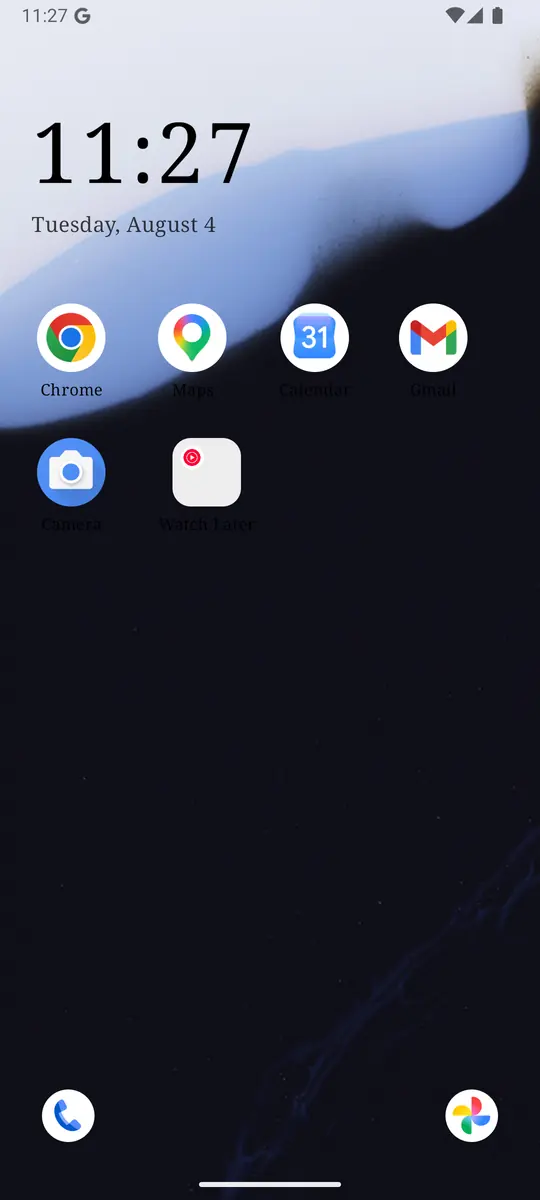
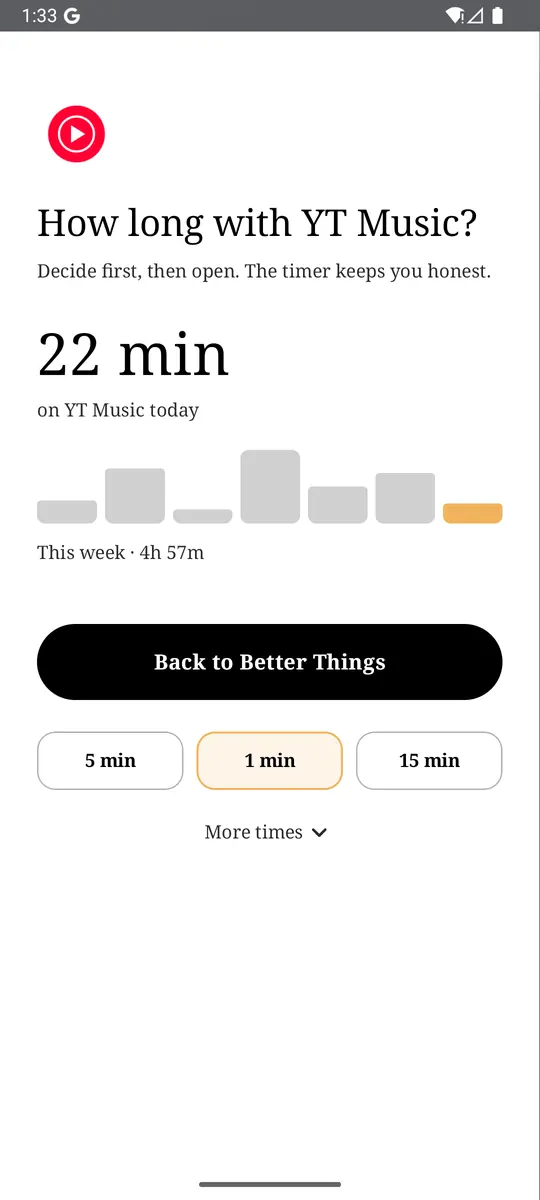
Open Settings → Notifications in Maps, switch off the photo and contribution prompts, and turn off Traffic updates when not using Maps if you do not want commute alerts. If you also want a pause before the apps you open on autopilot, try ReClaim. It is free, works on Android 8.0 and newer, and you can switch back to your old home app any time from Settings → Apps → Default apps. Get it free on Google Play.
Questions
How do I turn off Google Maps notifications on Android?
Open Maps, tap your profile picture or initial, tap Settings, tap Notifications, tap a category, and turn off the switches you do not want. To stop all of them, turn off Maps in your phone’s Settings, under Notifications and App notifications.
How do I stop Google Maps traffic notifications when I am not navigating?
Touch and hold the Maps icon, tap App info, tap Notifications, tap Getting around, and turn off Traffic updates when not using Maps.
Why does Google Maps ask me to add photos of places?
If Google thinks photos you took are interesting to other people, such as restaurants and bars, or you are at a place where you could be the first to add one, you might get a prompt. Switch these off under Settings, Notifications.
How do I stop the shared-location notification?
You can make it less disruptive: on Android Pie, touch and hold it and choose Minimize. On Android Oreo, set Updates to your shared location to Low importance. To stop the sharing, use Location sharing in Maps.
Will turning off Maps notifications affect navigation?
The in-app switches only change which alerts you receive. Check the categories before switching all off in Android’s settings, because that also silences alerts you may want.
Why are some Maps notifications missing in my country?
Google’s help says some features, such as traffic updates when not using Maps, are available only in certain countries and regions.