Hidden apps
How to hide apps on Android
To hide apps on Android, use the tool your phone actually has. On a Pixel or other phone running Android 15 or later, set up private space under Settings → Security & privacy → Private space, install the app inside it, and lock the space: the app then disappears from the app list, search, recents, and notifications. On a Samsung Galaxy, open the Apps screen, tap the three-dot menu on the search bar, then Settings → Hide apps on Home and Apps screens, and pick the apps. On almost any phone you can also touch and hold an icon and choose Remove, which takes it off the home screen but leaves it in the app list. Some preinstalled apps can be disabled instead. None of these uninstall the app, and none of them change the habit on their own.

What does hiding an app on Android actually do?
“Hide” covers three different things on Android, and phones mix them up in their menus:
- Off the home screen. The icon leaves the page you see when you unlock, but the app is still in the app list and in search. Every Android phone does this.
- Out of the app list. The icon leaves the home screen and the full list of apps. Samsung builds this in. Stock Android on a Pixel does not, except for preinstalled apps you can disable.
- Locked away. The app lives in a separate, locked area, and while it is locked the app is not listed, not searchable, and not running. That is Android’s private space, on Android 15 and up. Samsung’s closest equivalent is Secure Folder.
All of them keep the app installed. The difference is how much effort it takes to see it again, and whether the app keeps running in the background while it is out of sight. If you want an app gone for good, uninstalling is still the cleanest option; our guide to blocking apps without uninstalling covers the middle ground between hiding and deleting.
How do you take an app off the home screen without uninstalling it?
This is the lightest kind of hiding, and on a Pixel it takes two seconds. Google’s home screen help documents it:
- Touch and hold the app icon on your home screen.
- Drag it up to Remove and lift your finger.
Watch the label. Google notes you may see Remove, Uninstall, or both: Remove takes the app off your home screen only, while Uninstall takes it off your device. The app stays in the full list (swipe up from the home screen) and in search.
On Samsung Galaxy phones the idea is the same: touch and hold the icon on the home screen and choose the option that removes it from the home screen, not the one that uninstalls. One UI wording varies by version, so read the menu before you tap.
It sounds too small to matter, but the first home screen is the one you see on every unlock. Our minimal Android home screen guide explains what to leave there and what to move.

How do you hide apps on a Pixel? Use private space
The Pixel Launcher has no setting that hides an ordinary app from the app list. On Android 15 and later, Google’s answer is private space: a separate, locked area for apps, with its own optional lock and its own optional Google Account. Google’s private space help article lists these steps:
- Open your device’s Settings app.
- Tap Security & privacy, then under Privacy, tap Private space.
- Unlock with your screen lock. If you do not have one, Android asks you to set one up.
- Tap Set up, then Got it. Signing in to a Google Account here is optional. Google recommends a different account from your main one, so private apps, downloads, and recommendations do not show up in your main space.
- Choose a lock. Use device screen lock, or Choose new lock for a separate pattern, PIN, or password.
- Tap Done.
The space appears at the bottom of All apps. To put an app in it, unlock the space and tap Install, or touch and hold an app in All apps and tap Install app in Private space. Google is clear that this installs a new copy: the original is not moved, and its data cannot be moved across. If you want the app hidden rather than duplicated, uninstall the copy in your main space afterward.
Lock the space, then hide the space itself
- Lock it with the lock icon next to Private space in All apps. Google says that while the space is locked, its apps are completely stopped: they cannot run in the foreground or background or show notifications, and they are hidden from the launcher, search, recents, the photo picker, and Settings.
- Lock it automatically. In the space’s Settings, Lock private space automatically offers Every time device locks, 5 minutes after screen timeout, or Only after the device restarts.
- Hide the container. In the same Settings, turn on Hide private space when it’s locked. It takes effect the next time you lock the space. To get back in, search for “private space” and tap Private space: Tap to set up or open.
Know the trade-offs before you move anything in
- Android 15 and up only, on the main user. Google says it is unavailable on managed devices, with a supervised account signed in, when the manufacturer or an admin disables it, or with more than four users or profiles.
- No backup. Private space app data is not part of device backup, and deleting the space deletes its apps and data.
- No lock recovery. Google says if you forget the private space lock, you will not be able to get into the space.
- Not a perfect secret. Google notes the space can still be uncovered through a computer connection, device logs, or other apps, and that some launchers do not support it.

How do you hide apps on a Samsung Galaxy?
Samsung has had a built-in Hide apps setting in One UI for years. Samsung Canada’s Manage apps on your Samsung Galaxy page documents it like this:
- Open the Apps screen (swipe up from the home screen).
- Tap the three-dot More options icon on the search bar, then tap Settings.
- Tap Hide apps on Home and Apps screens.
- Select the apps you want to hide, then tap Done.
To bring an app back, return to the same screen, tap the red minus next to it under Hidden apps, and tap Done. Samsung’s US page reaches the same menu by touching and holding an empty spot on the home screen and tapping Settings. Depending on the model and One UI version, the search bar may sit at the top or the bottom of the Apps screen.
Samsung’s own fine print is worth reading: a hidden app can still be found by typing its name in the Apps screen search, which shows the name (not the icon) and an option to open it. So Hide apps keeps an icon out of view. It does not stop you or anyone else from opening the app. Samsung also offers Secure Folder for a separately locked area; its menu location varies by One UI version.
| Phone | Hide from the app list | Lock apps away |
|---|---|---|
| Pixel / stock Android 15+ | Only via private space or disabling a preinstalled app | Settings → Security & privacy → Private space |
| Samsung Galaxy | Apps screen → ⋮ → Settings → Hide apps on Home and Apps screens | Secure Folder (location varies by One UI version) |
| Other brands / older Android | Check your launcher’s settings, or search Settings for “hide” | Depends on the manufacturer |
Can you hide apps that came with the phone?
Preinstalled apps are the ones people most want to hide, because many of them cannot be uninstalled. Google’s help on deleting and disabling apps says that on some phones you can turn system apps off so that they will not show on your list of apps, and that the steps depend on the manufacturer.
On many phones, including Pixels, the place to look is the app’s App info page: Settings → Apps → the app. If the phone allows it, you will see Disable where the Uninstall button would be. A disabled app stops running and leaves the app list; Enable on the same page brings it back. Essential system apps do not offer the button. Samsung’s UK support notes the same split: you can hide any preinstalled app, but only some can be disabled.
One related setting is on by default. Google says Android automatically optimizes apps you have not used for a long time, revoking permissions and stopping background activity and notifications. You can review them under Apps → Unused apps.

Which way of hiding an app should you use?
| You want… | Use | Trade-off |
|---|---|---|
| Fewer icons when you unlock | Remove from the home screen | Still one swipe and one tap away |
| An app out of the list on a Galaxy | Hide apps on Home and Apps screens | Search by name still finds it |
| A preinstalled app you never use gone | Disable, if offered | Only some apps allow it |
| Apps truly out of sight, and silent | Private space (Android 15+) | New installs, no backup, no lock recovery |
| To open an app less, not just see it less | An app timer, a schedule, or a block | You will notice the limit, which is the point |
For privacy, private space or Secure Folder is the right tool, because the lock is real. For attention, the lighter methods are often enough, as long as you also deal with notifications: an app that keeps posting alerts is not really hidden. Our guide to turning off notifications for specific apps covers that part.
What if hiding an app does not work?
Private space is not in Settings
- Check your Android version under Settings → About phone. Private space needs Android 15 or later.
- Google lists other blockers: a managed (work or school) phone, a supervised account in the main space, a secondary user, more than four users or profiles, or a manufacturer that has turned it off.
The hidden app still shows up
- On Samsung, typing the name in Apps screen search is expected to find it. That is documented behaviour, not a bug.
- If you only removed the home screen icon, the app is supposed to stay in the app list.
- A private space that is unlocked shows its apps. Lock it, or set it to lock every time the device locks.
The hidden app keeps sending notifications
- Removing or hiding an icon does not touch notifications. Turn them off per app under Settings → Notifications → App notifications.
- Apps inside a locked private space cannot post notifications. When you unlock the space, notifications from its apps carry a private space icon.
I hid an app and now cannot find it
- Samsung: the Hidden apps list sits at the top of the Hide apps on Home and Apps screens screen.
- Private space: if you turned on Hide private space when it’s locked, search for “private space” to get the unlock prompt.
- Disabled app: Settings → Apps → See all apps, then the app, then Enable.
Does hiding an app help you use it less?
Sometimes. Hiding removes a visual cue, and a lot of phone use starts with one: you unlock to check the time, see a bright icon, and tap it before you have decided anything. Taking that icon off the first page, or out of the list, means the open now has to start with you, not with the screen.
It stops there. Hiding does nothing about the opens you begin on purpose. If you catch yourself typing a hidden app’s name into search every evening, the hiding worked and the habit did not change. That is useful information. It means the next step is a limit, not a better hiding place. Digital Wellbeing’s screen time dashboard shows how often you open each app, which makes the difference easy to see after a week.
- Hide or remove one app, the one you open and regret.
- Turn off its notifications, so it cannot call you back.
- Check its times opened after a week in Digital Wellbeing.
- If the number barely moved, add an app timer or Focus mode for the hours it hurts most.

How do you hide apps with a launcher instead?
Your home screen app, the launcher, decides what the home screen and app list show, so a different launcher can hide apps on any phone, including a Pixel without private space. Most launchers that offer this simply drop the app from the list. That fixes the cue and does nothing for the open you start on purpose.
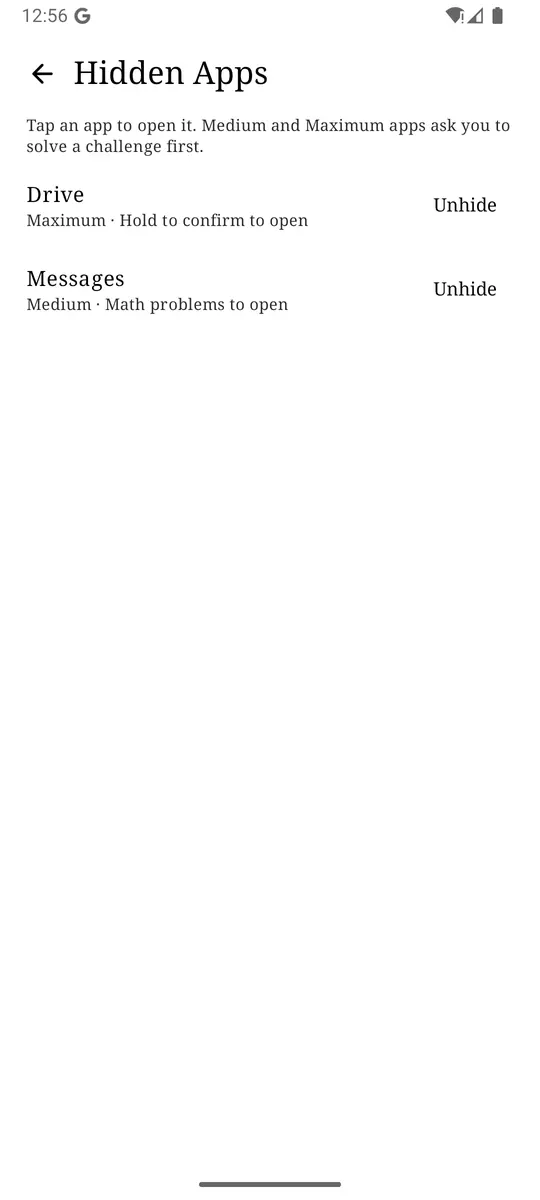
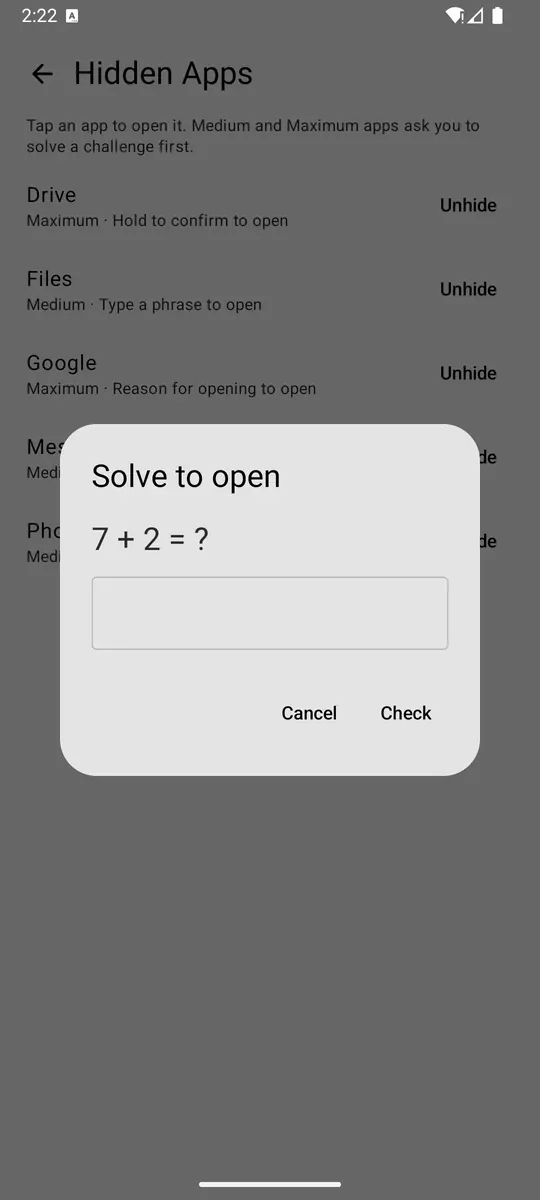
ReClaim is the launcher we build, and its Hidden Apps screen is designed for that second case. You choose a level per app: Simple hides it from the launcher with no barrier, Medium asks you to solve a quick challenge before it opens, Maximum asks for a harder one, and Extreme needs your eyes on the screen the whole time. Hiding never deletes the app or its data, and unhiding is one tap. Our guide to stopping opening apps on autopilot explains how to pick the level and the challenge.
Around that sit the rest of the tools: a clock and the handful of apps you choose on the home screen, a plain alphabetical list with black text and no icons, blocks from 5 minutes to a year, daily and weekly limits, reminders, and schedules. There are no ads and no account. The feature overview has the full list, and the requirements page lists which permission each feature needs.
Use Android’s hiding tools for what they do well, turn off notifications for anything you hide, and put a little friction in front of the one app that still finds its way back. ReClaim is free, works on Android 8.0 and newer, and you can switch back to your old home app any time from Settings, Apps, Default apps. Get it free on Google Play.
Questions
How do I hide apps on Android without uninstalling them?
It depends on the phone. On a Pixel with Android 15 or later, set up private space under Settings, Security & privacy, Private space, install the app inside it, and lock the space. On a Samsung Galaxy, open the Apps screen, tap the three-dot menu, then Settings, then Hide apps on Home and Apps screens. On any phone you can also take the icon off the home screen, which leaves it in the app list.
Can you hide apps on a Pixel without private space?
Not from the app list. The Pixel Launcher lets you remove an icon from the home screen, but the app stays in All apps. Some preinstalled apps can be disabled, which takes them off the list. For anything else, Google’s documented option is private space on Android 15 and up, or a different launcher that supports hiding.
Do hidden apps still send notifications?
On Samsung’s Hide apps setting and after removing a home screen icon, yes: only the icon goes away, so turn the app’s notifications off separately if you want quiet. In a locked private space, no. Google says the apps are completely stopped and cannot show notifications until you unlock the space.
Can someone still find a hidden app?
Often, yes. Samsung says a hidden app can still be found by typing its name in the Apps screen search. Google says a locked private space can still be uncovered through a computer connection, device logs, or other apps. Hiding is a screen tidy-up, not a security guarantee.
Does hiding an app help you use it less?
It can reduce the opens that start with seeing the icon. It does nothing for the opens you start on purpose by searching. If you still go looking for a hidden app every day, pair hiding with an app timer, a schedule, or a block.