Sleep
How to set up Bedtime mode on Android
To set up Bedtime mode on Android, open Settings, tap Digital Wellbeing and parental controls, then Bedtime mode. Create a Bedtime routine with a schedule or Turn on while charging, leave Do Not Disturb on, and under Screen options at bedtime enable Grayscale and the other wind-down settings you want. On newer Pixel phones the same feature lives under Settings, Modes, Bedtime. On Samsung Galaxy phones, use Sleep inside Modes and Routines.

.jpg)
What does Bedtime mode do on Android?
Bedtime mode is Android’s wind-down package for the hours you sleep. Google documents it inside Digital Wellbeing: you choose when it turns on, it can enable Do Not Disturb, and it can change how the screen looks so the phone is a worse place to linger.
In practice, a full setup usually does four things at once:
- Quiets interruptions. Do Not Disturb for Bedtime mode blocks ordinary calls, messages, and app alerts, with exceptions you choose.
- Removes color. Grayscale turns the whole screen black and white for the bedtime window.
- Dims the stage. Options to keep the screen dark (always-on display off), dim the wallpaper, and use Dark theme only while Bedtime mode is on.
- Runs on a rule. A schedule, or the act of plugging the phone in inside a time window, starts it without a nightly debate.
It does not uninstall apps, delete accounts, or stop you from unlocking the phone. If you open Instagram at 12:40 a.m., Bedtime mode will not slam the door the way a hard app block can. What it does is make that open quieter, grayer, and less likely to be rewarded by a buzz from five other apps while you are already there.

How to set up Bedtime mode on a Pixel or stock Android phone
Google currently documents two menu paths. Older help pages put Bedtime mode under Digital Wellbeing. Newer Pixel help puts it under Modes. Both lead to the same idea: a routine, Do Not Disturb, and screen options. If Settings search finds “Bedtime,” use that result and skip the hunting.
Path A: Digital Wellbeing
- Open Settings, then Digital Wellbeing & parental controls, then Bedtime mode.
- Tap Bedtime routine and choose when it turns on.
- Pick Use a schedule (start time, end time, days of the week) or Turn on while charging (After and Before times; Bedtime mode starts when the phone is plugged in inside that window).
- Leave Do Not Disturb for Bedtime mode on unless you have a specific reason to silence the screen changes only.
- Open Screen options at bedtime and turn on Grayscale, Keep the screen dark, Dim the wallpaper, and Dark theme as you want them.
- Optional: turn on Turn off Bedtime at next alarm so the mode ends when you wake, not only at the scheduled end time.
Path B: Modes on newer Pixel phones
Google’s Modes and Do Not Disturb help for Pixel describes this path:
- Open Settings, then Modes, then Bedtime.
- Tap Set up Bedtime if you have not configured it yet.
- Under When to turn on automatically, enable Bedtime routine and set start and end times, or choose Turn on while charging.
- Tap Done. Allow app usage and sensor access if prompted and you are comfortable with that for sleep features.
- Open Notification filters for the Bedtime mode to choose which people and apps can interrupt you.
Menu names move between Android versions. Google’s own Digital Wellbeing page notes that steps can vary by device. If your phone shows both Digital Wellbeing → Bedtime mode and Modes → Bedtime, configure one clearly and leave the other alone so you are not maintaining two conflicting schedules.
How to set up Sleep mode on a Samsung Galaxy
Samsung’s equivalent is Sleep inside Modes and Routines. Samsung’s support material and One UI guides describe Sleep as a mode that can turn on Do Not Disturb, change the screen (including grayscale), and apply other settings you attach to that mode.
- Open Settings, then Modes and Routines.
- Tap Sleep (under Modes).
- Set a schedule for the nights you want it, or start it manually from the mode screen / Quick panel.
- Turn on Do Not Disturb for Sleep, then edit allowed contacts if you need a short emergency list.
- Add Grayscale (and Eye comfort shield or similar display options if you use them) to the actions that run when Sleep is on.
- Optional: pair Sleep with a charging or time condition if your One UI version exposes those triggers for the mode.
Exact labels shift with One UI version. If Sleep is missing, search Settings for “Sleep” or “Modes and Routines.” Samsung also documents that Sleep mode can leave the screen in grayscale, which is the usual explanation when a Galaxy phone turns black and white overnight.
Where to find it, by phone
| Phone | Menu path | Name you will see |
|---|---|---|
| Pixel / stock-leaning Android | Settings → Digital Wellbeing & parental controls → Bedtime mode | Bedtime mode |
| Newer Pixel (Modes) | Settings → Modes → Bedtime | Bedtime |
| Samsung Galaxy | Settings → Modes and Routines → Sleep | Sleep |
| Other brands | Search Settings for “Bedtime,” “Sleep,” or “Digital Wellbeing” | Varies; many still ship Google’s Digital Wellbeing package |
Should you use a schedule or Turn on while charging?
Google offers both triggers. Pick the one that matches the habit you already have, not the habit you wish you had.
| Trigger | Best when | Watch-out |
|---|---|---|
| Use a schedule | Your sleep window is stable most nights | Late nights need Turn off at next alarm, or you will sit in grayscale after you meant to be up |
| Turn on while charging | You already plug the phone in on the nightstand | If you charge on the couch at 8 p.m., Bedtime mode can start while you are still watching a show |
| Manual Quick Settings tile | Travel, shifts, or irregular sleep | Manual mode fails on the nights you are already tired enough to skip it |
A practical default for most people: schedule for weeknights, Turn off Bedtime at next alarm, and keep the Quick Settings tile for weekends. If you always charge across the room, Turn on while charging is stronger than a clock time, because the physical act of plugging in is the cue.
Who can still reach you during Bedtime mode?
Do Not Disturb is useful only if the exceptions match your real life. Google’s Modes help lets you filter by people, apps, and alarms:
- People. Allow calls, messages, or conversations from starred contacts, contacts, or everyone. Star the two or three people who would call at 2 a.m. for a reason that matters.
- Allow repeat callers. Lets the same number through if it calls twice within about 15 minutes. This is the usual emergency backstop when you do not want every coworker unmuted.
- Apps. Keep alarm apps and any on-call tool allowed. Leave social apps blocked.
- Alarms & other interruptions. Alarms should stay allowed. Media, touch sounds, reminders, and calendar events are your call.
Google also notes that critical notifications, such as system security alerts, still show. You are not building a sealed vault. You are building a night where Instagram cannot buzz you awake and your partner still can.
Which screen options are worth turning on?
The notification half of Bedtime mode stops other people from pulling you back. The screen half reduces the pull of the phone itself. Google lists these under Screen options at bedtime:
- Grayscale. The whole screen goes black and white. Feeds lose a lot of their shine. For the research on how much that can cut screen time, and for all-day grayscale, see our grayscale mode on Android guide.
- Keep the screen dark. Turns off the always-on display so a glowing clock or notification drip does not start a session from the nightstand.
- Dim the wallpaper. Makes the lock screen and home wallpaper less vivid during bedtime.
- Dark theme. Uses a black background for apps that support it, only while Bedtime mode is on.
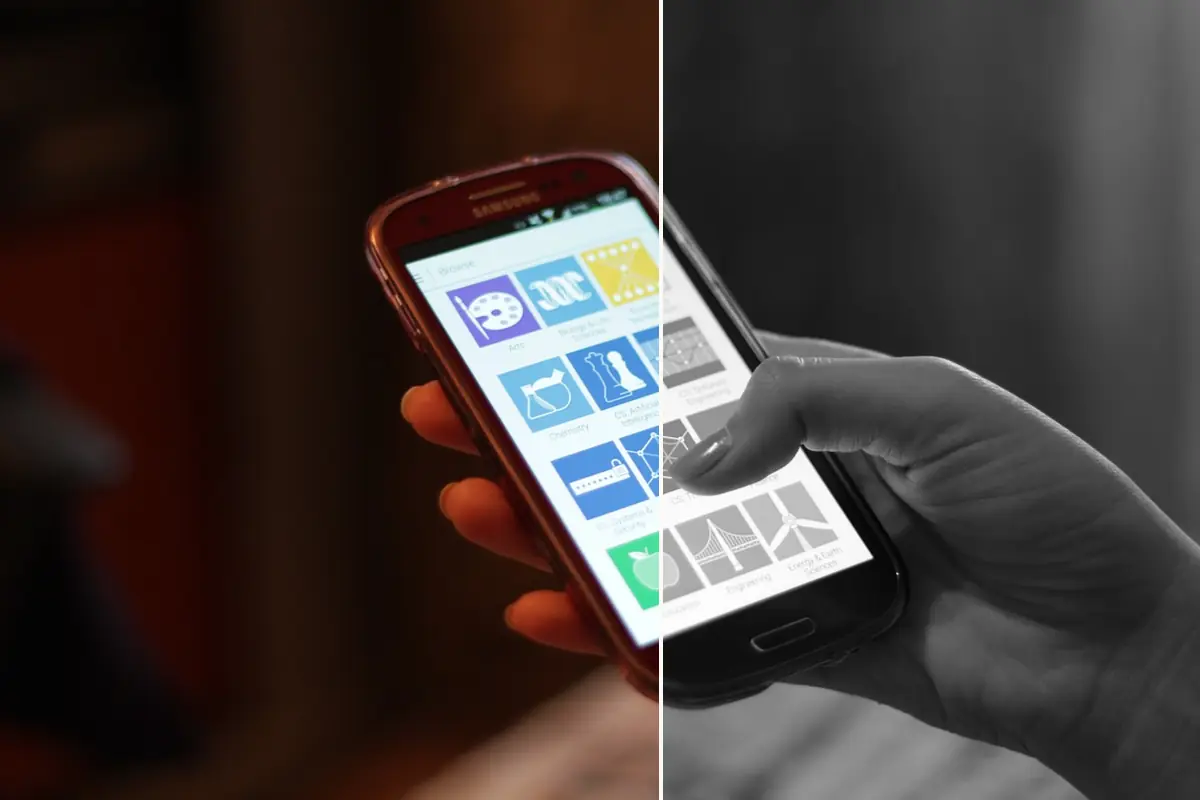

If you only flip one screen switch, make it Grayscale. Color is what makes short-form video and image feeds feel finished; gray makes them feel unfinished sooner. Dark theme alone is comfort. Grayscale is friction.
Quick Settings, and how morning should feel
Google recommends adding Bedtime mode to Quick Settings so you can start or stop it without opening the full menu. Swipe down twice, tap Edit, and drag the Bedtime (or Modes) tile into the active set.
For mornings, prefer Turn off Bedtime at next alarm when your wake time moves. That way a 6:10 a.m. alarm brings color and notifications back with it. If you wake without an alarm, the scheduled end time is the off switch. Either way, decide the rule once. Do not leave “I will turn it off when I get up” as a step that requires willpower before coffee.

When Bedtime mode is not enough by itself
Bedtime mode is excellent at changing the phone’s atmosphere. It is weaker at stopping a specific app you open on purpose. Three gaps show up quickly:
- You can still open anything. Grayscale and silence do not pause Instagram the way Focus mode or an app block does.
- Take-a-break style exits exist elsewhere. If you also rely on Focus mode during the day, remember that Focus mode’s Take a break is easy to overuse. Bedtime mode’s failure mode is different: you unlock, you open the app, and the gray screen was only a mild suggestion.
- The home screen still invites checking. A full-color grid of thirty icons at 11:05 p.m. is still a full grid, even in grayscale. What you see first after unlock matters. Our minimal Android home screen guide covers that layer.

If one app is the night problem, pair Bedtime mode with a tool that targets that app. Android’s own options are an app timer (daily cap that resets at midnight) and Focus mode (pause a set of apps for a block of hours). For a comparison of caps, pauses, and hard blocks, see app limits vs blocking vs reminders. If you want the app unavailable until a time you can name, without uninstalling it, see how to block apps on Android without uninstalling them.
And if the reach for the phone happens before any decision, grayscale at bedtime will not fix the unlock habit by itself. That pattern is the subject of how to stop opening apps on autopilot.
A simple night stack that holds
Use Bedtime mode as the base layer, then add only what your week still needs.
- Bedtime mode on a schedule, with Do Not Disturb, Grayscale, Keep the screen dark, and Turn off at next alarm.
- Starred contacts and repeat callers so the mode survives real life.
- A short home screen so the first unlock after you set the phone down is not a wall of icons.
- One targeted limit or block on the app that still wins at midnight after the screen goes gray.
That fourth step is where a launcher built for friction helps. ReClaim is a minimalist Android launcher: a clock and the handful of apps you choose on the home screen, and a plain alphabetical list, black text and no icons, one swipe away. On top of that sit blocks from 5 minutes to a year, daily and weekly limits, reminders that ask how long you intend to stay, schedules, and hidden apps with four levels of friction. There are no ads and no account. The feature overview has the full list, and the requirements page lists which permission each feature needs.
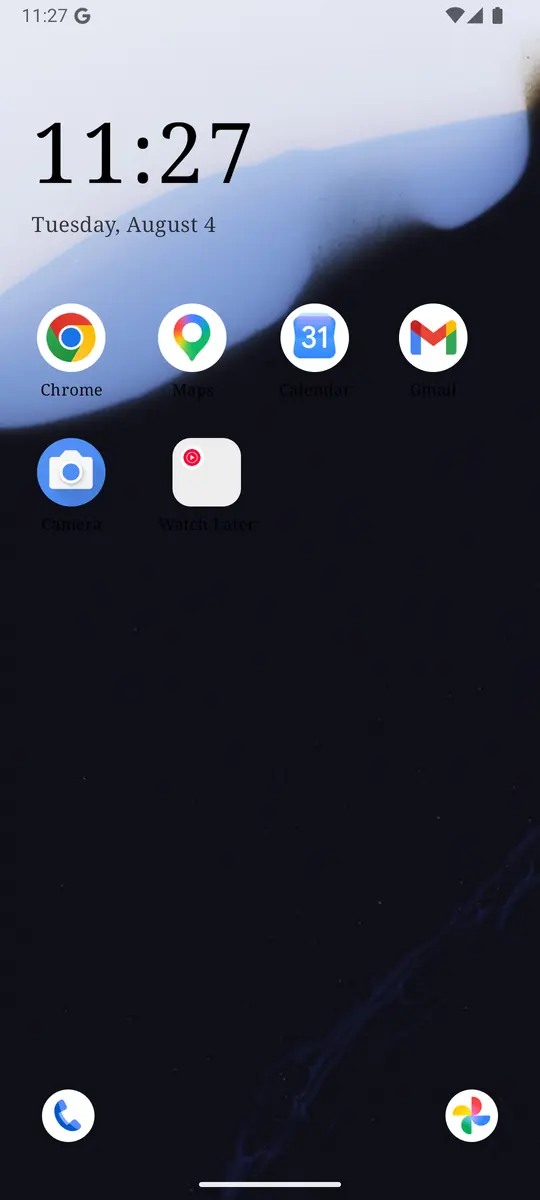
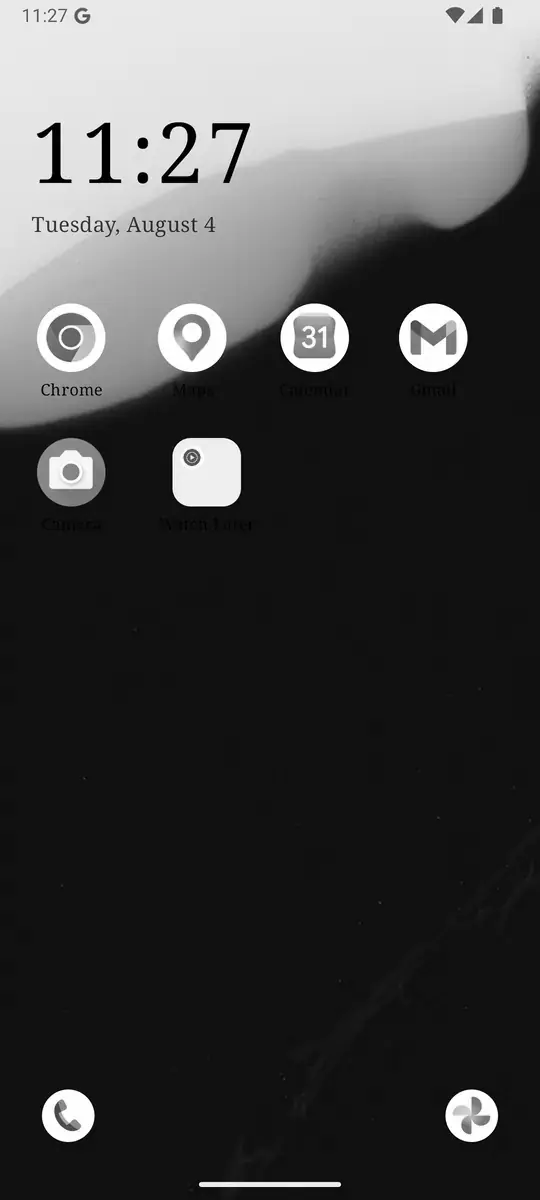
Bedtime mode for the atmosphere, a quiet home screen for the unlock, and a limit or block on the one app that still steals the night. ReClaim is free, works on Android 8.0 and newer, and you can switch back to your old home app any time from Settings, Apps, Default apps. Get it free on Google Play.

.jpg)
Questions
Where is Bedtime mode on Android?
On most phones, open Settings, Digital Wellbeing and parental controls, Bedtime mode. On newer Pixel phones, open Settings, Modes, Bedtime. On Samsung Galaxy phones, use Settings, Modes and Routines, Sleep.
Does Bedtime mode turn the screen grayscale?
It can. Grayscale is one of the Screen options at bedtime in Digital Wellbeing. You turn it on separately from Do Not Disturb. Samsung’s Sleep mode can also enable grayscale. Details and research are in the grayscale guide.
Will Bedtime mode still let alarms through?
Alarms are designed to interrupt Do Not Disturb. Google’s Modes help notes that critical notifications, such as system security alerts, also still show. Configure People and Apps filters if you need specific contacts or apps to break through.
What is the difference between Bedtime mode and Focus mode?
Bedtime mode is for sleep hours: it leans on Do Not Disturb and calmer screen options. Focus mode pauses a list of apps you choose, with an optional schedule, and is better for work or study blocks during the day. See how to set up Focus mode on Android, and for harder limits see blocking apps without uninstalling.
Why did Bedtime mode not turn on on schedule?
Confirm the routine is enabled, keep Digital Wellbeing updated, allow its notifications, and check that battery restrictions are not pausing it. On Pixel, also confirm the schedule under Settings, Modes, Bedtime. Google’s Pixel screen-color help calls out keeping Digital Wellbeing updated as a practical fix for bedtime display behavior.