Text message notifications
How to turn off Text Message notifications on Android
To turn off text message notifications on Android in Google Messages, open the conversation, tap More options → Details → Notifications, and choose Silent. To turn off alerts for every conversation, tap your profile photo → Messages settings → Notifications and turn off Incoming messages. To stop every alert from the app, open your phone’s Settings → Notifications → App notifications → Messages and turn it off. Menu names vary by phone.

Text messages are the oldest notification on your phone, and they have a problem the chat apps do not: a group text, a delivery code, a bank alert, and a message from your mum all arrive in the same place. The goal is rarely to switch texts off completely. It is to silence the noisy thread and let the right ones through. These steps are for Google Messages, the default texting app on many Android phones. Some phones, including many Samsung models, ship with their own messaging app instead, where the menus differ.
How do you silence one text conversation?
This is the right fix for a group text that never ends. Per Google’s help on Messages notifications and settings:
- Open Google Messages and open a one-to-one conversation or a group message.
- Tap More options, then Details (or Group details).
- Tap Notifications, then choose Silent to stop message notifications for that conversation.
The same screen has a Priority option, which Google describes as a way to get priority notifications. Use it for the few people you never want to miss, and set the rest to Silent. The same Details screen can also snooze a conversation, and Google’s help notes that other participants will not know you snoozed it. The messages keep arriving, so you can read them whenever you open the app.
How do you turn off all text message notifications?
If you want every text to arrive without any alert, use the global setting. Per Google’s help:
- Open Google Messages.
- Tap your profile photo or icon, then Messages settings.
- Tap Notifications.
- Turn off Incoming messages to stop notifications from Google Messages.
Google’s help describes the same screen as the place to stop notifications from other apps, by turning off the default settings notifications, and to stop the sound that plays when you send a message by turning off Hear outgoing message sounds. That last one is often what people mean when they say Messages keeps making noise. Turning off Incoming messages is a strong step, because bank codes and delivery texts will arrive silently too, so check the app yourself when you are expecting one.

How do you stop chat bubbles?
Bubbles are the round chat heads that can float over other apps. Per Google’s help, open Messages settings → Bubbles and choose how they behave:
- All conversations can bubble to get them for every conversation.
- Selected conversations can bubble to get them only for contacts you choose.
- Nothing can bubble to stop them all.
To change it for one contact, open the conversation, tap More options → Details → Notifications. If a bubble is in your way, touch and hold it and drag it to the bottom of the screen to dismiss it.
How do you turn off Messages notifications in Android settings?
Android has its own switch for every app, per Google’s Android notification help:
- Open your phone’s Settings and tap Notifications.
- Tap App notifications, then Messages. On some phones it is Settings → Apps → Messages → Notifications.
- Turn off notifications, or open the app’s categories and turn off only some.
This is the blunt option, and it is the only one that works if your phone’s default texting app is not Google Messages. If you rely on texts for one-time codes, pick Silent per conversation instead. For the general version for any app, see how to turn off notifications for specific apps.
What about Do Not Disturb and Focus mode?
- Do Not Disturb. Quiet hours across every app, per Google’s Do Not Disturb help. You can let calls and messages from people you choose through. See how to turn on Do Not Disturb.
- Snooze one notification. Touch and hold it and snooze it if your phone offers that. See how to snooze notifications on Android.
- Focus mode / Digital Wellbeing. Pause the apps that tempt you while texts still arrive. Per Google’s Focus mode help and Digital Wellbeing help, add an app to Focus mode or set a timer. More detail: Focus mode and app timers.
Which option should you pick?
| Option | What it stops | Use it for |
|---|---|---|
| Conversation: Silent | Alerts from one conversation. | A busy group text. |
| Conversation: Priority | Nothing. It makes a conversation more prominent. | The few people who must reach you. |
| Incoming messages off | Alerts for every conversation. | Reading texts only when you open the app. |
| Bubbles: Nothing can bubble | Floating chat heads. | Keeping other apps uncluttered. |
| Android: Messages notifications off | Every Messages push and banner. | Phones with a different default texting app. |
A good default: set the loudest group to Silent, set the few people who matter to Priority, and turn bubbles off. Then texts still reach you, but only some of them make noise.
What if text notifications keep coming?
I turned off Incoming messages, but my phone still buzzes
- Check which app you use for texts. If your phone has another messaging app set as default, change that app’s notifications instead, or turn off Messages’ alerts in Android’s settings.
I silenced a conversation, but it still shows up
- Silent stops the alert, not the message. The conversation still appears in the list with its unread count.
I want them back, and nothing shows
- Check that Incoming messages is on in Messages settings, that the conversation is not set to Silent, that Messages is allowed in Android’s notification settings, and that Do Not Disturb is not on.
Where ReClaim fits
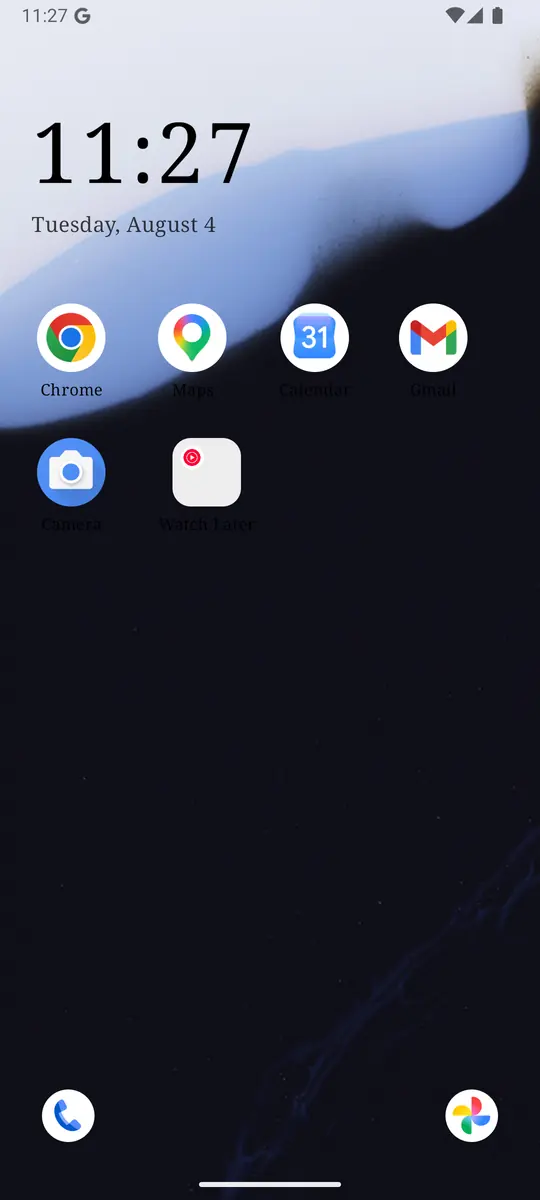
ReClaim is the Android launcher we build. It does not read or change your notifications, and it does not touch Google Messages’ settings, so everything above keeps working as described. What ReClaim changes is what you see when you unlock: a home screen with a clock and the few apps you choose, and a plain alphabetical list of names for everything else. On top of that:
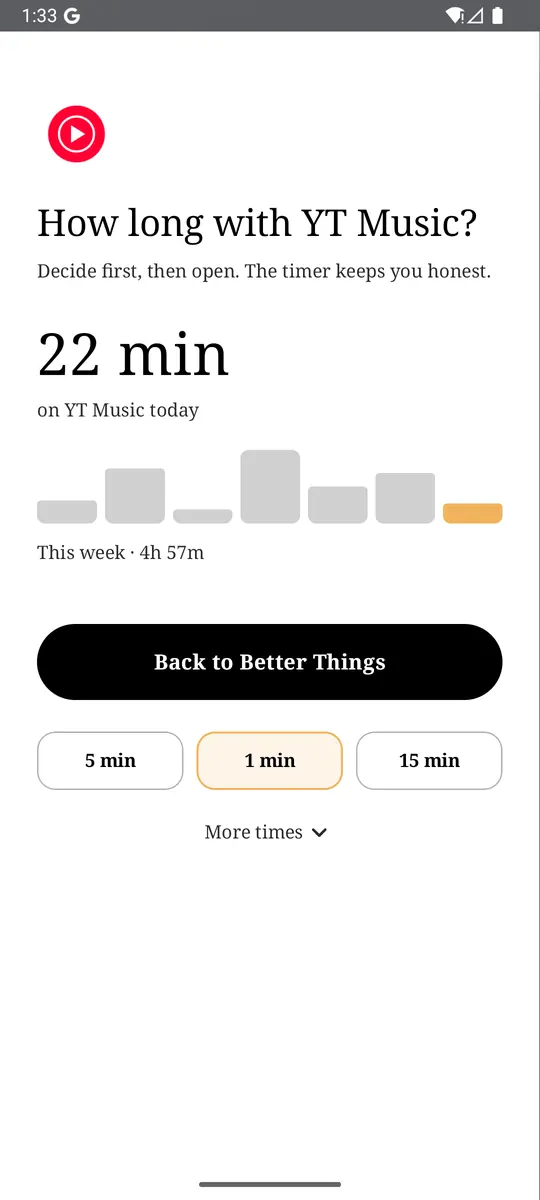
- App reminders. Before an app opens, ReClaim asks how long you intend to use it, then nudges you when that time is up.
- Daily and weekly limits. Give an app a budget. When it is up, ReClaim can close it.
- Blocking and scheduled blocking. Block an app for a set time, or set recurring windows, like evenings or weekends, when selected apps are not available.
- Hidden apps with friction. Hide an app with four levels of hiding, and put one of 10+ unlock challenges in front of it.
Turning off notifications removes Messages’ reasons to call you back. The other half is the habit of opening it yourself “just to check.” You could keep Messages off your home screen, set an app reminder so you pick a time before it opens, or limit the apps that follow a text, like social apps. If you want to try it, see how to change the default launcher on Android; switching back is the same setting. For the scrolling that follows a quick check, see how to stop doomscrolling on Android.
Set your noisiest conversation to Silent, set the people who matter to Priority, and choose Nothing can bubble. If you also want a pause before the apps you open on autopilot, try ReClaim. It is free, works on Android 8.0 and newer, and you can switch back to your old home app any time from Settings → Apps → Default apps. Get it free on Google Play.
Questions
How do I turn off text message notifications on Android?
In Google Messages, tap your profile photo, tap Messages settings, tap Notifications, and turn off Incoming messages. To quiet one conversation instead, open it, tap More options, tap Details, tap Notifications, and choose Silent.
How do I mute a group text on Android?
Open the group message, tap More options, tap Group details, tap Notifications, and choose Silent. Other members are not told.
What does Priority do in Google Messages?
Priority is the Notifications option next to Silent on a conversation’s Details screen. Google describes it as a way to get priority notifications for that conversation.
Why does my phone still make a sound when I send a text?
That is a separate setting. In Messages settings, turn off Hear outgoing message sounds.
Will I still get texts if I turn off notifications?
Yes. Notifications only control the alert. The messages still arrive in the app, and you can read them whenever you open it.
These steps do not match my phone. What now?
Your phone may use a different default texting app, such as Samsung Messages, or a customized Android version. Use Android’s Settings, Notifications, App notifications, and pick your texting app.