WhatsApp notifications
How to turn off WhatsApp notifications on Android
To turn off WhatsApp notifications on Android for one chat or group, open it, tap its name, tap Notifications, turn on Mute, and pick 8 hours, 1 week, or Always. To change alerts for every chat, tap More options (⋮) → Settings → Notifications, where Messages, Groups, and Calls each have their own tone, vibration, and high priority settings. To stop everything WhatsApp sends, open your phone’s Settings → Apps → WhatsApp → Notifications and turn them off. Your phone’s settings override WhatsApp’s, and menu names vary a little by WhatsApp version and phone.

WhatsApp is different from most apps people try to quiet. It is not a feed pushing suggestions; it is where your family, friends, and work actually reach you. So the best fix is rarely “turn it all off.” It is usually to mute the few groups that never stop, keep the people who matter loud, and let Android handle the rest.
How do you mute one WhatsApp chat or group?
Start here. Per WhatsApp’s help on muting chats on Android, you can mute calls and messages for 8 hours, 1 week, or Always.
Mute an individual chat
- Open the chat and tap the name at the top.
- Tap Notifications, then turn on Mute.
- Pick how long (8 hours, 1 week, or Always) and tap OK.
Mute a group
- Open the group and tap the group name.
- Tap Notifications.
- Turn on Mute under Messages, under Calls, or both.
- Pick how long and tap OK.
To undo it, go back to the same Notifications screen and turn off Mute. A few things worth knowing, from WhatsApp’s help: messages still arrive, you still see the unread count next to the chat, and the other person is not told you muted them. If read receipts are on, they still see when you read their messages. In muted groups, WhatsApp says you are still notified when someone mentions you or replies to you.
Use Lists? You can mute a whole list at once: tap More options (⋮) → Settings → Lists, tap the list, and turn on Mute. You can also touch and hold a list in the Chats tab to change its notifications.

How do you change WhatsApp’s own notification settings?
These settings apply to every chat. Per WhatsApp’s help on managing notifications:
- Open WhatsApp and tap More options (⋮) at the top right.
- Tap Settings, then Notifications.
- Adjust Messages, Groups, and Calls separately.
What you will find there:
- Conversation tones. The sounds for incoming and outgoing messages while you are in a chat. Turn it off for a quieter app.
- Notification tone and Vibrate, under Messages and Groups. Pick “None” for a tone or turn vibration off to make one type silent while still showing it.
- Use high priority notifications. Shows previews at the top of the screen. Turn it off for groups if you want group messages in the shade, not over whatever you are doing.
- Reaction notifications. Alerts when someone reacts to a message you sent. Most people can turn this off for both Messages and Groups.
- Calls. Ringtone and vibration for WhatsApp calls.
Older guides mention a Popup notification setting. WhatsApp notes that pop-up notifications are not available on Android 10 and newer. If you get lost, the same screen has More options (⋮) → Reset notification settings to go back to the defaults.
A per-chat version of all this lives in each chat: open it, tap the name, then Notifications. Giving one person a custom tone is a good way to keep them noticeable while everything else is quiet. WhatsApp notes that turning on custom notifications for a chat adds a new notification category in your phone’s settings.
Should you archive chats you rarely need?
Archiving moves a chat out of your main list without deleting it. Per WhatsApp’s archive help, you won’t get notifications for archived chats unless you are mentioned or replied to.
- Touch and hold the chat in the Chats tab.
- Tap the Archive icon at the top.
- Keep it there: tap More options (⋮) → Settings → Chats and leave Keep chats archived on (the default), so a new message does not pull the chat back into your list.
Find archived chats under Archived at the top of the Chats tab. This works well for announcement groups, old school groups, and chats you check once a week. For anything you need to answer quickly, mute instead.
How do you turn off WhatsApp notifications in Android settings?
If you want WhatsApp silent on this phone, use Android’s own controls, per Google’s Android notification help:
- Open Settings and tap Apps, then WhatsApp (or Notifications → App notifications → WhatsApp on some phones).
- Tap Notifications.
- Turn off all WhatsApp notifications, or tap into the categories and turn off only the ones you do not want, such as group notifications.
WhatsApp’s help is clear that your device settings override WhatsApp settings: if WhatsApp is off here, nothing you change inside WhatsApp brings alerts back. Category names differ by phone and WhatsApp version. Inside a category you can usually also make it silent, hide it on the lock screen, or stop it popping on screen. Shortcut: touch and hold a WhatsApp notification in the shade to jump straight to its settings. For the general version for any app, see how to turn off notifications for specific apps, and to keep message previews private, see how to hide notifications on the lock screen.
What about Do Not Disturb and Focus mode?
- Do Not Disturb. Quiet hours across every app, per Google’s Do Not Disturb help. Under Do Not Disturb’s Apps exceptions, leave WhatsApp off the list to keep it quiet, or add it if you need it to break through. On many phones you can also mark one chat as a priority conversation (touch and hold its notification) and let priority conversations through. See how to turn on Do Not Disturb.
- Snooze one notification. Touch and hold it and snooze it if your phone offers that. See how to snooze notifications on Android.
- Focus mode / Digital Wellbeing. Pause WhatsApp for a stretch. Per Google’s Focus mode help and Digital Wellbeing help, add WhatsApp to Focus mode or set an app timer. More detail: Focus mode and Digital Wellbeing.
Which option should you pick?
| Option | What it stops | Use it for |
|---|---|---|
| Mute a chat or group | Alerts from that chat for 8 hours, 1 week, or Always. | Busy groups. Start here. |
| WhatsApp Settings → Notifications | Tones, vibration, heads-up previews, reaction alerts. | Making WhatsApp calmer overall. |
| Archive | Alerts from that chat, except mentions and replies. | Chats you check now and then. |
| Android app settings | Everything WhatsApp sends, or chosen categories. | A hard stop on this phone. |
| DND / Focus / app timer | Alerts (or the app) for a set stretch. | Work blocks, nights, dinner. |
A good default: mute every group you are not actively part of, turn off reaction notifications, turn off high priority for groups, and use Do Not Disturb at night. Keep direct chats from the people who matter on, with a tone you recognize.

What if WhatsApp notifications keep coming?
I muted a group, but it still pings me
- Mentions and replies can still notify you in a muted group. That is by design.
- Check you muted Messages and, if needed, Calls. Groups have separate switches.
- Check whether a mute for 8 hours or 1 week has run out. Pick Always for a group you never want to hear from.
A chat I silenced in Android still makes sound
- A custom notification for that chat in WhatsApp adds its own category in Android settings with notifications on. Turn that category off too, or remove the custom notification in the chat.
Notifications show “WhatsApp” instead of a name
- WhatsApp says that happens when the chat is locked. Locked chats hide the name and message from notifications.
I want them back, and nothing shows
- Per WhatsApp’s notification troubleshooting help, check Settings → Apps → WhatsApp → Notifications first (on Android 13 and newer, apps need notification permission), then check Do Not Disturb, battery optimization, and whether the chat is muted or archived. Update WhatsApp from Google Play and restart the phone if needed.
Where ReClaim fits
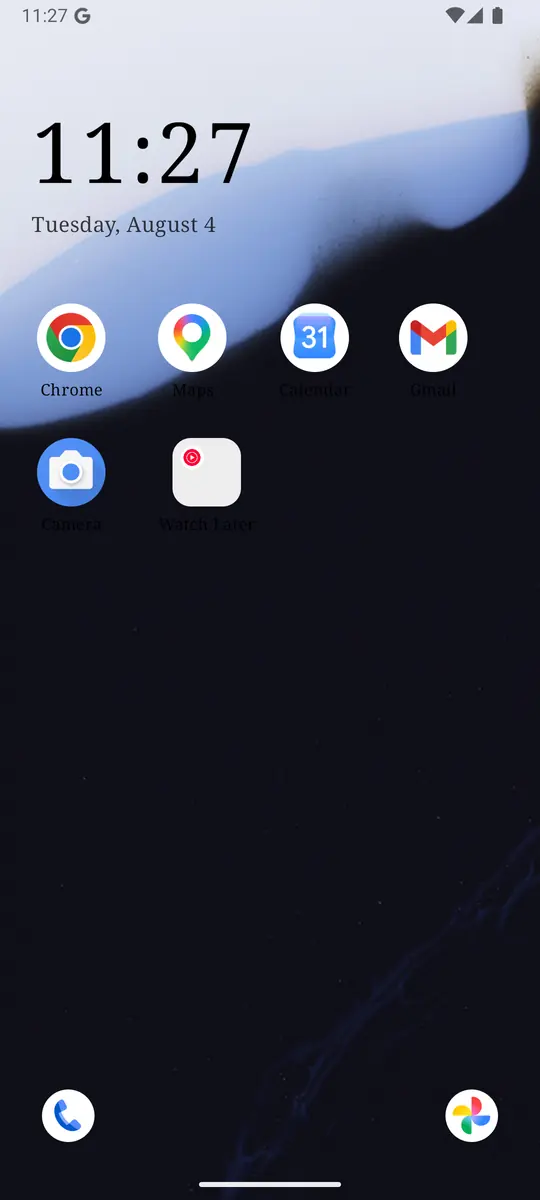
ReClaim is the Android launcher we build. It does not read or change your notifications, and it does not touch WhatsApp’s settings, so everything above keeps working as described. What ReClaim changes is what you see when you unlock: a home screen with a clock and the few apps you choose, and a plain alphabetical list of names for everything else. On top of that:
- App reminders. Before an app opens, ReClaim asks how long you intend to use it, then nudges you when that time is up.
- Daily and weekly limits. Give an app a budget. When it is up, ReClaim can close it.
- Blocking and scheduled blocking. Block an app for a set time, or set recurring windows, like bedtime, when selected apps are not available.
- Hidden apps with friction. Hide an app with four levels of hiding, and put one of 10+ unlock challenges in front of it.
Most people keep WhatsApp one tap away and put the friction on the feeds that WhatsApp pings lead into. If you want to try it, see how to change the default launcher on Android; switching back is the same setting. If the real problem is the endless feed, see how to stop doomscrolling on Android.
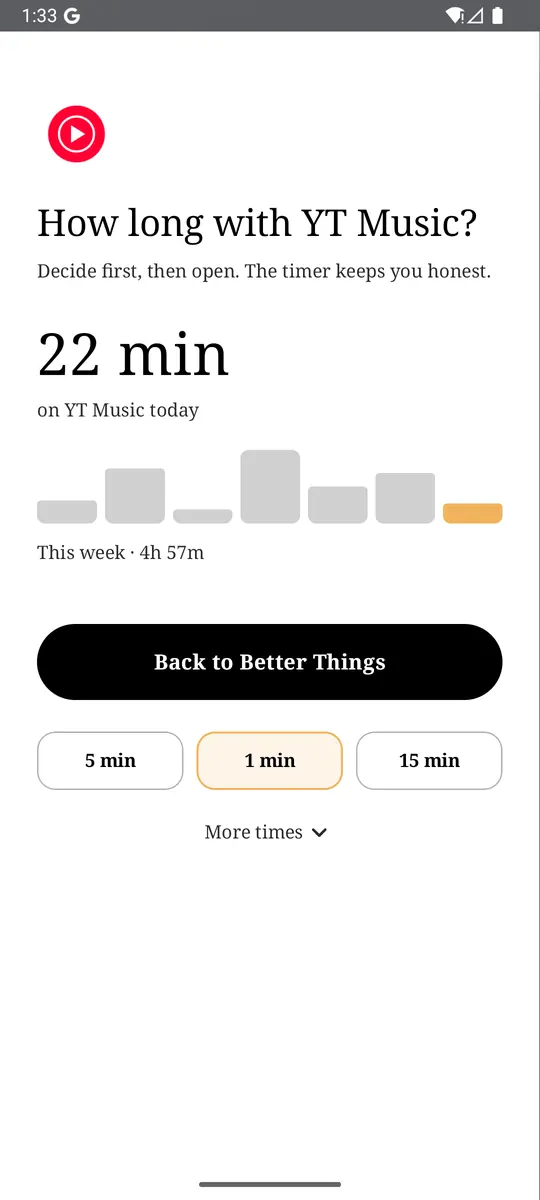
Open your busiest group → tap its name → Notifications → Mute → Always. Then turn off Reaction notifications in Settings → Notifications. If you also want a pause before the apps you open on autopilot, try ReClaim. It is free, works on Android 8.0 and newer, and you can switch back to your old home app any time from Settings → Apps → Default apps. Get it free on Google Play.
Questions
How do I turn off WhatsApp notifications on Android?
To silence one chat or group, open it, tap its name, tap Notifications, turn on Mute, and pick 8 hours, 1 week, or Always. To stop everything WhatsApp sends, open your phone’s Settings, tap Apps, then WhatsApp, then Notifications, and turn off All WhatsApp notifications (the label varies by phone).
How do I mute a WhatsApp group without leaving it?
Open the group, tap the group name, tap Notifications, and turn on Mute under Messages (and under Calls if you also want group calls quiet). Choose 8 hours, 1 week, or Always, then tap OK. You stay in the group, and WhatsApp says you will still be notified when someone mentions you or replies to you.
Will someone know if I mute them on WhatsApp?
No. WhatsApp says contacts are not notified when you mute a chat. If you have read receipts on, they still get a read receipt when you open and read their messages, and you still see the unread count next to the chat.
Can I turn off WhatsApp reaction notifications?
Yes. Tap More options (⋮), then Settings, then Notifications, and turn off Reaction notifications under Messages and under Groups. That stops alerts when someone reacts to a message you sent, without touching normal message alerts.
Do archived WhatsApp chats send notifications?
Mostly no. WhatsApp says you won’t get notifications for archived chats unless you are mentioned or replied to, and you can’t adjust notifications for archived chats. With Keep chats archived on (the default, under Settings → Chats), a new message does not pull the chat back into your main list.
Why do I still get WhatsApp notifications after muting?
Mute is per chat and per type, so check you muted the right chat, and for groups both Messages and Calls if needed. Mentions and replies can still notify you in muted groups. Also check for a custom notification you set for that chat, which adds its own category in Android settings, and check WhatsApp’s categories under Settings → Apps → WhatsApp → Notifications.