Signal notifications
How to turn off Signal notifications on Android
To turn off Signal notifications on Android, open the chat, tap the contact name or header, tap Mute notifications, and choose how long. To change what notifications show, tap your profile → Notifications → Show. To stop every Signal alert at once, open your phone’s Settings → Notifications → App notifications → Signal and turn it off. Menu names vary a little by Signal version and phone.

Signal is the messaging app people install for privacy, which makes its notification settings a little different from the others: alongside the usual muting, Signal lets you decide how much a notification gives away. A message preview on a lock screen is the one place a private chat can leak. This guide covers muting and silencing, then the privacy options, and then the Android switch for when you want Signal fully quiet. Everything here follows Signal’s own help pages.
How do you mute a Signal chat on Android?
Muting is per chat, and it is the right tool for a group that never stops. Per Signal’s in-app notification help:
- Open the chat with your contact or group.
- Tap the contact name or header to open the chat settings.
- Tap Mute notifications.
- Choose how long: 1 hour, 8 hours, 1 day, 7 days, or Always.
A mute icon appears next to the name or header. Signal’s help says muting hides notifications and badges for that chat, and that you will also not see updates about who reacted. The reaction itself still shows on your message bubble inside the chat. The chat is still there, and the messages still arrive, so you can catch up whenever you open it. To undo it, open the chat settings again and turn mute off.
How do you hide names and message text in notifications?
This is Signal’s privacy setting, and it also reduces how tempting a notification is to open. Per Signal’s help:
- In Signal, tap your profile, then Notifications.
- Tap Show.
- Choose one: Name and message, Name only, or No name or message.
With Name only, you see who wrote, but not the text, and you will not see which reaction a contact chose. With No name or message, you see neither. If Signal itself is locked, the help page says you will see Locked message in place of your choice until you unlock it. A phone that lights up with “New message” and nothing else is much less likely to pull you into a conversation.

How do you give one contact a different sound, or no sound?
If you want a chat to stay in your notification list but not make noise, Signal has a custom setting. Per its help:
- Open the chat with that contact.
- Tap the contact name or header.
- Tap Sounds and notifications, then Custom notifications.
- Select options for message and call notifications, including silent ones.
That is a gentler alternative to muting: the notification arrives, but it does not buzz. Signal’s help also mentions Notification profiles on Android, a way to set different notification rules for different times. Its FAQ covers the details, and it is worth a look if you want a “work hours” and a “sleep” setup without muting each chat by hand.
How do you turn off Signal notifications entirely?
There are two switches, and Signal’s troubleshooting page lists both: Signal Settings → Notifications → Enable notifications inside the app, and Android Settings → Apps → Signal → Show notifications on the phone. Turning either off stops Signal’s alerts. On the phone side, per Google’s Android notification help:
- Open your phone’s Settings and tap Notifications.
- Tap App notifications, then Signal. On some phones it is Settings → Apps → Signal → Notifications.
- Turn off notifications for Signal.
One note before you do: Signal delivers messages in the background, and its troubleshooting page spends most of its length on battery and background settings that make alerts arrive. If you ever turn notifications back on and nothing shows, those are the settings to check. For the general version for any app, see how to turn off notifications for specific apps.
What about Do Not Disturb and Focus mode?
- Do Not Disturb. Quiet hours across every app, per Google’s Do Not Disturb help. Signal’s troubleshooting page notes that Do Not Disturb can block its alerts. See how to turn on Do Not Disturb.
- Snooze one notification. Touch and hold it and snooze it if your phone offers that. See how to snooze notifications on Android.
- Focus mode / Digital Wellbeing. Pause Signal during work, or set an app timer. Per Google’s Focus mode help and Digital Wellbeing help, add an app to Focus mode or set a timer. More detail: Focus mode and app timers.
Which option should you pick?
| Option | What it stops | Use it for |
|---|---|---|
| Mute notifications (a chat) | That chat’s alerts and badges, for a time you choose. | A busy group. |
| Show: Name only / No name or message | The text, or the name too, in alerts. | Privacy on the lock screen. |
| Custom notifications | The sound for one contact. | Keeping a chat visible but quiet. |
| Enable notifications off (in Signal) | All of Signal’s alerts. | A hard stop inside the app. |
| Android: Signal notifications off | Every Signal push and banner. | When you do not want to open the app’s settings. |
A good default: mute your loudest group for Always, set Show to Name only, and leave the rest on. Then Signal stays private on the lock screen and quiet where it matters.
What if Signal notifications keep coming?
I muted a chat, but it still sends alerts
- Check that you muted the right chat and that the mute icon appears next to its name or header. Also check the Android switch, because a chat that is not muted but is allowed in Android can still alert.
I muted one person, but the group still buzzes
- Muting is per chat. A group is a separate chat from a direct message with the same person. Mute each one you want quiet.
I want them back, and nothing shows
- Per Signal’s troubleshooting page, check that notifications are enabled in Signal and in Android, that you have not muted the contact or group, that Do Not Disturb is not on, and that battery optimization is not holding Signal back.
Where ReClaim fits
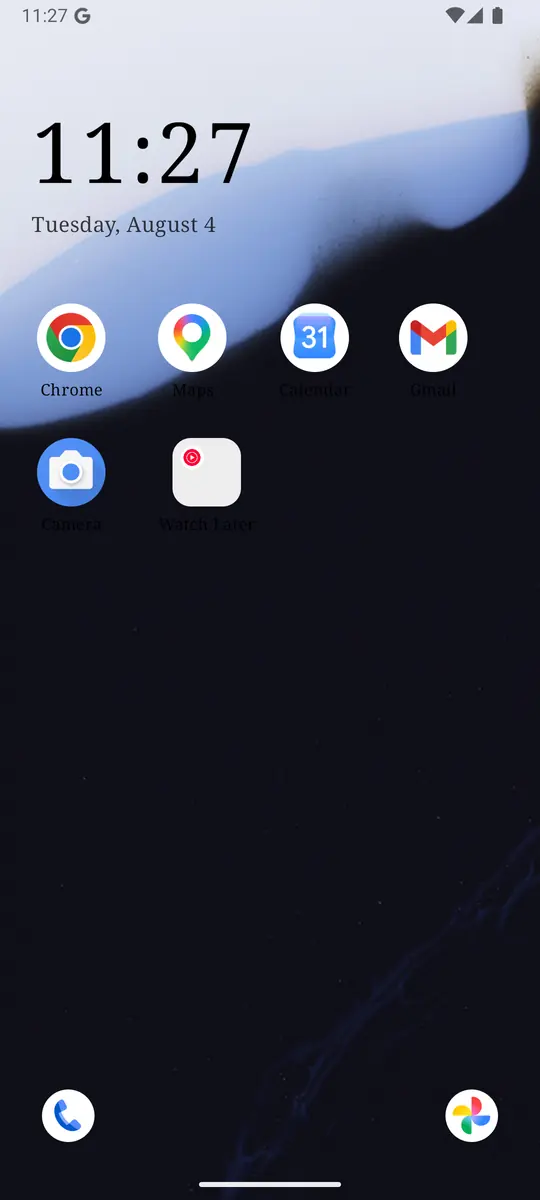
ReClaim is the Android launcher we build. It does not read or change your notifications, and it does not touch Signal’s settings, so everything above keeps working as described. What ReClaim changes is what you see when you unlock: a home screen with a clock and the few apps you choose, and a plain alphabetical list of names for everything else. On top of that:
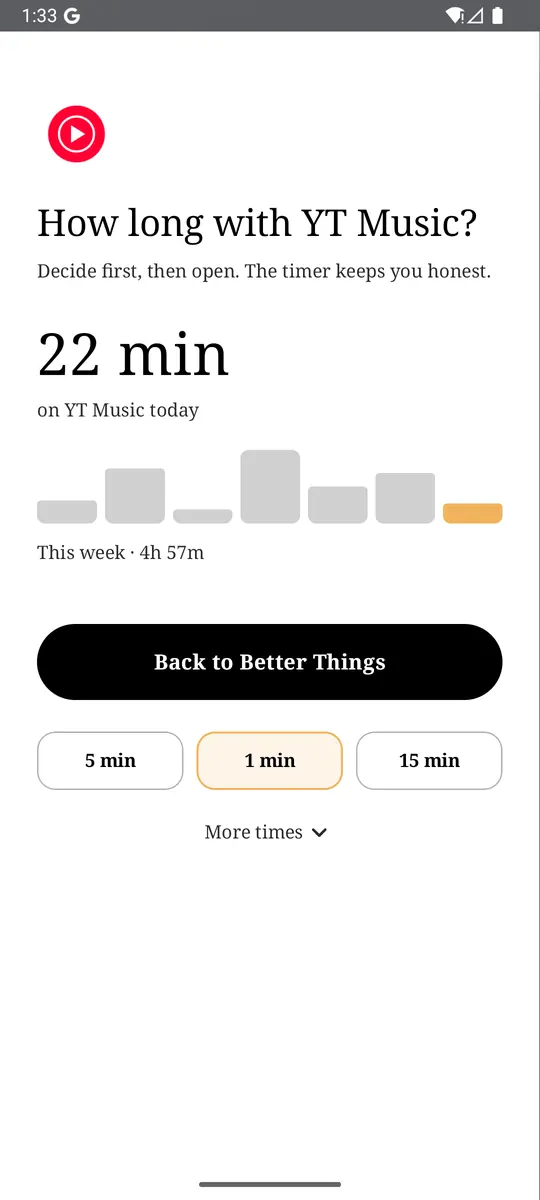
- App reminders. Before an app opens, ReClaim asks how long you intend to use it, then nudges you when that time is up.
- Daily and weekly limits. Give an app a budget. When it is up, ReClaim can close it.
- Blocking and scheduled blocking. Block an app for a set time, or set recurring windows, like evenings or weekends, when selected apps are not available.
- Hidden apps with friction. Hide an app with four levels of hiding, and put one of 10+ unlock challenges in front of it.
Turning off notifications removes Signal’s reasons to call you back. The other half is the habit of opening it yourself “just to check.” You could keep Signal off your home screen, set an app reminder so you pick a time before it opens, or give it a daily limit for the hours you do not want to be reachable. If you want to try it, see how to change the default launcher on Android; switching back is the same setting. For the scrolling that follows a quick check, see how to stop doomscrolling on Android.
Mute your noisiest group, set Show to Name only, and leave the chats that matter on. If you also want a pause before the apps you open on autopilot, try ReClaim. It is free, works on Android 8.0 and newer, and you can switch back to your old home app any time from Settings → Apps → Default apps. Get it free on Google Play.
Questions
How do I turn off Signal notifications on Android?
Open the chat, tap the contact name or header, tap Mute notifications, and choose how long. For everything, turn off notifications for Signal in your phone’s Settings, under Notifications and App notifications, or turn off Enable notifications in Signal’s Notifications settings.
How long can I mute a Signal chat?
On Android you can choose 1 hour, 8 hours, 1 day, 7 days, or Always.
Does the other person know I muted them?
Signal’s help describes muting only as something that changes your notifications, with a mute icon on your own screen. Nothing in it says the other person is told.
How do I stop Signal showing message text on my lock screen?
Tap your profile, tap Notifications, tap Show, and choose Name only or No name or message.
Can I mute notifications but still see messages?
Yes. Muted chats keep receiving messages. You only lose the alert and the badge, so you can read them when you open the chat.
Why did a muted chat still show reactions?
The reaction still appears on your message bubble inside the chat. Signal’s help says muting means you will not see updates about who reacted in your notifications.