Spotify notifications
How to turn off Spotify notifications on Android
To turn off Spotify notifications on Android, open the app, tap your profile picture → Settings and privacy → Notifications, and switch off the push types you do not want. To stop every Spotify alert at once, open your phone’s Settings → Notifications → App notifications → Spotify and turn it off. For a single podcast, open the show, tap Following, and switch off Get notified of new episodes. Menu names vary a little by Spotify version and phone.

Spotify’s notifications fall into two groups that deserve different treatment. Some are things you asked for, like a new episode from a podcast you follow. Others are Spotify suggesting you come back: new music picks, concert recommendations, offers, and tips. The app lets you choose by type, and it is worth ten minutes to switch off the second group and keep the first. This guide covers both the in-app settings and Android’s master switch, plus one catch that trips people up: some emails Spotify will not stop sending.
How do you turn off Spotify notifications in Android settings?
This is the hard stop. It works the same for any app, per Google’s Android notification help:
- Open your phone’s Settings and tap Notifications.
- Tap App notifications, then Spotify. On some phones it is Settings → Apps → Spotify → Notifications.
- Turn off notifications for Spotify to stop every push and banner from the app.
Spotify’s help notes that to get push notifications at all you need to allow notifications for the Spotify app in your phone settings, so this switch sits above everything inside the app. The same screen may also list categories, so you can leave Spotify on and turn off only some. For the general version for any app, see how to turn off notifications for specific apps.
How do you choose which push alerts Spotify sends?
This is the setting most people want. As SlashGear’s guide to Spotify settings on Android and How-To Geek’s setup guide describe it:
- Tap your profile picture at the top left of the home screen or the Your Library tab.
- Tap Settings and privacy, then Notifications.
- Switch off the push types you do not want. The types include new music, events and concerts, merchandise, offers, new features, and tips.
Spotify’s help page on notification settings says you can manage which email and push notifications you get, or choose to get none, from your account page too. The in-app screen is easier on a phone, but if you cannot find a type there, the account page lists the same choices. The names of the types shift between app versions, so look for the closest match.
A sensible set for most listeners: keep alerts for the artists and podcasts you follow, and switch off offers, tips, and feature announcements. The offers are the ones most likely to arrive when you are in the middle of something else.

How do you stop new-episode alerts for one podcast?
Podcast alerts are set per show, not in the main Notifications list. Per Spotify’s help, on mobile:
- Go to the podcast’s show page.
- Tap Following.
- Switch Get notified of new episodes off.
To turn it back on, tap Follow and switch the same option on. This is the right fix when one chatty show is the whole problem. You keep following it and the episodes still land in your library. You just do not get a ping for each one.
Why does Spotify still send emails?
Push and email are separate. Spotify’s help says you can manage both from your account page, and the in-app Notifications screen has email options as well. There is one exception: emails about account activity, such as new logins or new Family and Duo members, cannot be turned off, because they exist to keep your account safe. If you see account activity you do not recognize, Spotify’s help points to its account takeover page. Promotional email can be removed with the unsubscribe link at the bottom of any Spotify email.
What about Do Not Disturb and Focus mode?
- Do Not Disturb. Quiet hours across every app, per Google’s Do Not Disturb help. Leave Spotify off the list of apps allowed to break through. See how to turn on Do Not Disturb.
- Snooze one notification. Touch and hold it and snooze it if your phone offers that. See how to snooze notifications on Android.
- Focus mode / Digital Wellbeing. Pause other apps while the music plays on, or set an app timer. Per Google’s Focus mode help and Digital Wellbeing help, add an app to Focus mode or set a timer. More detail: Focus mode and app timers.
Which option should you pick?
| Option | What it stops | Use it for |
|---|---|---|
| Android: Spotify notifications off | Every Spotify push and banner. | A hard stop, if you do not need alerts at all. |
| Notifications by type | Offers, concerts, tips, and similar push alerts. | Keeping alerts for artists and shows you follow. |
| Get notified of new episodes: off | New-episode alerts for one podcast. | One show that posts too often. |
| Email options | Promotional email, not security email. | A cleaner inbox. |
A good default: leave new-episode alerts on for the few shows you care about, switch off offers and tips, and unsubscribe from the promotional emails. Spotify then speaks when something you chose has come out.
What if Spotify notifications keep coming?
I switched off a type, but it still appears
- Check whether it is an email or a push. Push and email are separate lists, so open both. Spotify also names the types differently between versions, so a feature announcement may be listed under a different label than you expect.
I keep getting alerts from one podcast
- Podcast alerts are controlled on the show page, not in the main list. Open the show, tap Following, and switch off Get notified of new episodes.
I want them back, and nothing shows
- Check that the type is on in Spotify, that Spotify is allowed in Android’s notification settings, and that Do Not Disturb or battery saver is not holding alerts back.
Where ReClaim fits
ReClaim is the Android launcher we build. It does not read or change your notifications, and it does not touch Spotify’s settings, so everything above keeps working as described. What ReClaim changes is what you see when you unlock: a home screen with a clock and the few apps you choose, and a plain alphabetical list of names for everything else. On top of that:
- App reminders. Before an app opens, ReClaim asks how long you intend to use it, then nudges you when that time is up.
- Daily and weekly limits. Give an app a budget. When it is up, ReClaim can close it.
- Blocking and scheduled blocking. Block an app for a set time, or set recurring windows, like evenings or weekends, when selected apps are not available.
- Hidden apps with friction. Hide an app with four levels of hiding, and put one of 10+ unlock challenges in front of it.
Turning off notifications removes Spotify’s reasons to call you back. Most people open Spotify on purpose, to play something, so the habit to watch is what happens after: the “quick playlist change” that turns into twenty minutes of browsing. ReClaim’s app reminder asks how long you intend to use an app before it opens, which fits that pattern. If you want to try it, see how to change the default launcher on Android; switching back is the same setting. For the scrolling that follows a quick check, see how to stop doomscrolling on Android.
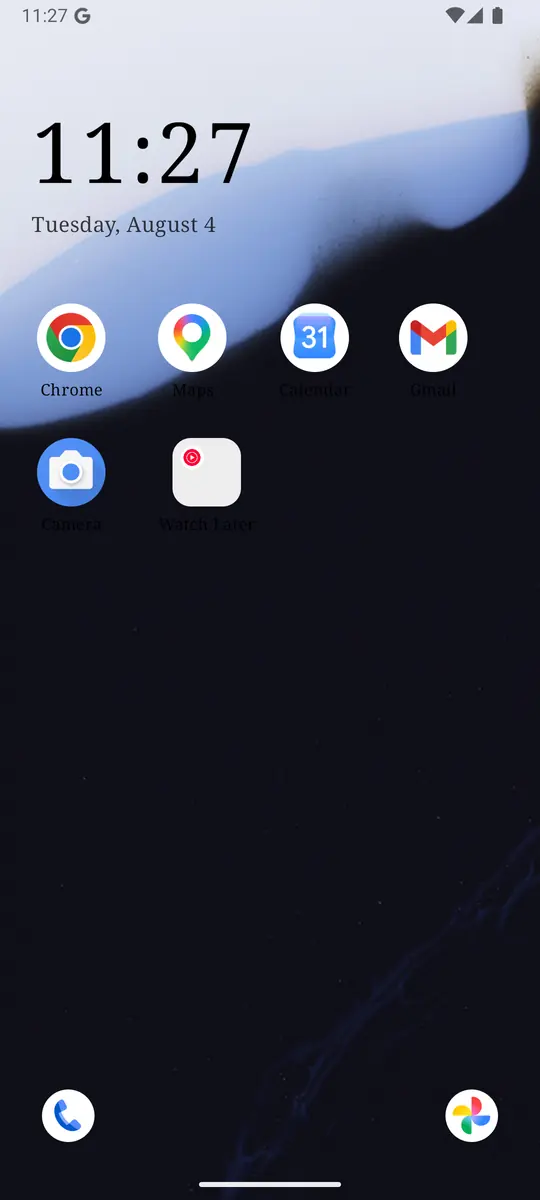
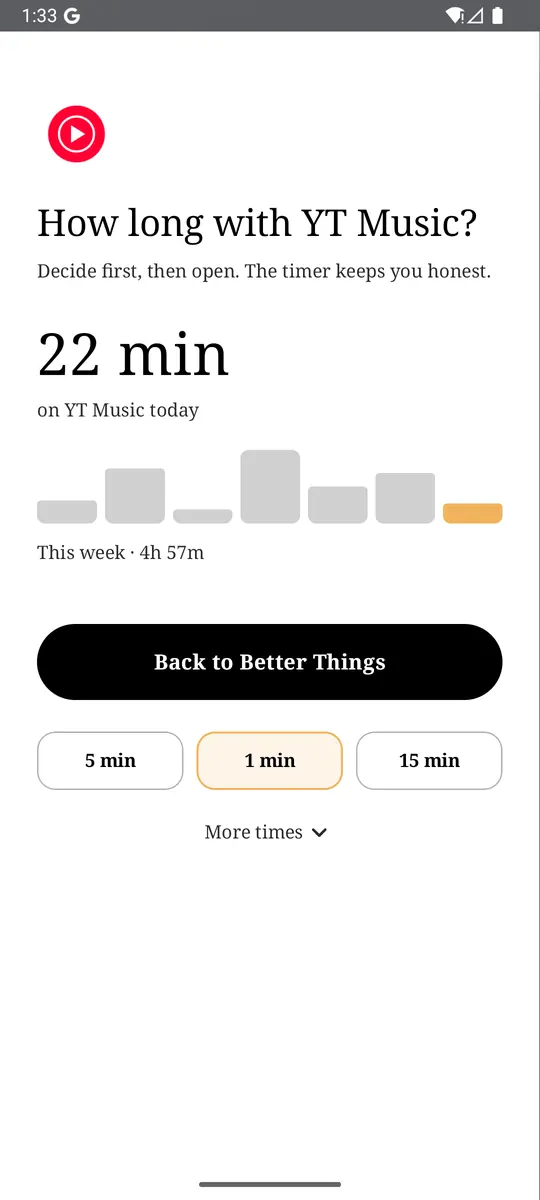
Open Settings and privacy → Notifications in Spotify, switch off offers, tips, and concerts, and switch off new-episode alerts for any podcast that posts too often. If you also want a pause before the apps you open on autopilot, try ReClaim. It is free, works on Android 8.0 and newer, and you can switch back to your old home app any time from Settings → Apps → Default apps. Get it free on Google Play.
Questions
How do I turn off Spotify notifications on Android?
For a hard stop, open your phone’s Settings, then Notifications, then App notifications, tap Spotify, and turn it off. To keep some, open Spotify, tap your profile picture, tap Settings and privacy, tap Notifications, and switch off the types you do not want.
How do I stop podcast episode notifications on Spotify?
Go to the podcast’s show page, tap Following, and switch off Get notified of new episodes.
Why do I still get emails from Spotify?
Push and email are separate. Manage email options on your account page or in the Notifications screen, or use unsubscribe at the bottom of the email. Emails about account activity, such as new logins, cannot be turned off.
Can I stop Spotify’s concert and offer notifications but keep the rest?
Yes. Open Settings and privacy, then Notifications, and switch off those types only. Spotify’s names for the types can change between versions, so look for the closest match.
Will turning off Spotify notifications stop my music?
No. Notifications are separate from playback. The in-app settings never change how music plays.
Do notification settings carry over between my phone and my computer?
Email and push choices are tied to your account, but Android’s own switch for Spotify applies only to that phone, and the desktop app has its own settings.