Netflix notifications
How to turn off Netflix notifications on Android
To turn off Netflix notifications on Android, open the app, tap My Netflix in the lower right, tap your profile name at the top, tap App Settings, and turn off Allow Notifications. To choose by category instead, sign in on a browser and open Account → Profiles → your profile → Notification settings → Manage Push Notifications. Menu names vary a little by Netflix version and phone.

Netflix’s notifications feel harmless, a new season here, a “top 10” there, until you realize most of them are Netflix asking you to come back. The service handles this in an unusual way: one simple switch inside the app, and a longer list of categories in your account on the web, set separately for each profile. That is useful if you share an account, because a notification you want is not the same as one your partner wants. Here is each setting, based on Netflix’s own help page.
How do you turn off Netflix notifications in the app?
This is the quickest route. Per Netflix’s help on app notifications, on Android phones and tablets:
- Open the Netflix app.
- In the lower right, tap My Netflix.
- At the top, tap your profile name.
- Tap App Settings.
- Next to Allow Notifications, turn the switch off.
To turn them back on, repeat the steps and switch it on. That is a blunt switch: it stops Netflix’s push alerts for the app on this phone. If you want to keep one kind, such as new seasons of a show you watch, use the account page below.
How do you choose which push notifications each profile gets?
Netflix’s help says you can choose the types of push notifications you get for each adult profile, and that this is done in a browser, not in the Android app:
- In a browser, enter the profile you want to update.
- Go to the Account page, then Profiles, and choose a profile.
- Select Notification settings, then Manage Push Notifications.
- Opt in or out by switching the categories for that profile.
The categories Netflix lists are:
- What you watch: New seasons and episodes, Leaving Soon, Your Collections.
- Watch recommendations and more: Top 10, New arrivals, Now on Netflix.
- Surveys and research invites: Participation studies and surveys.
- Netflix Games: Releases, recommendations, gameplay activity.
- Netflix.Shop and experiences: Products and live experiences.
- Using the Netflix app: Suggested features, tips and tricks, parental controls.
- Membership offers: Plan upgrades and subscription promotions.
- Account updates: Security alerts, billing, and time-sensitive notifications.
You can also choose Unsubscribe from All. For most people the middle of that list is the problem: switch off Watch recommendations, Games, Netflix.Shop, Using the Netflix app, and Membership offers, and keep What you watch if you follow a show. Keep Account updates, since billing and security messages are listed there.

How do you turn off Netflix notifications in Android settings?
Android has its own switch for every app, per Google’s Android notification help:
- Open your phone’s Settings and tap Notifications.
- Tap App notifications, then Netflix. On some phones it is Settings → Apps → Netflix → Notifications.
- Turn off notifications for Netflix.
This does the same job as Allow Notifications inside Netflix, so you only need one of them. The Android switch is the one to use if you cannot find App Settings after an app update. For the general version for any app, see how to turn off notifications for specific apps.
What about Do Not Disturb and Focus mode?
- Do Not Disturb. Quiet hours across every app, per Google’s Do Not Disturb help. Leave Netflix off the list of apps allowed to break through. See how to turn on Do Not Disturb.
- Snooze one notification. Touch and hold it and snooze it if your phone offers that. See how to snooze notifications on Android.
- Focus mode / Digital Wellbeing. Pause Netflix on weeknights, or set an app timer. Per Google’s Focus mode help and Digital Wellbeing help, add an app to Focus mode or set a timer. More detail: Focus mode and app timers.
Which option should you pick?
| Option | What it stops | Use it for |
|---|---|---|
| Allow Notifications off (App Settings) | Netflix push alerts in the app. | The simplest way to go quiet. |
| Manage Push Notifications (browser) | Chosen categories, per profile. | Keeping new-episode alerts, dropping offers. |
| Unsubscribe from All | All categories for that profile. | A profile that never needs an alert. |
| Android: Netflix notifications off | Every Netflix push and banner on this phone. | When App Settings has moved. |
A good default: keep What you watch on for the one or two shows you follow, switch everything else off for each adult profile, and leave Account updates alone. Then Netflix speaks when something you chose has arrived.
What if Netflix notifications keep coming?
I turned them off on my profile, but my partner still gets them
- Push choices are set for each adult profile. Open the other profile in a browser and repeat the steps.
I switched off the categories, but I still get a few
- Account updates, such as security, billing, and time-sensitive messages, are listed as their own category. Netflix describes them as time-sensitive, so expect those to keep coming.
I cannot find App Settings
- Open My Netflix, tap your profile name at the top, and look for App Settings. If your version has moved it, use Android’s notification settings for Netflix instead.
I want them back, and nothing shows
- Check that Allow Notifications is on in App Settings, that Netflix is allowed in Android’s notification settings, and that Do Not Disturb or battery saver is not holding alerts back.
Where ReClaim fits
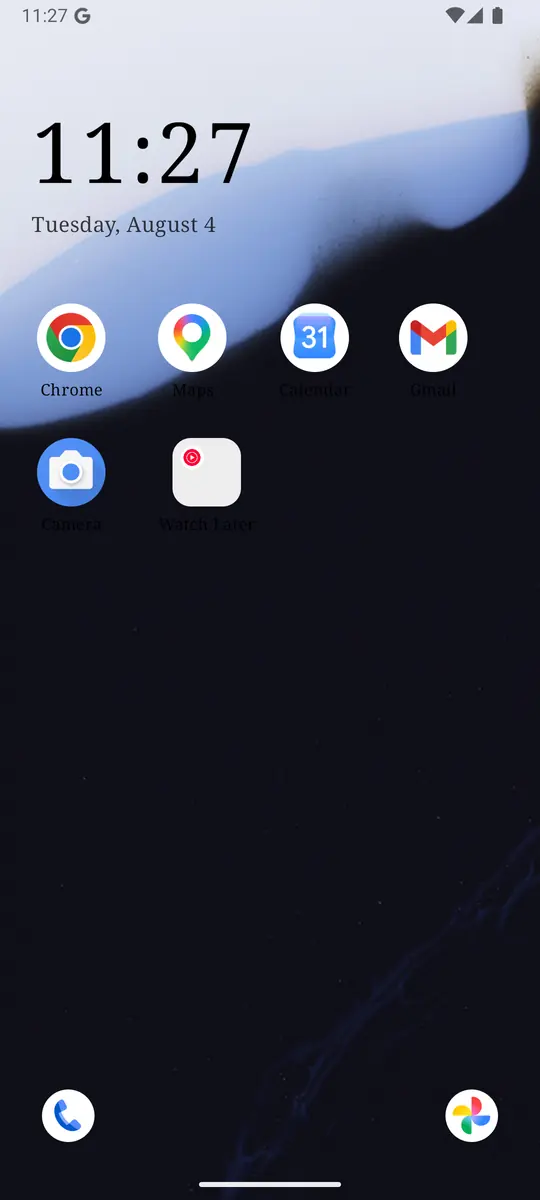
ReClaim is the Android launcher we build. It does not read or change your notifications, and it does not touch Netflix’s settings, so everything above keeps working as described. What ReClaim changes is what you see when you unlock: a home screen with a clock and the few apps you choose, and a plain alphabetical list of names for everything else. On top of that:
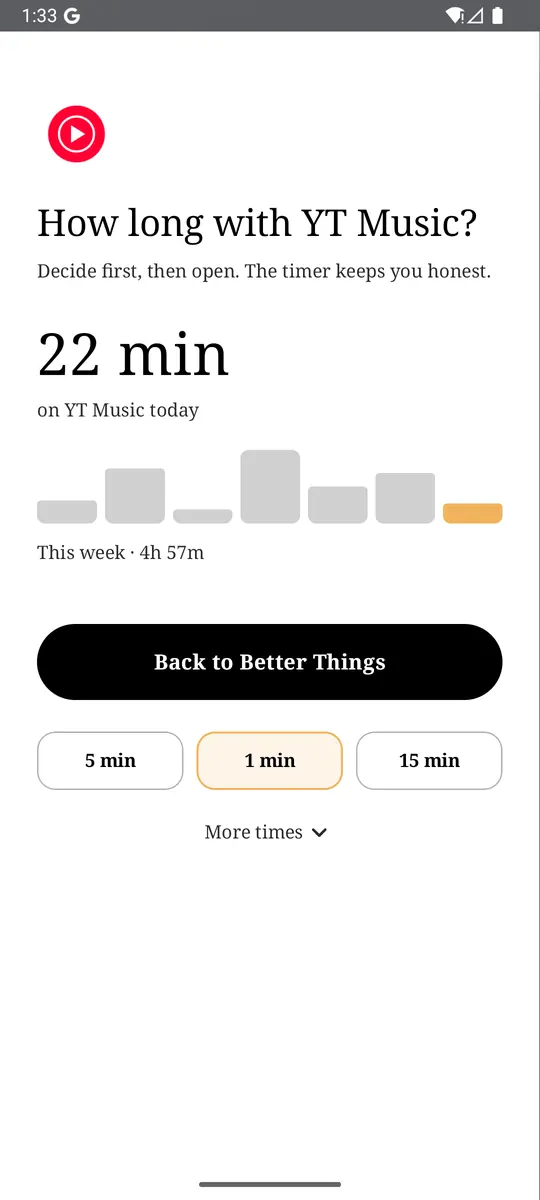
- App reminders. Before an app opens, ReClaim asks how long you intend to use it, then nudges you when that time is up.
- Daily and weekly limits. Give an app a budget. When it is up, ReClaim can close it.
- Blocking and scheduled blocking. Block an app for a set time, or set recurring windows, like evenings or weekends, when selected apps are not available.
- Hidden apps with friction. Hide an app with four levels of hiding, and put one of 10+ unlock challenges in front of it.
Turning off notifications removes Netflix’s reasons to call you back. The other half is the habit of opening it yourself “just to see what’s on.” You could keep Netflix off your home screen, set an app reminder so you pick how long before it opens, or give it a daily limit. If you want to try it, see how to change the default launcher on Android; switching back is the same setting. For the scrolling that follows a quick check, see how to stop doomscrolling on Android.
Turn off Allow Notifications in App Settings, or open Manage Push Notifications on the web and keep only What you watch. If you also want a pause before the apps you open on autopilot, try ReClaim. It is free, works on Android 8.0 and newer, and you can switch back to your old home app any time from Settings → Apps → Default apps. Get it free on Google Play.
Questions
How do I turn off Netflix notifications on Android?
Open the Netflix app, tap My Netflix in the lower right, tap your profile name at the top, tap App Settings, and turn off Allow Notifications next to it. You can also turn Netflix off in your phone’s Settings, under Notifications and App notifications.
Can I keep new-episode notifications but stop the rest?
Yes. In a browser, open Account, then Profiles, choose the profile, then Notification settings and Manage Push Notifications, and leave What you watch on while turning the other categories off.
Do notification settings apply to every profile?
No. Netflix lets you choose push notification types for each adult profile, so each one needs its own settings.
Can I turn off all Netflix notifications at once?
Yes. Turn off Allow Notifications in App Settings, or choose Unsubscribe from All in Manage Push Notifications for a profile.
Why do I still get messages about billing from Netflix?
Account updates, such as security alerts, billing, and time-sensitive notifications, are their own category. They are meant to reach you even when promotions are off.
Does turning off notifications affect my downloads or my watch list?
No. Notifications only control alerts. Your downloads, My List, and viewing history stay as they are.