Home screen
How to remove the Google search bar from your Android home screen
To remove the Google search bar from your Android home screen, touch and hold it. If a menu with Remove appears, it is a widget: tap Remove and it is gone. On a Samsung Galaxy with One UI 9, the bar is built in: open Settings → Home screen → Show search on Home screen and turn off Search. On Motorola, use Home settings → Search bar settings. On a Pixel, the bar is part of Pixel Launcher and has no off switch, so the only way to remove it is to switch to a different launcher.

The Google search bar is the first thing most Android phones put on the home screen, and for a lot of people it is the thing they would most like to take off. Maybe you use a different search engine. Maybe you search from the browser anyway. Or maybe you just want a first screen with fewer things on it, and a box that opens a page of trending searches is not helping. Whatever the reason, removing it should take ten seconds.
Sometimes it does. On many phones the bar is an ordinary widget, and you remove it like any other. But phone makers have been moving the bar into the home screen app itself, where it no longer behaves like a widget. Samsung did this in One UI 9, Motorola attaches it to the row of favorite apps, and Google has built it into the Pixel Launcher for years. Each one has a different answer, and on a Pixel the honest answer is that there is no setting at all.
This guide starts with a quick test that tells you which kind of bar you have, then gives the exact steps for Samsung, Pixel, Motorola, OnePlus, and Xiaomi. Where a phone maker documents the steps, we follow its own help page. Where it does not, we say so. Removing the bar does not uninstall Google, turn off Google Search, or change your default search engine; it only takes the box off your home screen.
Is your search bar a widget or built in?
Samsung’s guide to removing or moving the Google search bar describes a simple test that works on almost any Android phone:
- Go to your home screen and find the search bar.
- Touch and hold it for one or two seconds. Keep your finger on the screen; a quick tap just opens Google Search on every phone.
- Watch what happens. If a small menu appears, or the bar lifts up with an outline and a Remove option, it is a widget. If the Google Search screen opens instead, the bar is built in to your home screen.
A widget can be removed, moved, and resized on any launcher. A built-in bar belongs to the home screen app (the launcher), so it only goes away if that launcher has a switch for it. If it has no switch, the bar stays, unless you change the launcher. That one distinction explains why the same gesture works on your friend’s phone and does nothing on yours.
How do you remove the search bar from a Samsung home screen?
Samsung Galaxy phones can have either kind of bar, depending on the software version. Samsung says that with One UI 9 it introduced a built-in Google search bar that is part of the Home screen, while earlier versions use the regular Google search widget. Run the two-second test above, then follow the matching steps.
If the bar is built in (One UI 9)
These steps follow Samsung’s help page:
- Open Settings, then swipe to and tap Home screen. You can also pinch the home screen, or touch and hold an empty area, and tap Settings.
- Tap Show search on Home screen.
- Turn off the switch next to Search. That removes the built-in Google bar.
- Turn off Finder as well, if it is on. Finder is Samsung’s own search bar for apps, settings, contacts, and files; Samsung lets you show one, both, or neither, and the available options vary by device.
With both switches off, nothing sits above your dock. If you do want Google search but in a different spot, Samsung’s answer is to turn the built-in bar off and add the Google search widget instead, because the built-in bar’s position is fixed while the widget can be moved and resized.
If the bar is a widget (One UI 8 and earlier, or after you added it)
- Touch and hold the Google search widget for a second or two until its menu appears.
- Tap Remove. The widget disappears, and the space it took is free for apps or nothing at all.
If the bar is on a page you rarely use, you can also leave it and simply move it there: touch and hold, then drag it to a new location.
One related setting is worth knowing about on the same Home screen settings page in One UI: App icon badges, the dots that sit on icons when an app has unread notifications. If those are the next thing you want gone, see how to turn off notification dots on Android.

Can you hide the Google search bar on a Pixel?
Not with the Pixel Launcher, as of November 2026. On Pixel phones the search bar at the bottom of the home screen, under your row of favorite apps, is part of Pixel Launcher itself. It is not a widget, touching and holding it does not offer Remove, and Home settings has no switch for it. Volunteer experts on Google’s Pixel community forum have given the same answer on Android 15 and Android 16: the bar cannot be removed natively, and a third-party launcher is the way to do it.
That may change. In May 2026, an Android Authority teardown of the Android 17 QPR1 beta found new Pixel Launcher strings for a Show search bar option (“At the bottom of your home screen”) under Search bar settings, and a leaked build showed it working. But the stable Android 17 QPR1 release that rolled out in September 2026 did not include it, according to Pixel owners who looked for it. If a future update adds it, it will likely be in Home settings: touch and hold an empty spot on the home screen, tap Home settings, and look for a search bar option. Until then, here is what you can actually do on a Pixel:
- Switch to a different launcher. This is the only way to get the bar off a Pixel home screen today. Most third-party launchers let you hide their search bar, or never show one. The steps are below in When a new launcher is the only way.
- Take the other clutter off instead. The At a Glance widget at the top of the screen can be hidden. Google’s Pixel help says to touch and hold the At a Glance area, tap Settings, and turn off Show on home screen; it then stays on your lock screen only.
- Remove the feed one swipe away. If what bothers you is everything Google puts around the bar, the news page to the left of your home screen has its own switch. See how to turn off Google Discover on Android.
You may come across tools outside Google Play that claim to remove the Pixel bar. We have not tested them, and installing apps from outside the Play Store to change your home screen is a security trade-off we would not make for a search bar. A launcher from Google Play is the cleaner fix.
How do you remove the search bar on a Motorola?
On recent Motorola phones, the Google search bar is attached to the favorites tray, the row of apps at the bottom of the home screen. Motorola’s help for Android 17 says the bar is now anchored to that tray and that you can swipe it up to see all apps. To remove it, Motorola’s help on customizing the favorites tray lists these steps:
- Touch and hold a blank space on your home screen.
- Tap Home settings, then Search bar settings.
- Turn off Show default search bar on favorites tray.
On older Motorola software, where the bar is a regular Google search widget on the home screen, touch and hold it and drag it to Remove, the same as any other widget.
How do you remove it on OnePlus, Xiaomi, and other phones?
OnePlus (OxygenOS). On OnePlus phones, the Google bar placed on the home screen during setup is a regular Google search widget. Touch and hold it, then tap Remove. If it comes back after a software update, the home screen layout may have been reset; remove it again the same way.
Xiaomi, Redmi, and POCO (HyperOS). HyperOS puts its search bar on the home screen as a setting rather than a widget. Hands-on guides for HyperOS 3 on Android 16 give this path: Settings → Home screen → Home screen search, then turn off Home screen search. The same screen lets you pick a smaller Compact search icon instead of the full Google bar. We could not find an official Xiaomi help page for this, so if your menu looks different, search Settings for “search.”
Everything else. Nothing, realme, OPPO, vivo, Sony, and other brands use their own home screen apps, and the details vary. The general approach works almost everywhere: try the two-second test first. If you get Remove, use it. If you do not, touch and hold an empty spot on the home screen, open the home screen or launcher settings, and look for an option that mentions the search bar or search box. Google’s own help on the Search widget notes one more catch: on some older devices, the Search widget cannot be removed at all.
Using a third-party launcher already? Then the bar, if there is one, is controlled in that launcher’s settings, not in any of the menus above.
Can you remove the Google search bar? Every phone at a glance
Here is the short version for each phone, as of November 2026. Menu names can shift a little between models and updates.
| Phone | Type of bar | How to remove it | Removable without a new launcher? |
|---|---|---|---|
| Samsung Galaxy, One UI 9 | Built in | Settings → Home screen → Show search on Home screen → Search off (and Finder off) | Yes |
| Samsung Galaxy, One UI 8 and earlier | Widget | Touch and hold the bar → Remove | Yes |
| Google Pixel (Pixel Launcher) | Built in | No setting. Change the default launcher. | No |
| Motorola, recent software | Built in (favorites tray) | Touch and hold Home → Home settings → Search bar settings → Show default search bar on favorites tray off | Yes |
| OnePlus (OxygenOS) | Widget | Touch and hold the bar → Remove | Yes |
| Xiaomi, Redmi, POCO (HyperOS) | Setting | Settings → Home screen → Home screen search → off | Yes |
| Any phone with the Google widget | Widget | Touch and hold → Remove (not possible on some older devices) | Usually |
Removing the bar is one step toward a calmer first screen. The minimal Android home screen guide covers the rest: which widgets to drop, what to keep on page one, and how to stop the screen from refreshing itself with things to look at.
When is a new launcher the only way to remove it?
If your bar is built in and your launcher has no switch for it, which today means the Pixel Launcher above all, changing the launcher is the only way to get the bar off your home screen. That sounds bigger than it is. Android lets you replace the home screen app with another one from Google Play, and you can switch back at any time. Your apps, accounts, and data are not touched; only the home screen and app list change.
- Install a launcher from Google Play. Pick one that hides its search bar, or has none. Our roundup of the best minimalist launchers for Android compares several, including ReClaim.
- Set it as your default home app. On a Pixel, open Settings → Apps → Default apps → Home app and pick the new launcher. On a Samsung, the menu is called Choose default apps. Many launchers also prompt you the first time you press Home.
- Turn off its search bar, if it shows one, in the launcher’s own settings.
Our step-by-step guide to changing the default launcher on Android covers each brand, how to switch back to the launcher your phone came with, and what to do if the new launcher does not stick. Keep in mind what you give up: features built into Pixel Launcher, such as At a Glance and the swipe-right Google page, do not come with a third-party launcher. For many people who want the search bar gone, that is the point.
What changes between Android and One UI versions?
- Pixel: The bottom search bar has no off switch on Android 15, Android 16, or the stable Android 17 QPR1 release. A Show search bar toggle appeared in Android 17 QPR1 beta strings and a leaked build, but Google has not shipped or announced it. The At a Glance Show on home screen switch is in current Pixel software.
- Samsung: One UI 9 added the built-in Google bar and moved the controls to Show search on Home screen, where Google Search and Finder each have a switch. On One UI 8.5 (starting with the Galaxy S26 series), Samsung’s help lists a separate Show Finder on Home screen switch for Finder. On One UI 8 and earlier, the Google bar is a widget.
- Motorola: Motorola’s help documents Search bar settings for phones on Android 16 and describes the tray-anchored bar as part of its Android 17 update. Older Motorola phones use the regular widget.
- The Google app: The Google search widget comes from the Google app, which updates through Google Play separately from Android. Its customization menu can change without a system update.
Search bar won’t go away? Troubleshooting
- Touching and holding opens Google Search. The bar is built in, not a widget. On a Samsung with One UI 9, use Show search on Home screen. On a Motorola, use Search bar settings. On a Pixel, there is no switch; see the launcher section.
- You removed it, and a bar came back after a Samsung update. If your Galaxy updated to One UI 9, the bar you see now is likely the new built-in one rather than the old widget. Turn off Search under Show search on Home screen.
- A smaller search bar is still there on a Samsung. That is probably Finder, Samsung’s on-device search. It has its own switch on the same Show search on Home screen page.
- It comes back after a restart or update on other phones. Some updates reset the home screen layout to its default, which includes the widget. Remove it again.
- There is no Remove option and no setting. Check which home app you use: open Settings, search for “Home app,” and see what is selected. If it is the launcher your phone came with and it has no switch, a different launcher is the only route. If it is a third-party launcher, look in that launcher’s settings.
- The menu names do not match. Search the Settings app for “search bar” or “home screen search.” Labels vary by model, carrier, and region.
How do you get the Google search bar back?
Every change here is reversible. To bring back a built-in bar, turn the same switch back on: Search under Show search on Home screen on a Samsung, Show default search bar on favorites tray on a Motorola, or Home screen search on a Xiaomi. To add the Google search widget back on any phone, Google’s Search widget help gives two routes:
- From the Google app: open the Google app, tap your profile picture or initial, then Settings → Customize Search widget, and tap Add at the top right.
- From the Widgets menu: touch and hold an empty part of your home screen, tap Widgets, find Google, then touch and hold the search widget and drag it into place.
The same Customize Search widget screen lets you change the widget’s shortcuts, color, and transparency, if you want a bar that stands out less rather than none at all. On a Pixel, if you changed launchers to remove the bar, switching back to Pixel Launcher under Default apps brings it back.
Where ReClaim fits
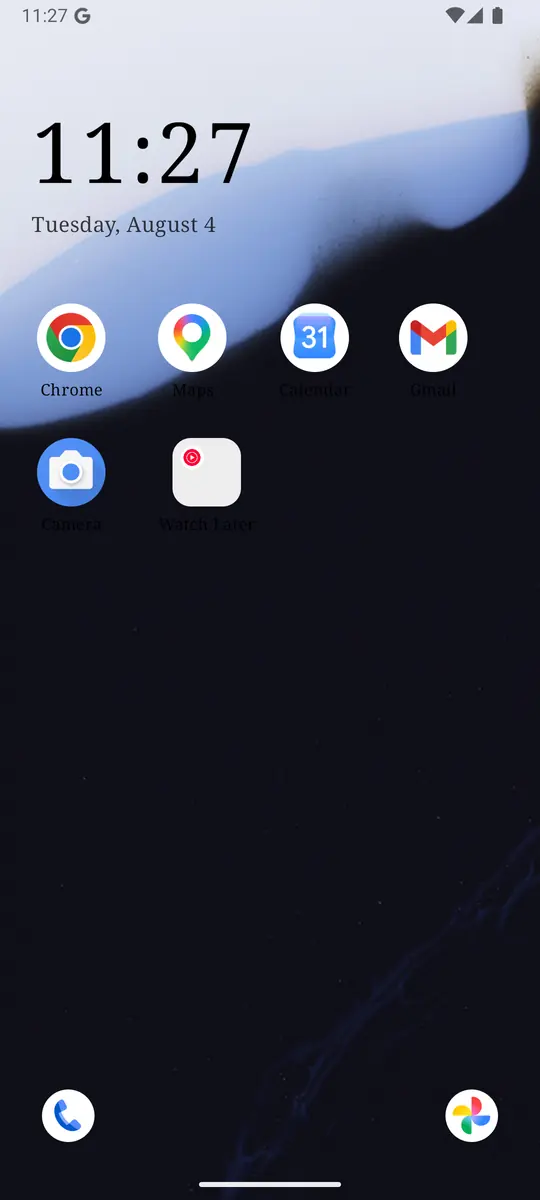
ReClaim is the Android launcher we build. On most phones you do not need it, or any launcher, to remove the search bar; the steps above use what is already on your phone. It is relevant mainly if you have a Pixel, where switching launchers is the only way to get the bar off your home screen today, or if the search bar is one of several things on your home screen you would rather not see. ReClaim’s home screen is a clock and the few apps you choose, with everything else in a plain alphabetical list. On top of that:
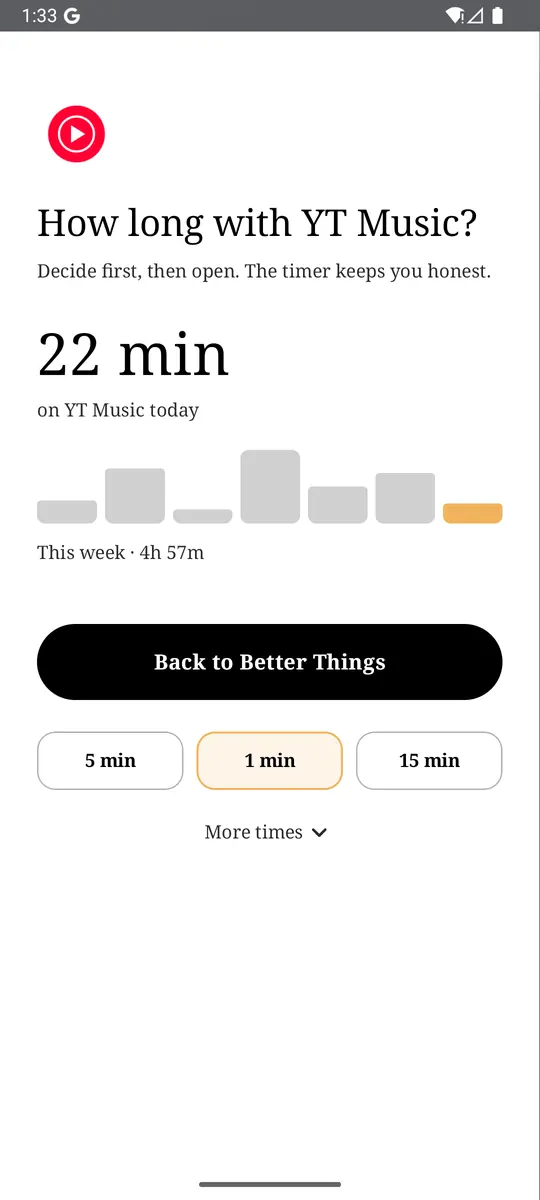
- App reminders. Before an app opens, ReClaim asks how long you intend to use it, then nudges you when that time is up.
- Daily and weekly limits. Give an app a budget. When it is up, ReClaim can close it. Our guide to app timers on Android compares this with the timers built into your phone.
- Blocking and scheduled blocking. Block an app for a set time, or set recurring windows, like evenings or weekends, when selected apps are not available.
- Hidden apps with friction. Hide an app with four levels of hiding, and put one of 10+ unlock challenges in front of it.
It is not the right launcher for everyone. If you want lots of widgets, icon packs, or a search-first home screen, the alternatives in our minimalist launcher roundup may suit you better. Switching is one setting, and so is switching back.
Touch and hold the bar. Remove appears? Tap it. Samsung with One UI 9: Settings → Home screen → Show search on Home screen, Search off. Motorola: Home settings → Search bar settings. Pixel: change launcher. If you want a launcher built around a quieter home screen, try ReClaim. It is free, works on Android 8.0 and newer, and you can switch back to your old home app any time from Settings → Apps → Default apps. Get it free on Google Play or read more at tryreclaim.io.
Questions
How do I remove the Google search bar from my Android home screen?
Touch and hold the search bar. If a menu with Remove appears, it is a widget, so tap Remove. If Google Search opens instead, the bar is built in: on a Samsung Galaxy with One UI 9, go to Settings, Home screen, Show search on Home screen, and turn off Search. On a Motorola, go to Home settings, Search bar settings. On a Pixel, there is no switch, so you need a different launcher.
Why can’t I remove the Google search bar on my Pixel?
On Pixel phones the bottom search bar is part of Pixel Launcher, not a widget, so there is no Remove option and no setting to hide it as of November 2026. A Show search bar toggle was spotted in Android 17 QPR1 beta code but was not in the stable release. Switching to a third-party launcher is the only way to remove it today.
How do I remove the search bar from my Samsung home screen?
On One UI 9, open Settings, tap Home screen, then Show search on Home screen, and turn off Search. Turn off Finder too if you want no search bar at all. On One UI 8 and earlier, the bar is a widget: touch and hold it and tap Remove.
Does removing the search bar turn off Google Search or uninstall the Google app?
No. It only removes the bar from your home screen. The Google app, Google Search in your browser, and your default search engine are not changed, and you can add the bar back at any time.
Can I move the Google search bar instead of removing it?
If it is a widget, yes: touch and hold it and drag it to another spot or another home screen page, or resize it. Built-in bars, such as the Pixel bar and Samsung’s One UI 9 bar, are fixed in place. Samsung suggests turning off the built-in bar and adding the Google search widget if you want to move it.
How do I get the Google search bar back on Android?
Turn the same setting back on, or add the widget again. In the Google app, tap your profile picture, then Settings, Customize Search widget, and tap Add. Or touch and hold an empty part of the home screen, tap Widgets, find Google, and drag the search widget into place.
Will I still be able to search my apps without the bar?
Yes. Removing the home screen bar does not affect searching in your app list on most phones, and you can still open the Google app or your browser to search the web.