Google Discover
How to turn off Google Discover on Android
To turn off Google Discover on Android, remove the feed from your home screen first. On a Pixel, touch and hold an empty spot on the Home screen, tap Home settings, and turn off Swipe to access Google app. On a Samsung Galaxy, touch and hold an empty spot, swipe right to the Google Discover or Samsung News page, and turn off the switch at the top. To empty the feed inside the Google app too, tap your profile picture, then Settings → General, and turn off Discover. No new launcher needed. Menu names vary a little by phone and software version.

If you want to turn off Google Discover on Android, the first thing to know is that “Discover” is not one switch. It is a feed of articles and videos that Google picks for you, and it appears in up to four places: the page one swipe to the right of your home screen, the Google app, the New Tab page in Chrome, and the google.com home page in your browser. Each place has its own setting. This guide covers all of them, starting with the one most people mean: the news page that opens when your thumb slides the wrong way on the home screen.
You do not need to install a new launcher for any of this. Pixel phones, Samsung Galaxy phones, and recent Motorola phones all have a built-in switch for the home screen page. The steps below follow Google’s and Samsung’s own help pages where they exist, and dated, hands-on guides where they do not. Menu names can shift between software versions, so where a label is known to vary, we say so.
What is Google Discover, and where does it show up?
Google describes Discover as a way to get updates on your interests “without searching for them.” Its help page on customizing Discover lists where you can find it: on some devices by swiping right from the home screen, in the Google app, and in your phone’s browser on google.com. Chrome adds a fourth spot: suggested Discover articles under the search box on the New Tab page.
That matters because turning off one does not turn off the others:
- The home screen page belongs to your launcher (Pixel Launcher, One UI Home on Samsung, and so on). Turning it off removes the page; the Google app still works.
- The Google app has its own Discover setting. Turning it off empties the feed inside the app, and on a Pixel it also empties the swipe-right page, but the page itself stays.
- Chrome and google.com each have a separate switch for the articles they show.
If your goal is a calmer first screen, the launcher switch is the one that matters most. It removes the feed from the gesture you make dozens of times a day. If you are working toward a quieter phone overall, the minimal Android home screen guide covers what else to take off page one.
How do you disable Google Discover on a Pixel?
On Pixel phones the feed is part of Pixel Launcher, the home app Pixel phones ship with. The switch lives in Home settings, not in the Google app or the main Settings app:
- Go to your Home screen and touch and hold an empty area (not an app or widget). A small menu appears.
- Tap Home settings. On current versions the menu also lists Wallpaper & style and Widgets; Home settings is the one you want.
- Turn off Swipe to access Google app. This is the switch that controls the Discover page to the left of your main home screen.
- Check it. Go back to Home and swipe right. The feed should no longer open.
To bring Discover back, repeat the steps and turn Swipe to access Google app on again. The same switch name appears in Pixel community answers going back to 2021 and in hands-on guides tested on Android 17 in November 2026, so it has been stable for years. If you do not see Home settings at all, your phone may be using a different home app; see how to change the default launcher on Android to check which one is set, and to switch back to Pixel Launcher if needed.
Turning this switch off does not uninstall or disable the Google app. The Google app and the search bar on your home screen keep working; the feed simply has no page on your home screen any more.

How do you turn off Samsung News or Google Discover on a Galaxy?
Samsung’s home screen app, One UI Home, calls this a media page. Depending on your model, country, and carrier, the page shows Google Discover, Samsung News, or, on older phones, Samsung Free. Samsung’s help on Google Discover for Galaxy phones says you cannot delete Samsung News or Google Discover, but you can turn them off so they no longer appear when you swipe right:
- Touch and hold a blank part of the Home screen. The screen zooms out into edit mode and shows your pages.
- Swipe right until you reach the leftmost page: the Google Discover or Samsung News page. On phones that offer both, the page is split between them.
- Tap the switch at the top to turn it off. Samsung’s help says this turns off both services.
- Press Home and swipe right to confirm the page is gone.
There is also a route through Settings. Open Settings → Home screen (or touch and hold the Home screen and tap Settings) and turn off Add media page to Home screen. Samsung lists that option as the one that adds media apps “like Google Discover and Samsung News” to your Home screen. Tap the option’s name, rather than its switch, if you want to swap between Discover and Samsung News instead of turning the page off.
If you only dislike one of the two, you can choose. Samsung’s help says that on supported models, touching and holding the Home screen and swiping right shows a split page; tap Google Discover or Samsung News, and the next swipe right opens the one you picked. Samsung also notes that availability varies by country, carrier, and model, and that, under Google’s policy, account users under 13 cannot use Discover on the Galaxy S24 series.
While you are in Settings → Home screen, the same page holds App icon badges. If the red dots on icons are another thing pulling you back, see how to turn off notification dots on Android.
What about Motorola and other Android phones?
Motorola documents its own switch. Per Motorola’s help for the moto g (2025) on Android 16:
- Touch and hold a blank space on your home screen.
- Tap Home settings.
- Tap Swipe Access and choose Nothing. To add the feed back, change Swipe Access to Google feed.
Other brands, including OnePlus, Nothing, Xiaomi, and realme, use their own home screen apps, and the name and location of the switch change between brands and software versions. We could not confirm a current official path for each of them, so we are not listing one. The general approach works on most phones: touch and hold an empty spot on the home screen, open the home screen or launcher settings, and look for a switch that mentions Google, Discover, the Google feed, or swiping to the left page. If your home screen app has no such switch, the Google app setting below at least empties the feed.
If you use a third-party launcher, the left page, if it has one, is controlled in that launcher’s own settings, not in any of the menus above.
How do you turn off the Discover feed in the Google app?
This is the switch Google documents in its “Turn off Discover” help page for Android:
- Open the Google app. You can also swipe to the Discover page, if it is still on.
- Tap your profile picture or initial at the top right.
- Tap Settings, then General.
- Turn off Discover.
Once it is off, the Google app opens to search without the stream of stories below it. If you left the Pixel home screen switch on, the swipe-right page still exists but is almost empty, with a prompt to turn Discover back on. That is fine if you still want the Google app one swipe away. If you want the page gone completely, use the launcher switch above as well.
The Google app has a related setting on the same General page: Data Saver, which Google says keeps some features, like Discover, from refreshing as often. It is not a way to turn Discover off, but it is there if you want the feed to stay and use less data.
How do you turn off Discover in Chrome and on google.com?
Chrome on Android can show Discover articles under the search box when you open a new tab. Google’s Chrome help on customizing the New Tab page gives the current path:
- Open Chrome and open a New Tab page.
- Tap More (the three dots) at the top right, then Customize new tab page.
- Tap Discover feed and turn it off.
Google notes that to customize the New Tab page you must be signed in to your Google Account and use Google as your default search engine, so the menu can look different if either is not true. Older guides describe a gear icon next to the feed with a Turn off option; Chrome now puts the control in Customize new tab page.
If you browse to google.com in a mobile browser, the same Google help page has a separate setting, which Google says is not available in every country or language: on google.com, tap your profile picture or initial, then More settings → Other settings, and turn off Show Discover on home page.
Which switch turns off the Discover page on Android?
Here is what each setting does, so you can pick the ones you need. Most people want the first row for their brand, plus the Google app row.
| Where | Path | What it does |
|---|---|---|
| Pixel home screen | Touch and hold Home → Home settings → Swipe to access Google app | Removes the swipe-right page. Google app untouched. |
| Samsung Galaxy home screen | Touch and hold Home → swipe right → switch at top, or Settings → Home screen → Add media page to Home screen | Removes the Discover / Samsung News page. |
| Motorola home screen | Touch and hold Home → Home settings → Swipe Access → Nothing | Removes the Google feed page. |
| Google app | Profile picture → Settings → General → Discover | Empties the feed in the Google app (and the Pixel page, if still on). |
| Chrome | New tab → More → Customize new tab page → Discover feed | Removes suggested articles from new tabs. |
| google.com in a browser | Profile picture → More settings → Other settings → Show Discover on home page | Hides Discover on the google.com home page, where available. |
For a phone that opens to a clock and a few apps instead of a feed, pair the home screen switch with the rest of the minimal home screen setup: no news widgets, no suggestion rows, and nothing on page one that refreshes itself.
Can you keep Discover but clean it up?
If you like having the feed but not what is in it, Google’s Discover help describes a few controls:
- Hide a topic or a source. At the bottom right of a story card, tap More, then Not interested in the topic or Don’t show content from the source. You can unhide them later from Discover’s settings.
- Follow what you want. Google lets you follow topics so they show up more often. Google notes some of these options are not available in every language and country.
- Control what personalizes it. Discover’s personalization uses your Web & App Activity, a Google Account setting. Turning Discover off is a separate choice from turning that activity off; the Chrome help page also explains how to stop suggestions based on new activity.
Be honest with yourself about which problem you have. If the issue is bad articles, tuning helps. If the issue is that you open the feed without meaning to, even a perfect feed will keep pulling you in. That is a habit problem, and removing the page is the more reliable fix. Our guide on how to stop doomscrolling on Android covers the other stopping points Android already has.
What changes between Android and One UI versions?
- Pixel: The Home settings switch has been called Swipe to access Google app across several Android versions, and recent hands-on guides on Android 17 show the same name. If a future update renames it, look in Home settings for a switch that mentions the Google app or Discover.
- Samsung One UI: Older Galaxy phones (the Galaxy S20 and earlier) offered Samsung Free on the media page. Newer models can show Google Discover or Samsung News instead, and Samsung lists recent models, including the S25, S24, Z Fold6, and Z Flip6, as coming with both. The Settings option is called Add media page to Home screen; some versions label the page itself “Media page.”
- Motorola: Motorola’s help documents Swipe Access for the moto g (2025) on Android 16. Older Motorola models may name it differently.
- Google app and Chrome: These update through Google Play, separately from Android. Their menus can change without a system update, which is why an older guide may show a gear icon or an “Other settings” label where your phone shows something else.
Discover still showing up? Troubleshooting
- The swipe-right page is still there but blank. You turned off Discover in the Google app, not on the home screen. Use the Pixel, Samsung, or Motorola steps above to remove the page itself.
- There is no Home settings option, or no Google switch in it. Check which home app you use under Settings → Apps → Default apps → Home app (Choose default apps on Samsung). If it is not the one your phone came with, the switch lives in that launcher’s own settings. Some Pixel owners have also reported the switch missing from Home settings; Google notes some Discover features are not available in every country or language.
- Samsung shows no media page at all. Samsung says Discover and Samsung News availability varies by country, carrier, and model. If there is no page to swipe to, there is nothing to turn off on the home screen.
- Chrome still shows articles. Chrome is separate from the Google app. Turn off Discover feed under Customize new tab page in Chrome.
- Discover came back. After a new phone, a reset, or a switch to another launcher, the default settings can come back. Repeat the steps for your home screen and the Google app.
- You turned off the wrong thing. Every switch here can be turned back on the same way. None of them deletes the Google app, your account, or your search history.
Where ReClaim fits
ReClaim is the Android launcher we build. You do not need it to turn off Discover; the switches above are built into your phone. We mention it because the reason most people go looking for this setting is the same one we built ReClaim around: a home screen that keeps offering you something to scroll. ReClaim’s home screen is a clock and the few apps you choose, with everything else in a plain alphabetical list. On top of that:
- App reminders. Before an app opens, ReClaim asks how long you intend to use it, then nudges you when that time is up.
- Daily and weekly limits. Give an app a budget. When it is up, ReClaim can close it.
- Blocking and scheduled blocking. Block an app for a set time, or set recurring windows, like evenings or weekends, when selected apps are not available.
- Hidden apps with friction. Hide an app with four levels of hiding, and put one of 10+ unlock challenges in front of it.
If you want to compare options first, our roundup of the best minimalist launchers for Android covers ReClaim alongside the alternatives, including where they do better. Switching is one setting, and so is switching back.
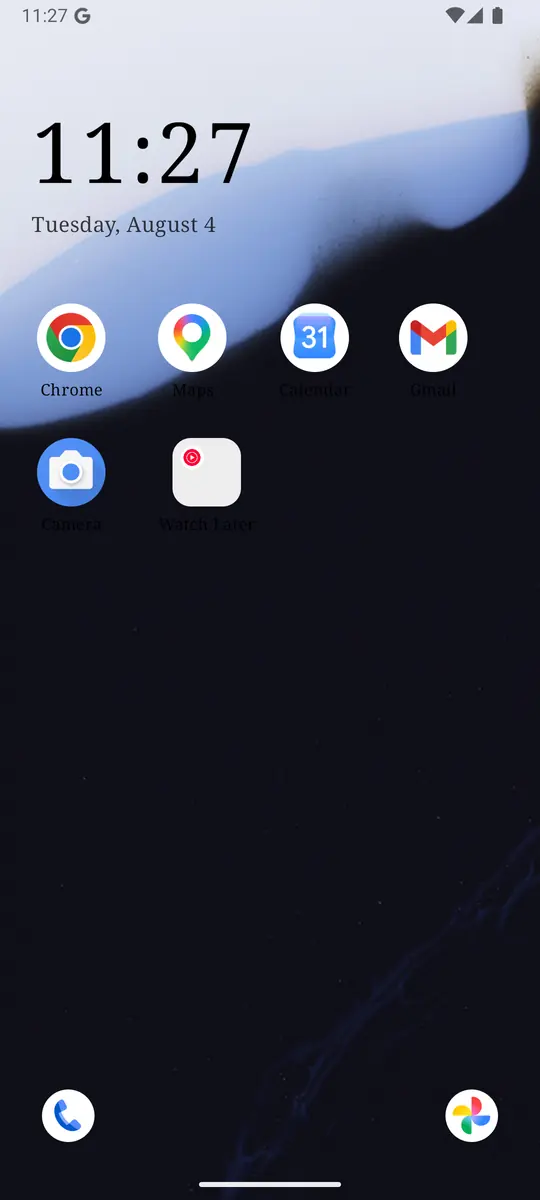
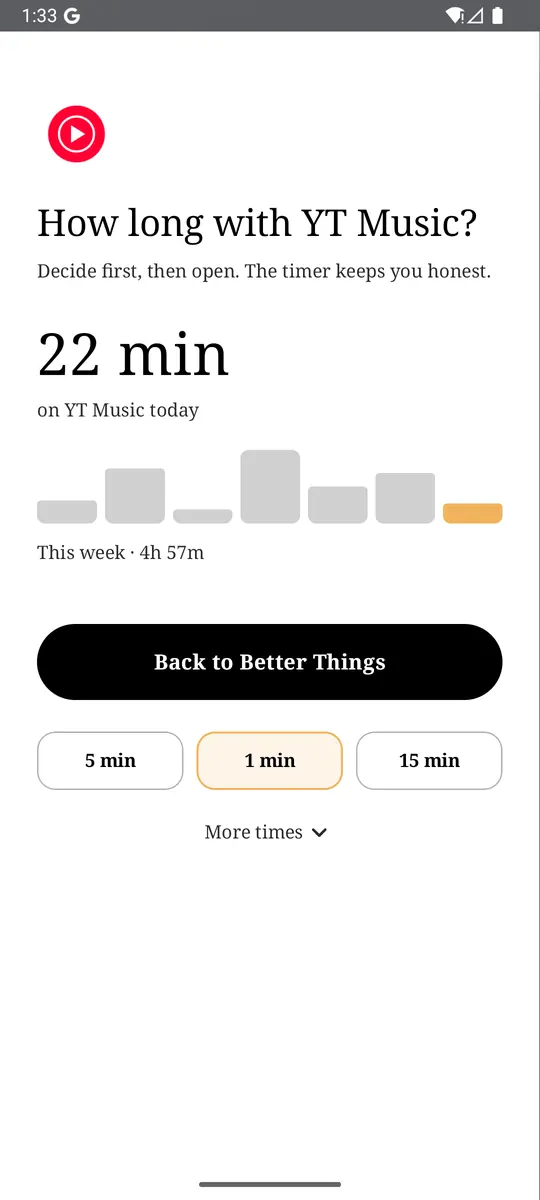
Pixel: Home settings → Swipe to access Google app, off. Samsung: touch and hold Home, swipe right, switch off. Then turn off Discover in the Google app if you want the feed gone there too. If you also want a pause before the apps you open on autopilot, try ReClaim. It is free, works on Android 8.0 and newer, and you can switch back to your old home app any time from Settings → Apps → Default apps. Get it free on Google Play.
Questions
How do I turn off Google Discover on Android?
On a Pixel, touch and hold an empty spot on the Home screen, tap Home settings, and turn off Swipe to access Google app. On a Samsung Galaxy, touch and hold the Home screen, swipe right to the Discover or Samsung News page, and turn off the switch at the top. To empty the feed in the Google app as well, go to your profile picture, Settings, General, and turn off Discover.
Can I uninstall Google Discover?
Not as a separate app. Discover is part of the Google app and your home screen, and Samsung says you cannot delete Samsung News or Google Discover. You can turn both off, which removes the page from your home screen.
Why is there still a blank Google page when I swipe right?
You turned off Discover in the Google app but left the home screen page on. On a Pixel, turn off Swipe to access Google app in Home settings to remove the page itself.
How do I turn off Samsung News on my Galaxy?
Touch and hold a blank part of the Home screen, swipe right to the Samsung News or Google Discover page, and tap the switch at the top. You can also turn off Add media page to Home screen in Settings, under Home screen.
How do I stop Discover articles in Chrome?
Open a new tab in Chrome, tap More, tap Customize new tab page, then Discover feed, and turn it off. This is separate from the Google app setting.
Does turning off Discover stop the Google app or search from working?
No. These switches hide the feed. Google Search, the Google app, and the search widget keep working, and you can turn Discover back on the same way.
How do I get Google Discover back?
Repeat the same steps and turn the switch back on: Swipe to access Google app on a Pixel, the switch at the top of the media page on Samsung, Swipe Access set to Google feed on Motorola, or Discover under General in the Google app.