TikTok notifications
How to turn off TikTok notifications on Android
To turn off TikTok notifications on Android, open TikTok, tap Profile → Menu ☰ → Settings and privacy → Notifications, and turn off the notifications you do not want. To mute them during set hours, tap Push notification schedule on the same screen. To stop everything TikTok sends, open your phone’s Settings → Notifications → App notifications, tap TikTok, and turn its notifications off. Menu names vary a little by TikTok version and phone.

What does TikTok send notifications about?
TikTok’s notifications help page says you get notifications about new messages, activities, followers, and more, and that push notifications, the ones that land on your phone when you are not in the app, can include likes, comments, video suggestions, and more.
- Activity on your account. Likes, comments, mentions, and new followers.
- Messages and calls. Direct messages, and voice calls that ring your phone.
- Things TikTok picks. Video suggestions, which are about getting you back into the feed.
That last group is the one to watch. A video suggestion is not someone trying to reach you. It is an invitation to open the For You feed, and the For You feed is very good at keeping you there. You can turn these down from inside TikTok, on a schedule, or for the whole app.
How do you turn off notifications in the TikTok app?
Start here if you still want some notifications, like messages, but not the rest. Per TikTok’s help:
- Open TikTok and tap Profile at the bottom.
- Tap the Menu ☰ button at the top, then select Settings and privacy.
- Tap Notifications, then turn off the notifications you do not want to get.
These settings belong to the TikTok account, so if you switch between more than one account in the app, repeat the steps for each.

How do you mute TikTok notifications on a schedule?
If you want quiet for the same hours every day, like nights or the workday, TikTok has a Push notification schedule. From TikTok’s help:
- Tap Profile, then the Menu ☰ button, then Settings and privacy.
- Tap Notifications, then Push notification schedule.
- Turn the setting on and adjust the time.
TikTok does not send push notifications during the time you schedule. For teen accounts, TikTok sets this by default: 9 p.m. to 8 a.m. for ages 13 to 15, and 10 p.m. to 8 a.m. for ages 16 to 17, and teens can’t change it. Parents can add more muted time through Family Pairing, but the default hours win wherever the two overlap.
How do you turn off TikTok voice call notifications?
Voice calls ring your phone, so they are the loudest kind of TikTok notification. Per TikTok’s help, go to Profile → Menu ☰ → Settings and privacy → Notifications → Voice call and choose who can ring you:
- Everyone
- People you follow, which TikTok says is the default
- No one
You can still make and get voice calls inside your messages. This only changes who can make your phone ring.
How do you turn off TikTok notifications in Android settings?
If you want TikTok to send nothing at all, use Android’s own app notification settings. TikTok’s help notes you can change its notifications from your device settings too. Per Google’s Android notification help:
- Open Settings and tap Notifications, then App notifications (on some phones, Apps).
- Select All apps if needed, and find TikTok.
- Turn off its notifications, or tap in and turn off only the categories you do not want.
Shortcut: touch and hold a TikTok notification in your notification shade, and you can jump straight to its settings. This is the bluntest option, and it holds no matter what you change inside the app. Likes, comments, and messages still wait in your Inbox for when you open TikTok on purpose. For the general version of this for any app, see how to turn off notifications for specific apps.
Which option should you pick?
| Option | What it stops | Use it for |
|---|---|---|
| Turn off notification types | Likes, comments, suggestions, or whatever you pick. | Most people. Start here. |
| Push notification schedule | Push notifications, during the hours you set. | Nights, or the workday. |
| Voice call setting | Calls ringing your phone from people you pick. | Keeping calls to people you follow, or none. |
| Android app settings | Everything TikTok sends. | When you want TikTok silent. |
A good default: keep messages, turn off likes and video suggestions, and set a push notification schedule for the night. If you keep opening TikTok from a notification and surfacing 40 minutes later, go all the way and turn it off in Android settings. For quiet hours across every app, use Do Not Disturb, and to keep previews off the lock screen, see how to hide notifications on the lock screen.

What if TikTok notifications keep coming back?
I turned them off, but I still get some
- Check the account. Settings are per TikTok account, so a second account in the app can still notify you.
- Check which app sent it. Touch and hold the notification and see which app it names. TikTok Lite and TikTok Studio are separate apps with their own settings.
- Check Android. If TikTok is allowed in Android settings, anything you left on in the app still comes through.
I want messages, but nothing else
- In TikTok’s Notifications settings, leave messages on and turn off the other types. Or in Android settings, open TikTok’s notifications and keep only the categories you want.
I cannot find the setting
- Update TikTok from Google Play, then look again. TikTok moves menus around between versions.
Where ReClaim fits
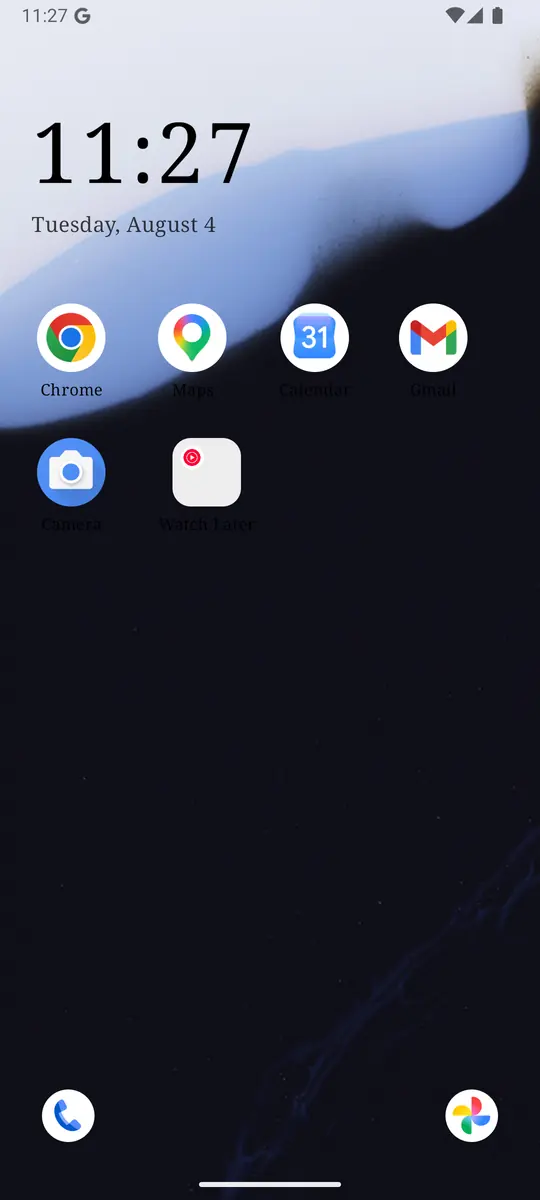
ReClaim is the Android launcher we build. It does not read or change your notifications, and it does not touch TikTok’s settings, so everything above keeps working as described. What ReClaim changes is what you see when you unlock: a home screen with a clock and the few apps you choose, and a plain alphabetical list of names for everything else. On top of that:
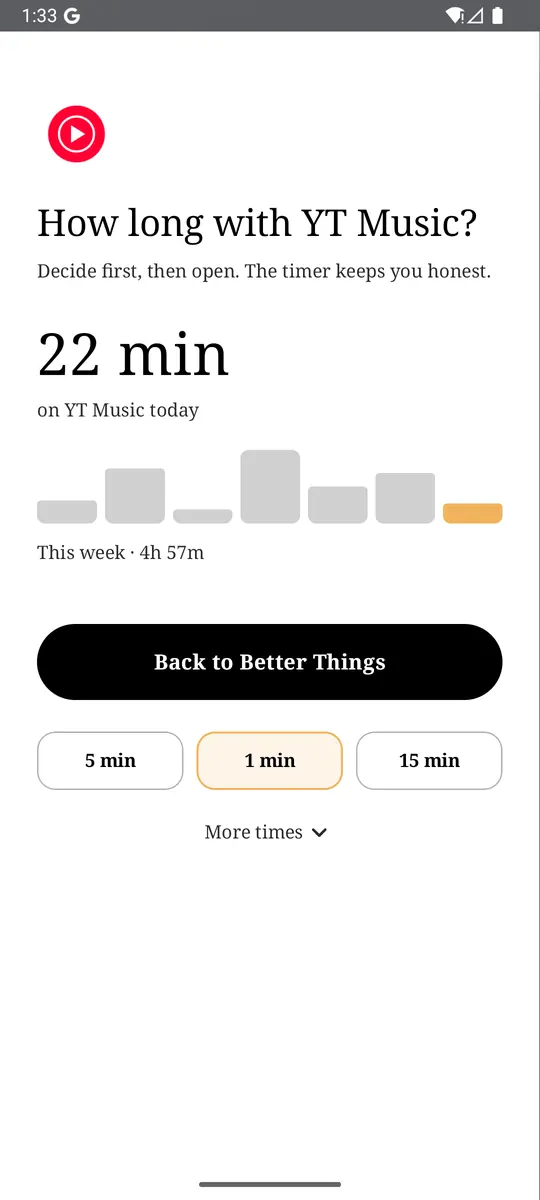
- App reminders. Before TikTok opens, ReClaim asks how long you intend to use it, then nudges you when that time is up.
- Daily and weekly limits. Give TikTok a budget. When it is up, ReClaim can close it.
- Blocking and scheduled blocking. Block an app for a set time, or set recurring windows, like bedtime, when selected apps are not available.
- Hidden apps with friction. Hide an app with four levels of hiding, and put one of 10+ unlock challenges in front of it.
If you want to try it, see how to change the default launcher on Android; switching back is the same setting. If the real problem is the endless feed, see how to stop doomscrolling on Android.
Open TikTok → Profile → Menu → Settings and privacy → Notifications and turn off the ones you do not need. If you also want a pause before TikTok opens, try ReClaim. It is free, works on Android 8.0 and newer, and you can switch back to your old home app any time from Settings → Apps → Default apps. Get it free on Google Play.
Questions
How do I turn off TikTok notifications on Android?
Open TikTok, tap Profile at the bottom, tap the Menu button at the top, then Settings and privacy, then Notifications, and turn off the notifications you do not want. To stop everything TikTok sends, open your phone’s Settings, tap Notifications, then App notifications, find TikTok, and turn its notifications off.
How do I mute TikTok notifications at night?
In TikTok, go to Profile, Menu, Settings and privacy, Notifications, then Push notification schedule. Turn it on and set the time. TikTok does not send push notifications during the hours you schedule.
Can teens change the TikTok notification schedule?
No. TikTok says push notifications are muted by default from 9 p.m. to 8 a.m. for teens aged 13 to 15, and from 10 p.m. to 8 a.m. for teens aged 16 to 17, and that this can’t be changed. A parent can add more muted time through Family Pairing.
How do I stop TikTok voice call notifications?
Go to Profile, Menu, Settings and privacy, Notifications, then Voice call, and choose People you follow or No one. TikTok says People you follow is the default. You can still make and get calls inside your messages.
Will people know if I turn off TikTok notifications?
No. Turning off notifications only changes what your phone shows you. Nobody is told, and you can still see likes, comments, and messages in your Inbox when you open the app.
Why do I still get TikTok notifications after turning them off?
Check which app sent it by touching and holding the notification, and check you changed the right TikTok account if you use more than one. Also check the Android setting: if TikTok is allowed there, any type you left on in the app still comes through. Turning TikTok off in Android settings stops all of them.